
Menus
A menu is created with jo.menu.create(). This page lists all the options of a menu, and how to navigate between menus and display them.
Create a menu
local menu = jo.menu.create("tailor", {
  title = "Tailor",
  subtitle = "Clothes",
  type = "list",
})
menu:addItem({ title = "Stetson", icon = "hats" })
menu:send()- The ID (
"tailor") is unique: creating a menu with an existing ID replaces the old one. jo.menu.createIfNotExist()creates the menu only the first time, and returns the existing menu otherwise.MenuClass:send()sends the menu to the NUI. Call it once the items are added.jo.menu.get(id)returns a menu from anywhere in your resource.
Create a menu only when it's needed
Building a big menu takes time. With jo.menu.missingMenuHandler(), the menu is created the first time it's opened, by jo.menu.setCurrentMenu() or by the child key of an item.
jo.menu.missingMenuHandler("hats", function()
  local hats = jo.menu.create("hats", { title = "Tailor", subtitle = "Hats" })
  for _, hat in ipairs(Config.hats) do
    hats:addItem({ title = hat.label, icon = "hats" })
  end
  hats:send()
  hats:use(true) -- display it now
end)
Menu types
The type option changes the layout of the items: list (default) or tile.
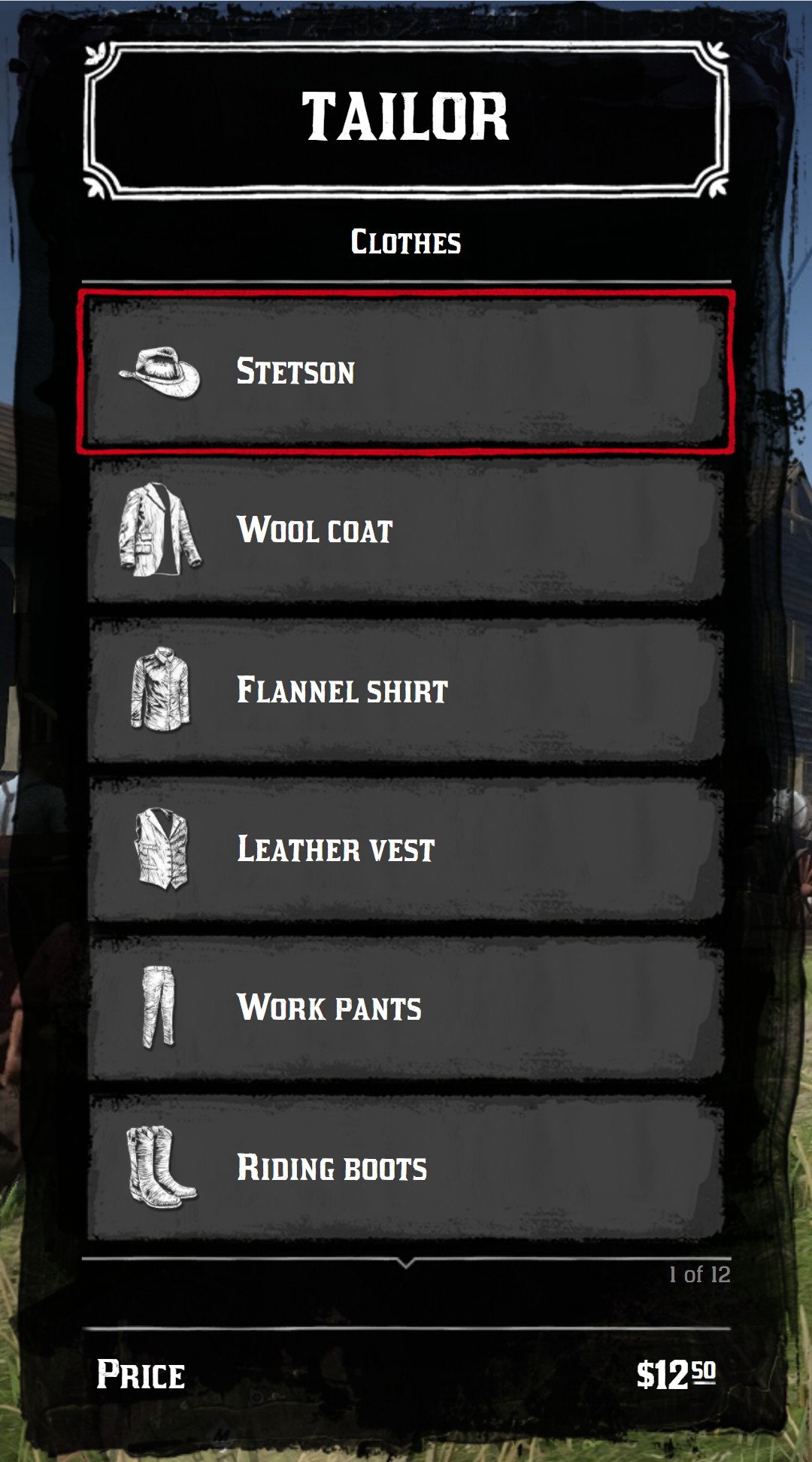
type = "list"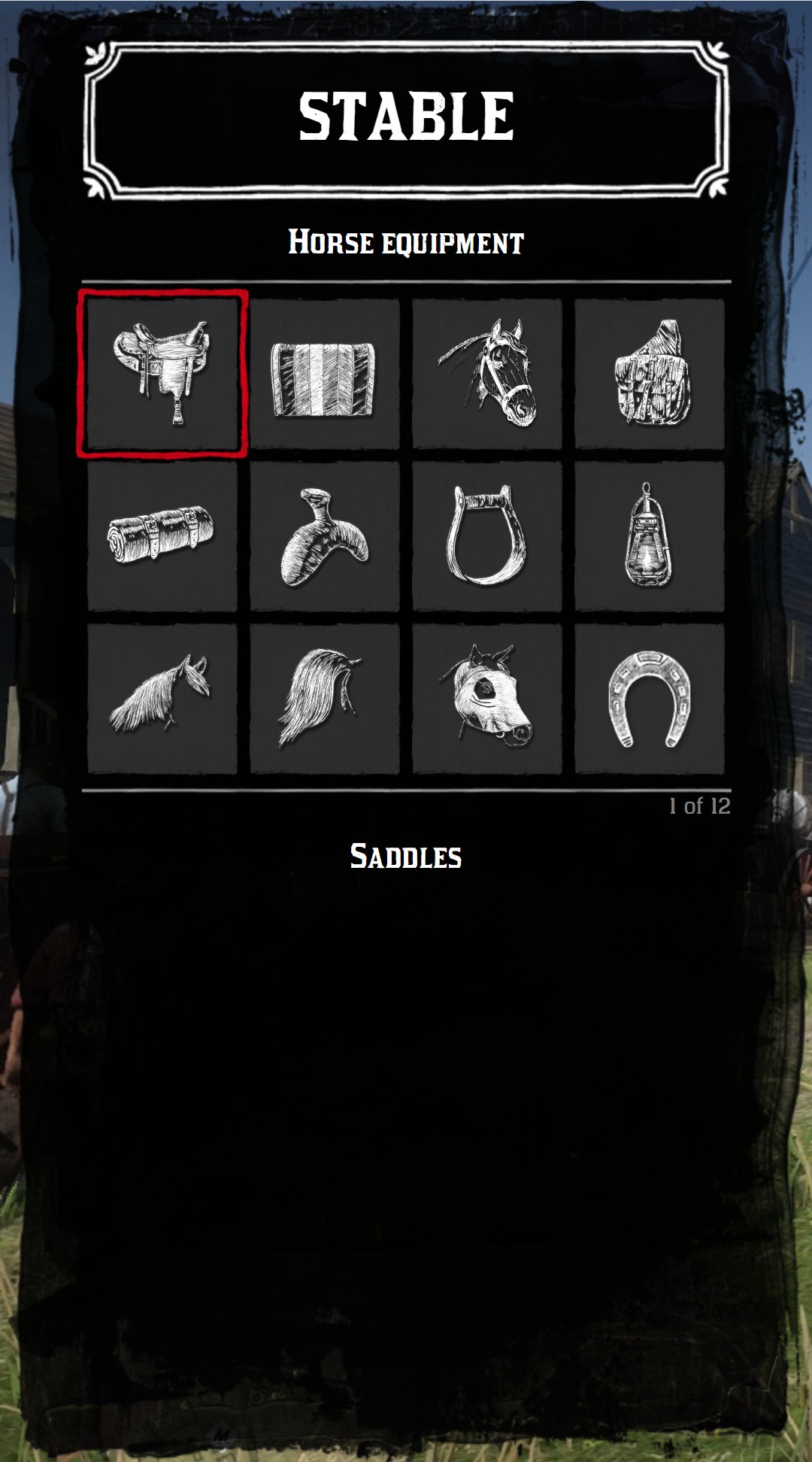
type = "tile"List
numberOnScreen sets the height of the list, in rows: 8 by default and 13 maximum. Beyond, the list scrolls, with arrows and a counter at the bottom.
jo.menu.create("tailor", { title = "Tailor", subtitle = "Clothes", numberOnScreen = 5 })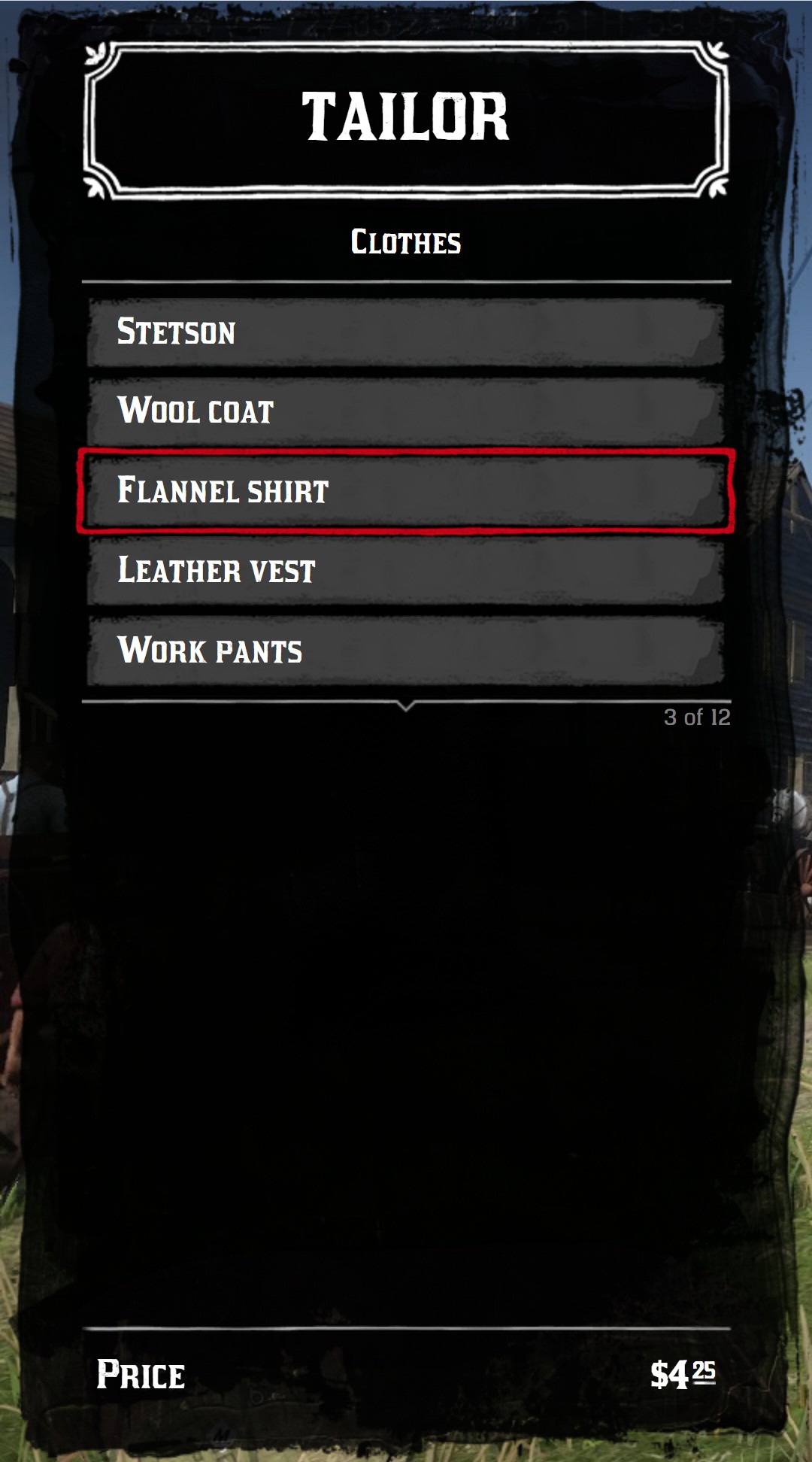
Items with an icon are twice as high
An item with an icon takes 2 rows. With the default numberOnScreen = 8, 4 items with an icon are visible. Set numberOnScreen = 12 to display 6 of them.
Tile
In a tile menu, only the icon of each item is displayed. The title, subtitle and description of the active item are displayed under the grid.
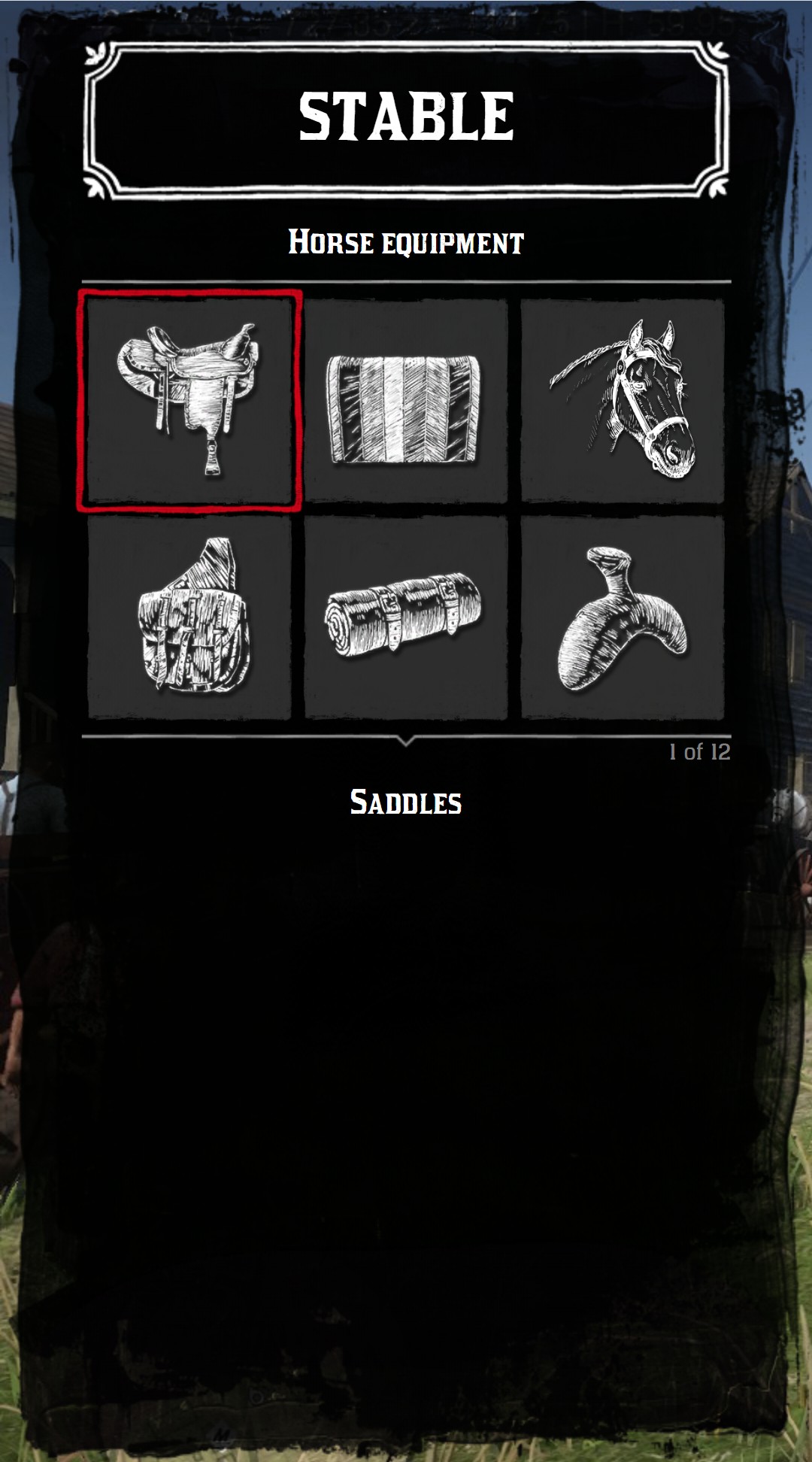
numberOnLine: number of tiles per line, 4 by default.numberLineOnScreen: number of lines displayed before the scroll, 6 by default.
jo.menu.create("stable", {
  title = "Stable",
  subtitle = "Horse equipment",
  type = "tile",
  numberOnLine = 3,
  numberLineOnScreen = 2,
})
Items of a tile menu have some specific options: quantity, quality, stars and image padding. See Tile items.
Title and subtitle
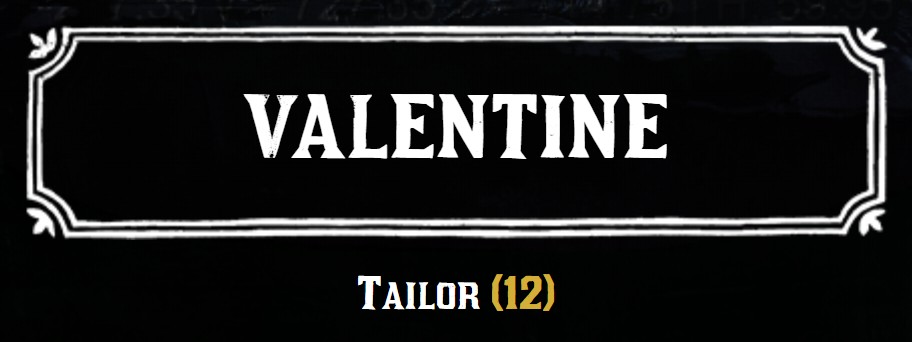
title is the big title in the header, subtitle the line above the items. Both accept HTML.
jo.menu.create("tailor", {
  title = "Valentine",
  subtitle = "Tailor <span style='color:#d4af37'>(12)</span>",
})
Image
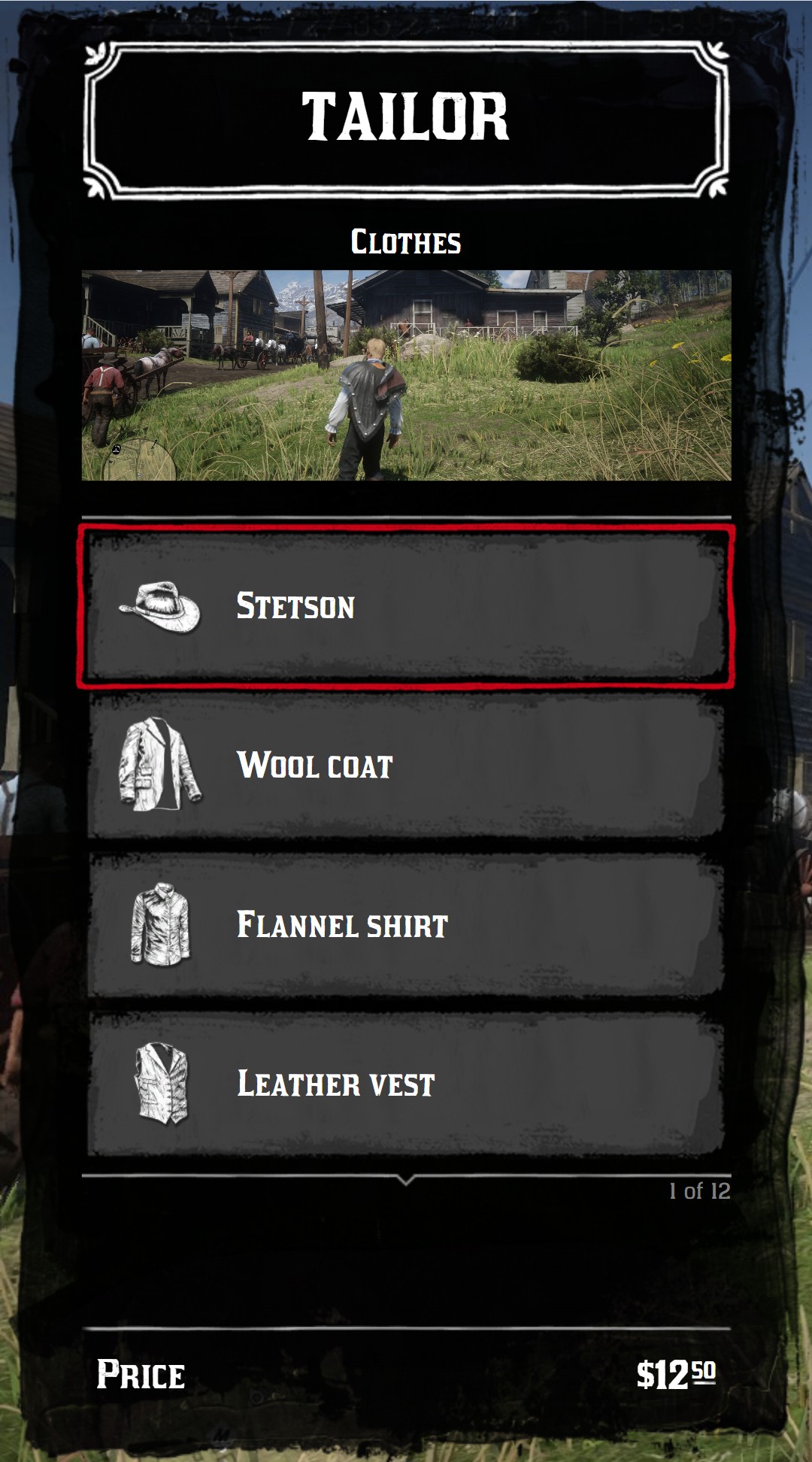
image displays an image between the subtitle and the items. It's a URL, or a table to set its size:
| Key | Type | Description |
|---|---|---|
url | string | The URL of the image, like nui://my_resource/images/banner.png |
width | number|string | Width: a number in pixels or a CSS length |
height | number|string | Height: a number in pixels or a CSS length |
radius | number|string | Rounded corners: a number in pixels or a CSS length |
style | string | Additional CSS, like "object-fit: cover" |
jo.menu.create("tailor", {
  title = "Tailor",
  subtitle = "Clothes",
  image = {
    url = "nui://my_resource/images/valentine.jpg",
    height = 140,
    style = "width: 100%; object-fit: cover",
  },
})
Images of your resource
To use an image of your resource with nui://my_resource/..., declare it in the files of your fxmanifest.lua.
Back button
The back arrow is displayed next to the subtitle when there is a previous menu in the history. displayBackButton = true displays it on every menu, even the first one. A click on it acts like Backspace: it fires onBack and goes back to the previous menu.
jo.menu.create("tailor", { title = "Tailor", subtitle = "Clothes", displayBackButton = true })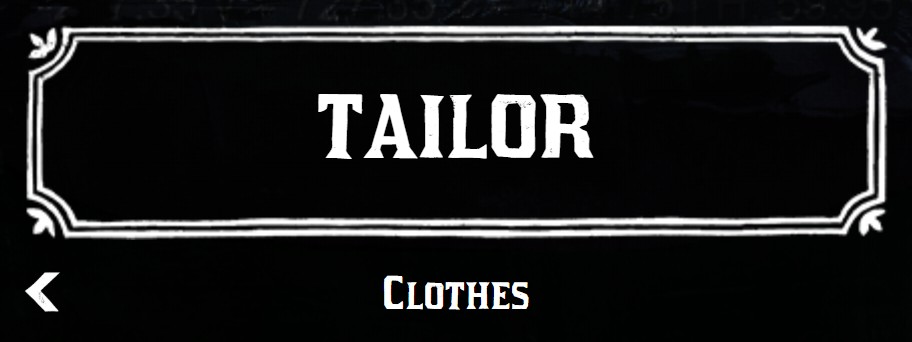
Background
hideBackground = true removes the dark background of the menu, to see the game behind.
jo.menu.create("tailor", { title = "Tailor", subtitle = "Clothes", hideBackground = true })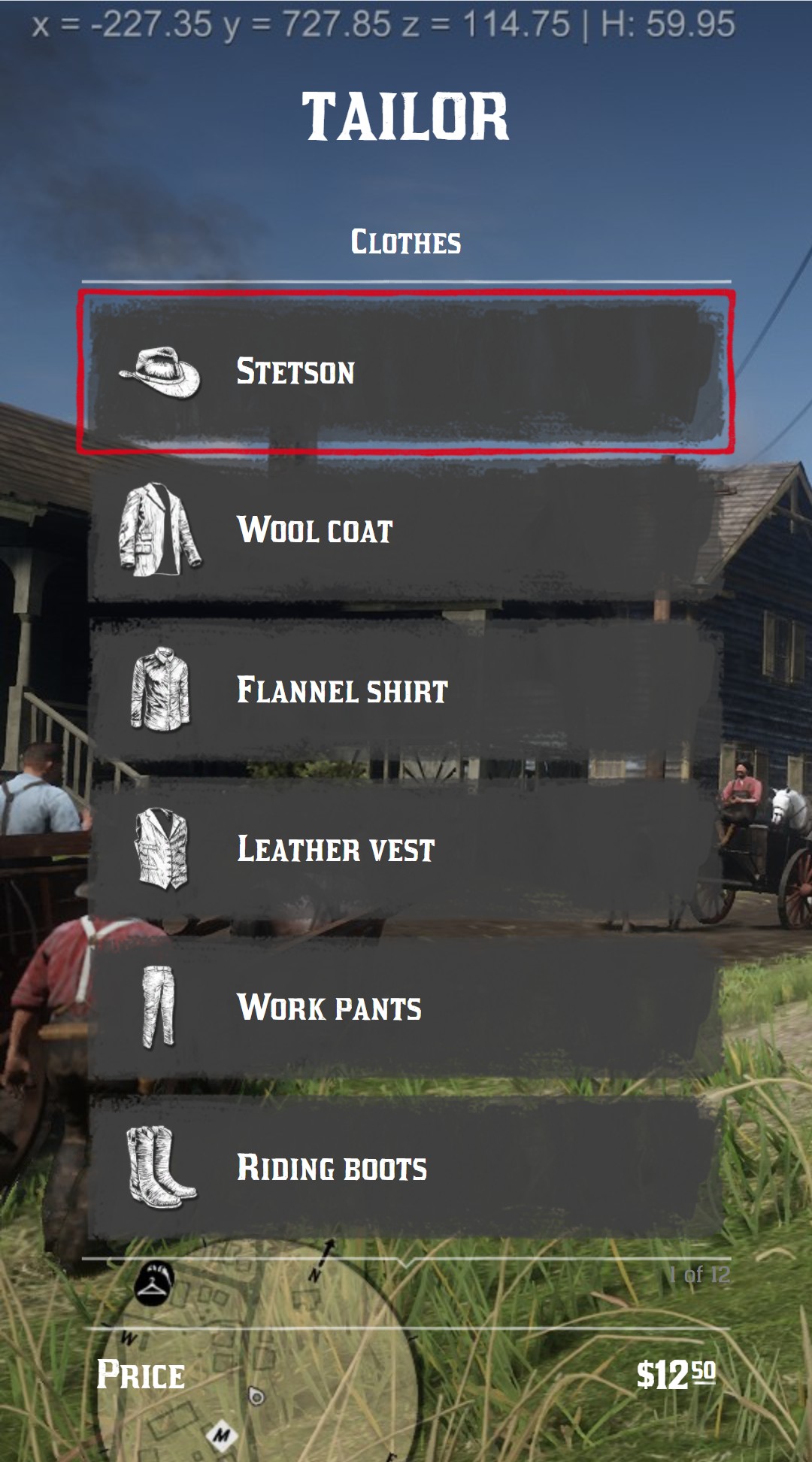
Price of the menu
price displays a price when the active item has no price of its own, and priceTitle replaces its "Price" label. It's useful when all the items have the same price, like the haircuts of a barber. An item with a price displays its own price.
local menu = jo.menu.create("barber", {
  title = "Barber",
  subtitle = "Haircuts",
  price = { money = 2.5 },
  priceTitle = "Haircut",
})
menu:addItem({ title = "Buzzed", icon = "hair_buzzed" })
menu:addItem({ title = "Bald", icon = "clothing_item_hair_bald", price = { money = 1 }, priceTitle = "Shave" })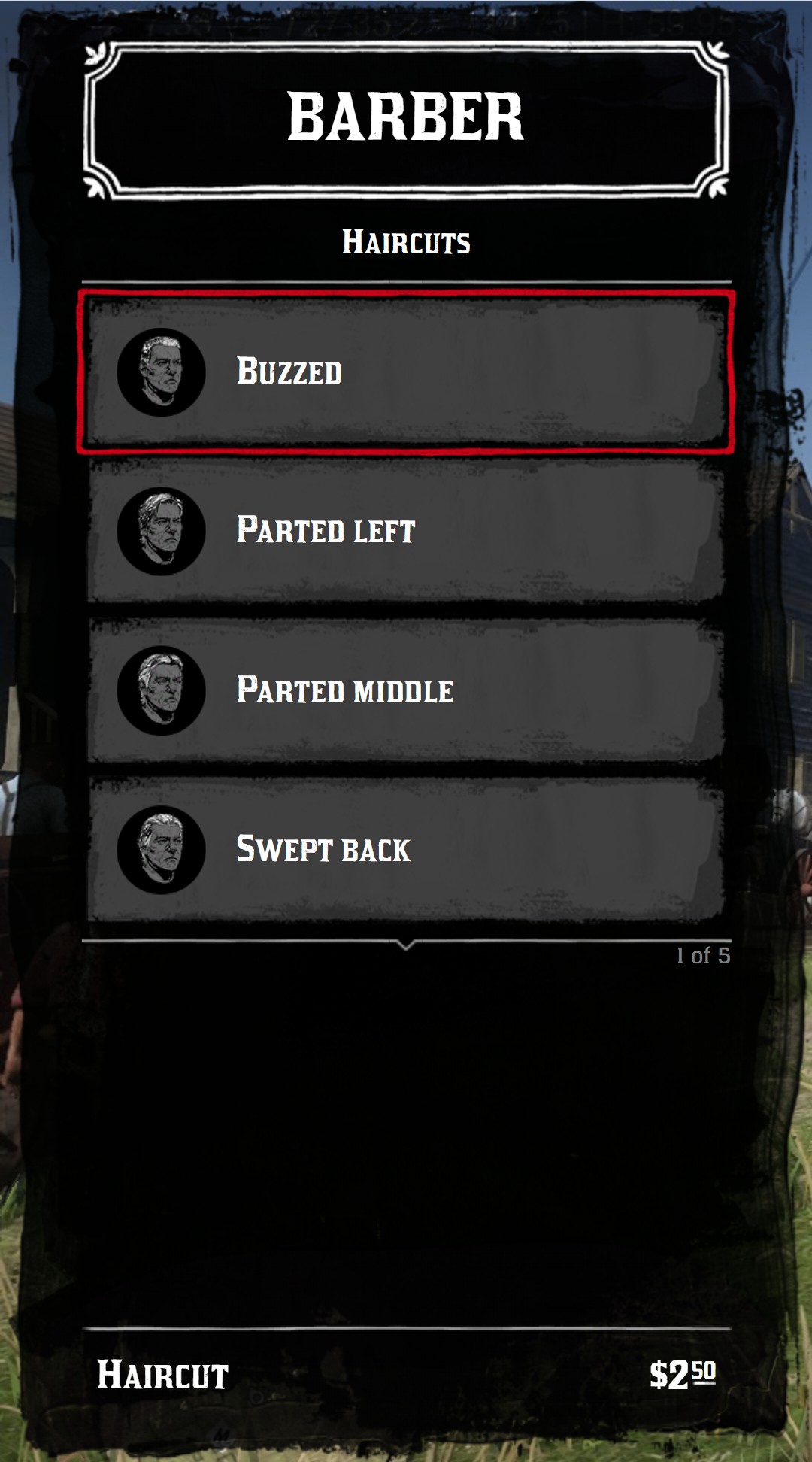
All the price formats are listed in Prices.
Navigation
Open a menu
jo.menu.setCurrentMenu() (or MenuClass:use()) changes the menu displayed. If the menu is already displayed, the new one replaces it immediately.
jo.menu.setCurrentMenu("tailor")  -- keep the history, move the cursor to the first item
jo.menu.setCurrentMenu("tailor", false)  -- clear the history: Backspace won't go back
jo.menu.setCurrentMenu("tailor", true, false)  -- keep the position of the cursor
Sub-menus
The child key of an item opens another menu when the item is clicked. The previous menu is kept in the history, and Backspace (or the back arrow) goes back to it.
local menu = jo.menu.create("tailor", { title = "Tailor", subtitle = "Clothes" })
menu:addItem({ title = "Hats", icon = "hats", child = "hats" })
menu:send()

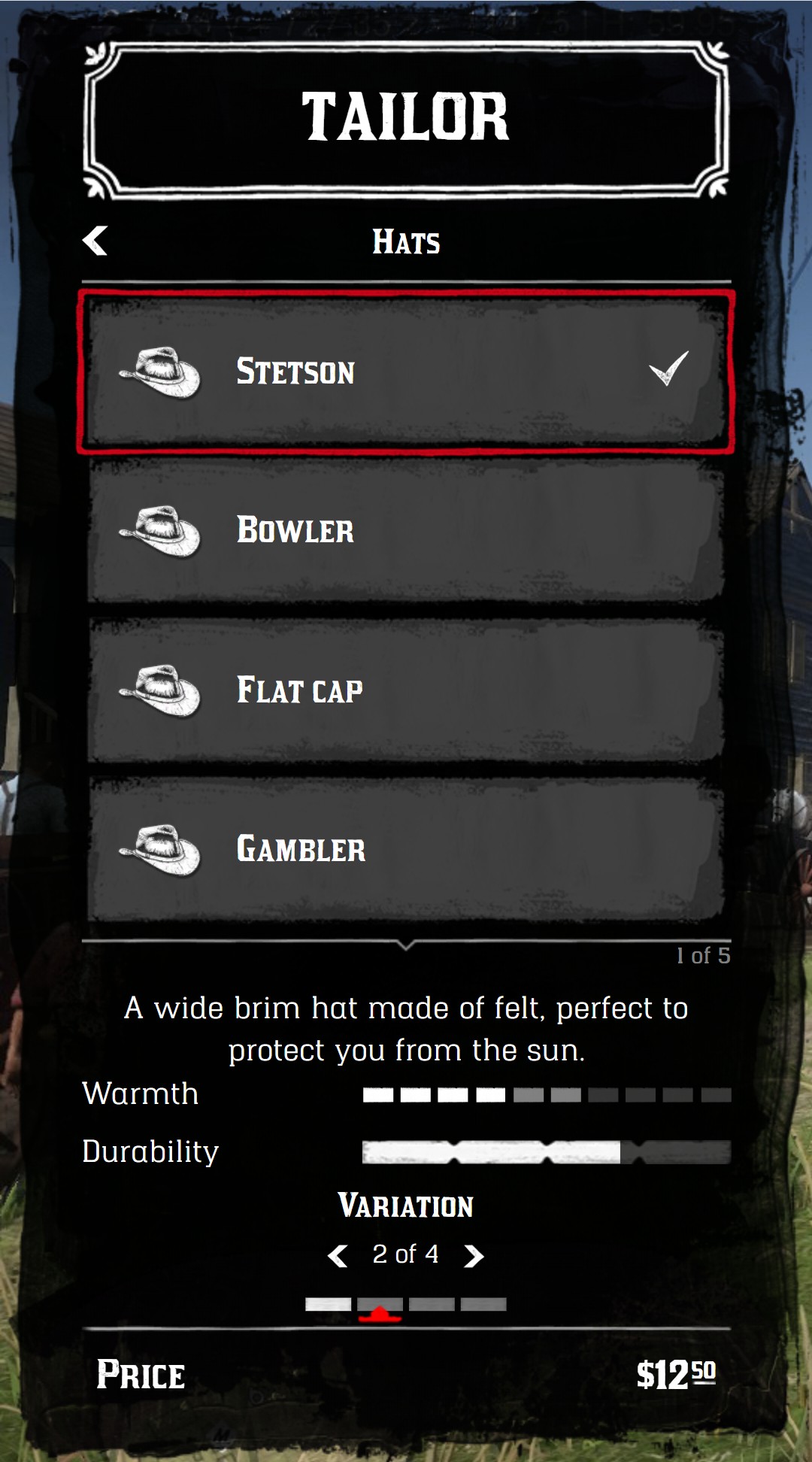
local hats = jo.menu.create("hats", { title = "Tailor", subtitle = "Hats" })
hats:addItem({ title = "Stetson", icon = "hats" })
hats:send()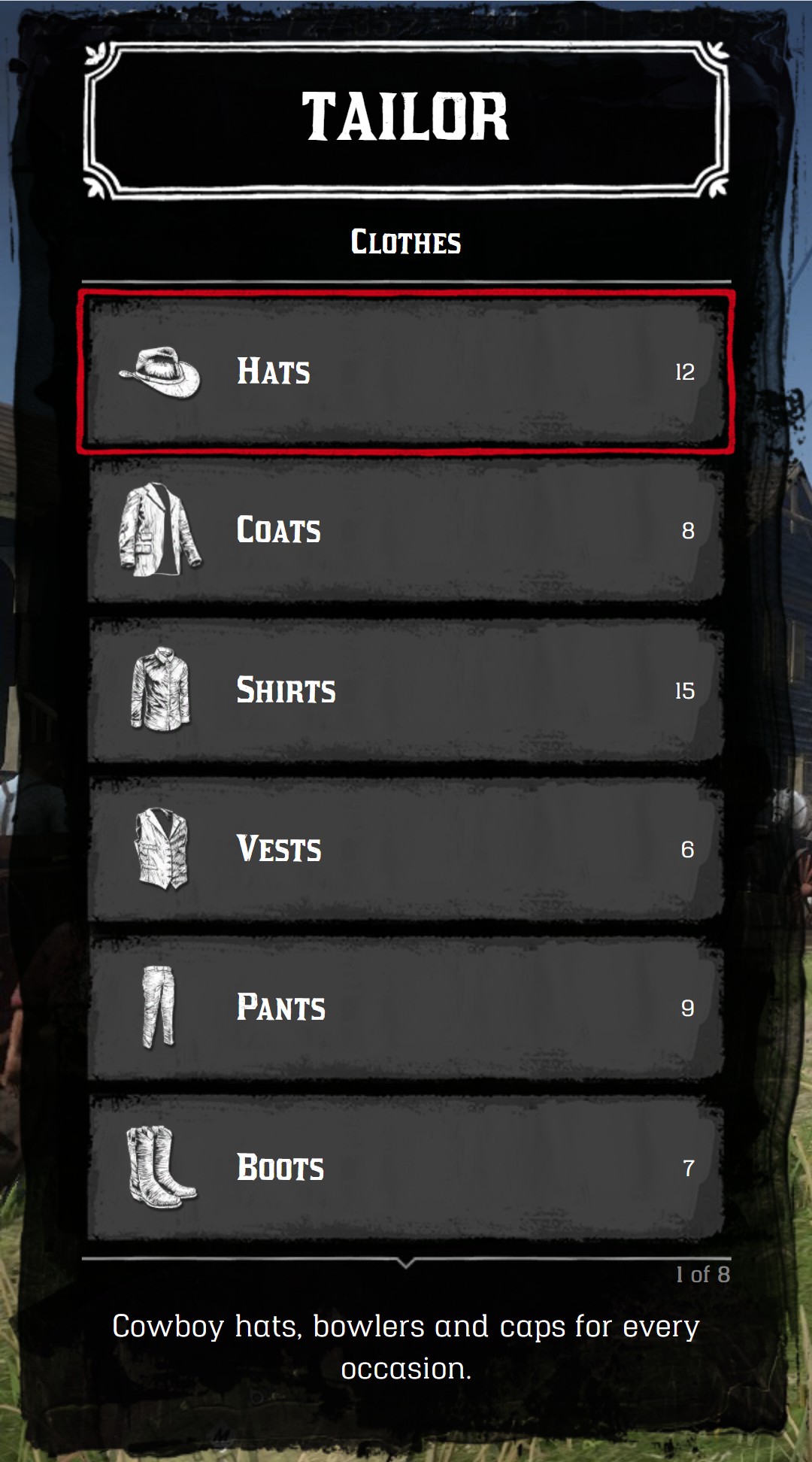
Go back
- Backspace, Escape and the back arrow fire the
onBackcallback of the current menu, then go back to the previous menu of the history. jo.menu.forceBack()does the same from your code.
Close the menu yourself
On the first menu, there is no previous menu: Backspace only fires onBack. To close the menu with Backspace, hide it in the onBack callback of the first menu:
jo.menu.create("tailor", {
  title = "Tailor",
  onBack = function()
    jo.menu.show(false)
  end,
})
Display
Show and hide
jo.menu.show() shows or hides the current menu.
jo.menu.show(true)  -- show the menu, the player can still move
jo.menu.show(true, false)  -- show the menu and block the game controls
jo.menu.show(true, true, true, false)  -- show the menu without animation
jo.menu.show(false)  -- hide the menu
While the menu is displayed:
- the radar is hidden,
- the weapon wheel, the weapon switch and the pause menu controls are disabled,
- the
onTickcallbacks of the menu and the active item are fired every frame.
jo.menu.isOpen() returns true while the menu is displayed.
Close when the player moves away
distanceToClose hides the menu when the player moves further than this distance from the position where the menu was opened.
jo.menu.create("tailor", { title = "Tailor", distanceToClose = 3.0 })Hide the menu temporarily
jo.menu.softHide() hides the menu while a function runs, then displays it again at the same place. It's useful to show the player the result of an action, or to open an other interface. With keepBackground = true, the background of the menu stays visible.
menu:addItem({
  title = "Try on",
  onClick = function()
    jo.menu.softHide(function()
      Wait(3000) -- the player looks at the outfit for 3 seconds
    end, true, true)
  end,
})
jo.menu.isSoftHidden() returns true while the function runs.
Loader
jo.menu.displayLoader() displays a loading animation, while you wait for data from the server for example. jo.menu.hideLoader() hides it. A list menu without item displays the loader too.
jo.menu.displayLoader()
local outfits = jo.callback.triggerServer("myResource:getOutfits")
jo.menu.hideLoader()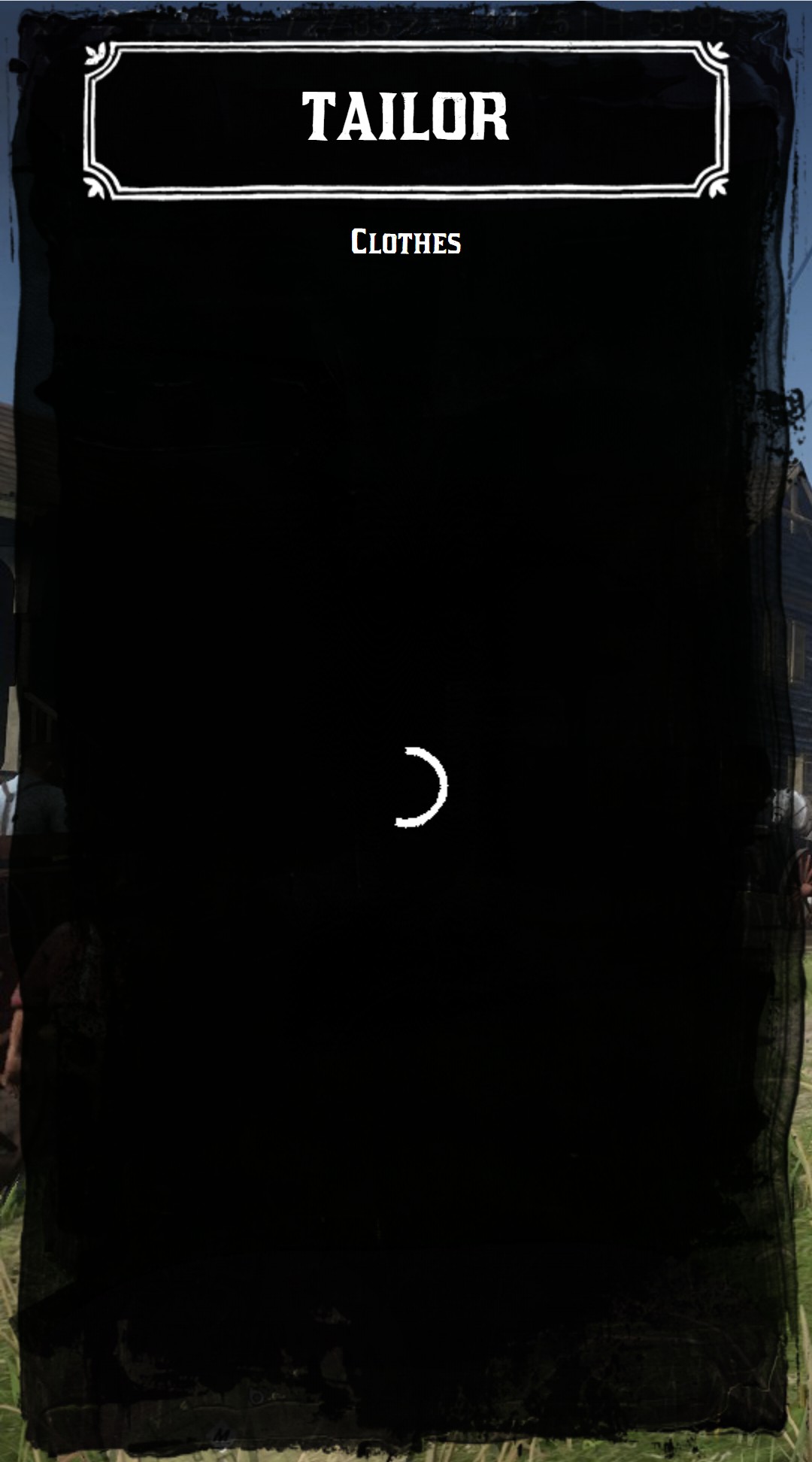
Translations
jo.menu.updateLang() translates the texts of the menu, for all your menus.
| Key | Default | Description |
|---|---|---|
of | "%1 of %2" | The counter of the items and sliders. %1 is the position, %2 the total |
price | "Price" | The label above the price |
devise | "$" | The currency symbol |
free | "Free" | The price 0 |
number | "Number %1" | The title of an item without title. %1 is the position of the item |
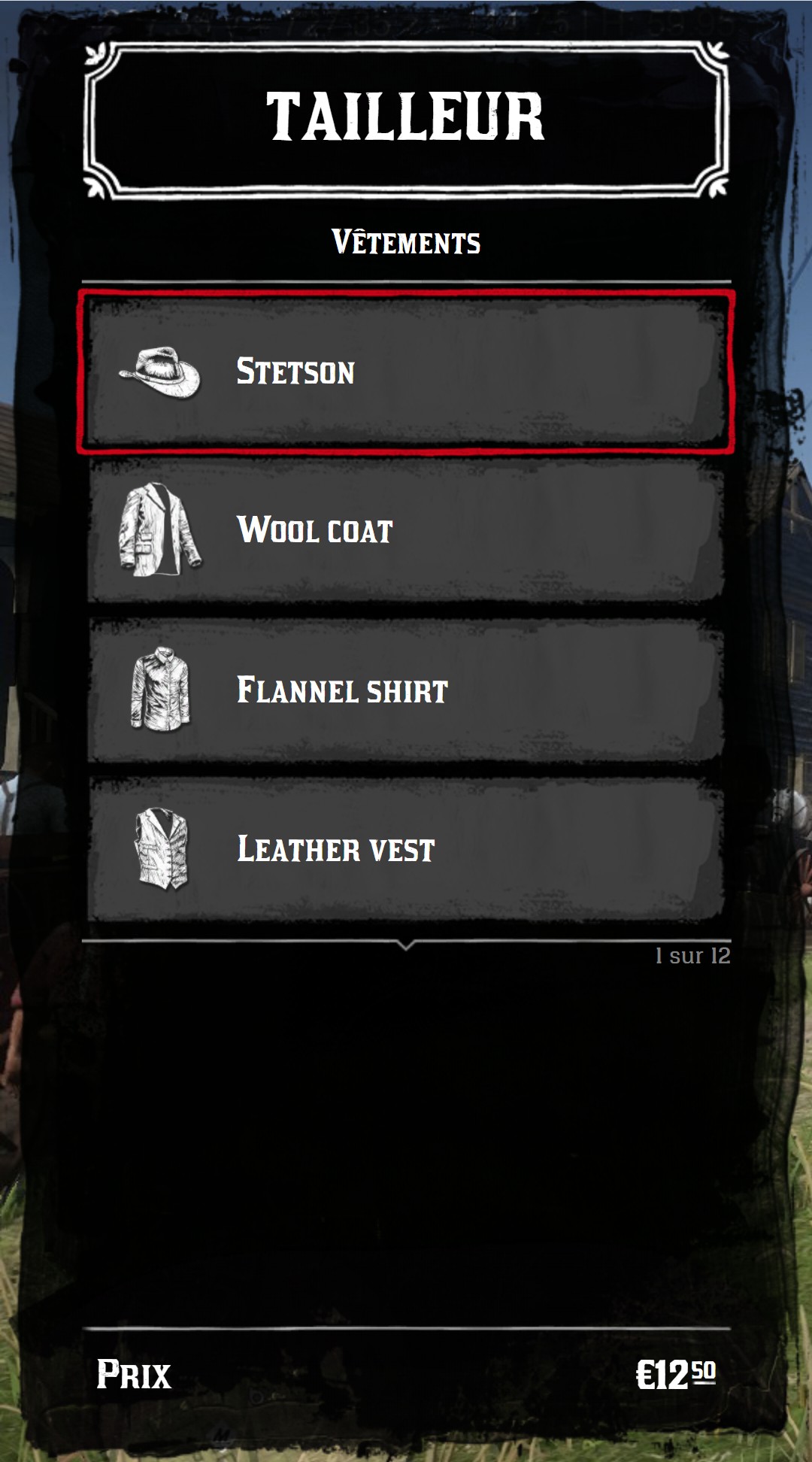
jo.menu.updateLang({
  of = "%1 sur %2",
  price = "Prix",
  devise = "€",
  free = "Gratuit",
})
Your own translations
You can add your own keys, and use them as texts with the translate* options:
| Option | Where | Translated text |
|---|---|---|
translateTitle | menu | title |
translateSubtitle | menu | subtitle |
translate | item | title |
translateDescription | item | description |
translateTextRight | item | textRight |
translate | slider | title, labels and the labels of a switch |
translateLabel, translateValue | statistic | label, value |
jo.menu.updateLang({ tailor_title = "Tailleur", buy_hat = "Acheter un chapeau" })

local menu = jo.menu.create("tailor", { title = "tailor_title", translateTitle = true })
menu:addItem({ title = "buy_hat", translate = true })
A missing key is displayed as #key.
Sounds
The menu plays the sounds of the game when the player moves, clicks or opens it.
jo.menu.updateVolume()sets their volume, from0.0to1.0(0.5by default).jo.menu.playAudio()plays one of them:button,coins,menu_open,menu_closeorselected.
jo.menu.updateVolume(0.2)
jo.menu.playAudio("coins") -- after a purchase
Controls
| Key | Action |
|---|---|
| ↑ ↓ | Move in the list |
| ← → | list menu: change the first slider. tile menu: move in the grid |
| Enter | Click on the active item |
| Backspace Escape | Go back to the previous menu |
| Q / A and E | Change the second slider (the first one in a tile menu) |
| 4 6 | Change the third slider (the second one in a tile menu) |
| W A S D | Move the cursor of a grid slider |
| Mouse wheel | Scroll the list, or change the slider under the cursor |
| Click | Select an item, click again to enter it |
The keyboard layout (QWERTY or AZERTY) is detected automatically.
CSS classes
Some options (iconClass, textRightClass, quantityCircleClass, statistics class...) accept CSS classes of the menu. They can be combined, like "bw opacity50".
| Class | Effect |
|---|---|
fgold | Gold color (icons) |
fred | Red color (icons) |
fgreen | Green color (icons) |
gold | Gold color (texts) |
red | Red color (texts) |
bw | Black and white |
opacity50 | 50% opacity |
tiny | Smaller text (textRightClass) |
hapna / crock | Fonts of the menu |
menu:addItem({ title = "fgold", icon = "star", iconClass = "fgold" })
menu:addItem({ title = "bw opacity50", icon = "star", iconClass = "bw opacity50" })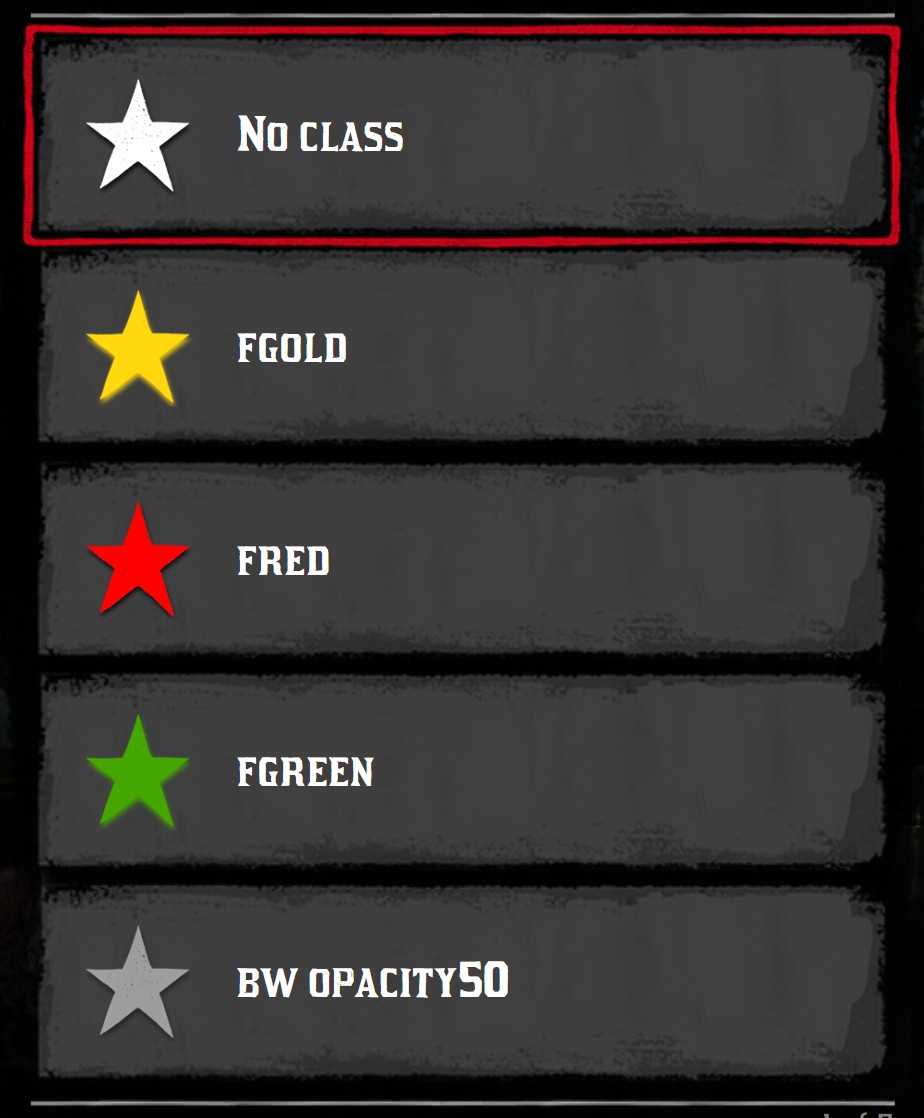
Icons
The icon, prefix and iconRight options of the items and the icon statistics use the filename (without .png) of an icon of the menu, in jo_libs/nui/menu/assets/images/icons: hats, boots, horse_saddles, star, lock, tick...
To use your own icons in icon, prefix and iconRight, pass a full URL instead of a filename:
menu:addItem({ title = "My item", icon = "nui://my_resource/images/my_icon.png" })WARNING
Don't add your icons in the jo_libs folder: they would be removed by the next update of jo_libs.