# Sliders
Sliders let the player choose a value on an item: a variation, a color, a position... They are defined in the `sliders` list of an [item](./items), and several sliders can be used on the same item.
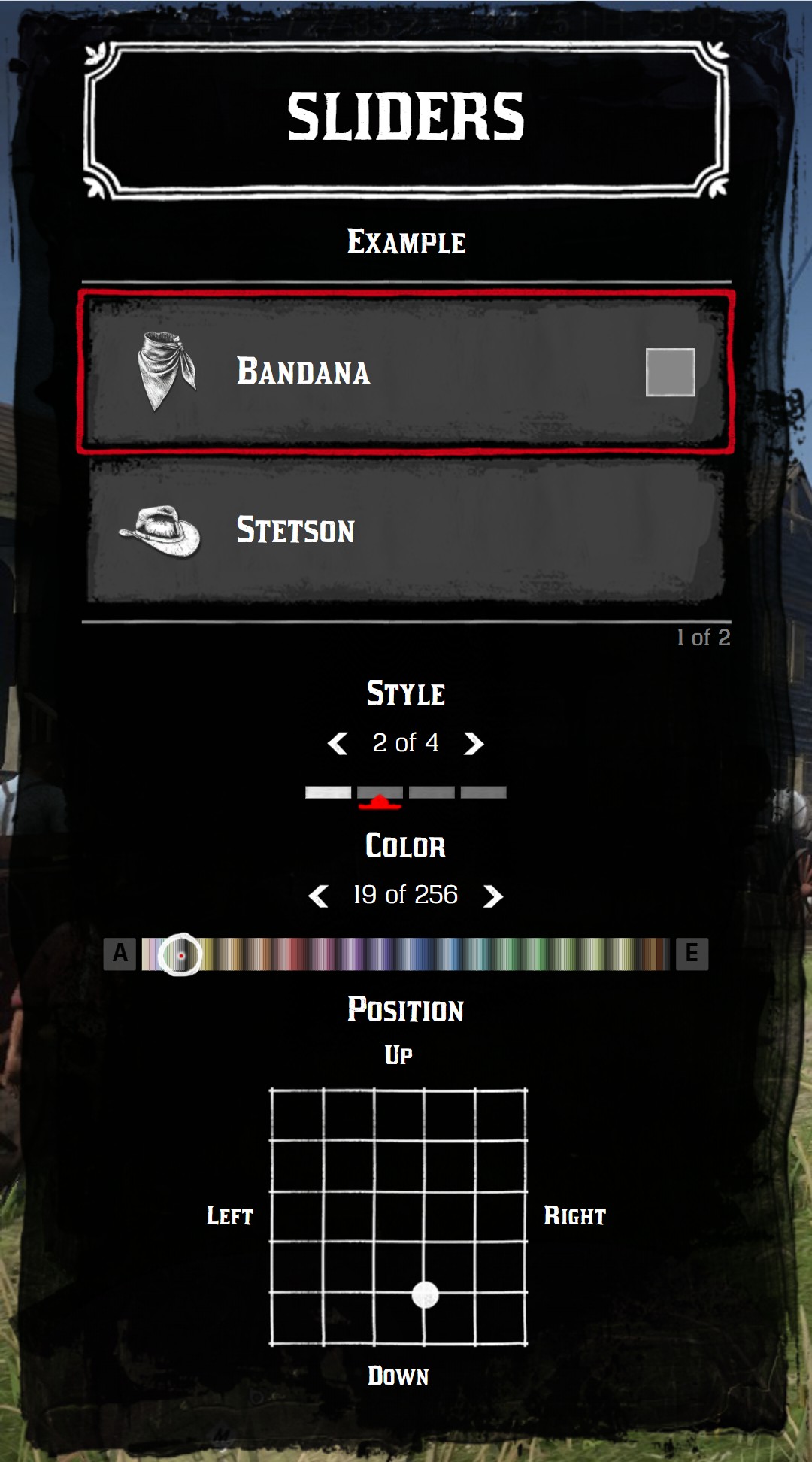{.menu-full data-zoomable}
| Type | Usage |
| --- | --- |
| [Default](#default) | Choose between a list of values, like the variations of a cloth |
| [Switch](#switch) | Choose between a list of labels, displayed on the right of the item |
| [Grid](#grid) | Choose one or two numbers between a min and a max, like a position |
| [Palette](#palette) | Choose a color in a palette of the game |
| [Sprite](#sprite) | Choose between a list of images |
| [Color](#color) | Choose between a list of colors |
## Read the values
When a slider changes, the `onChange` callback of the item is fired. The sliders are available in `currentData.item.sliders`, in the same order as you defined them.
```lua
menu:addItem({
title = "Bandana",
sliders = {
{ title = "Style", values = { "Classic", "Rolled", "Open" } },
{ type = "palette", title = "Color", tint = "tint_generic_clean" },
},
onChange = function(currentData)
local style = currentData.item.sliders[1]
local color = currentData.item.sliders[2]
if style.changed then
print("New style:", style.value) -- "Rolled"
end
if color.changed then
print("New tint:", color.value) -- 12
end
end,
})
```
Each slider has:
- `current`: the position of the slider.
- `value`: the value of the slider, computed from `current`:
| Type | `value` |
| --- | --- |
| Default, switch, sprite, color | The selected entry of `values`: `values[current]` |
| Palette | The tint index: `current` |
| Grid | `{x, y}`: `values[1].current` and `values[2].current` |
- `changed`: `true` if this slider changed during the last `onChange`. Use it to know which slider moved, when an item has several sliders.
:::tip
[`jo.menu.doesActiveButtonChange()`](./functions#jo-menu-doesactivebuttonchange) tells if the event comes from a slider move or from a change of the active item.
:::
## Common keys
| Key | Type | Description |
| --- | --- | --- |
| `type` | _string_ | The type of slider. Without `type`, the slider is a [default](#default) slider |
| `title` | _string_ | The title above the slider `[Optional]` |
| `description` | _string_ | A text under the slider. HTML is allowed `[Optional]` |
| `current` | _integer_ | The position of the slider, from `1` `[Optional]` default: `1` |
| `values` | _table_ | The list of values |
| `looped` | _boolean_ | Go back to the first value after the last one `[Optional]` default: `true` |
| `forceDisplay` | _boolean_ | Display the slider even with only one value `[Optional]` default: `false` |
| `translate` | _boolean_ | Use `title` (and the labels) as a key of the [translations](./menus#your-own-translations) `[Optional]` default: `false` |
## Default
The default slider of the game: a counter and a box per value. `values` can contain anything: strings, numbers or tables with your own data.
```lua
menu:addItem({
title = "Stetson",
icon = "hats",
sliders = {
{
title = "Variation",
current = 3,
values = {
{ label = "Brown", hash = `HAT_STETSON_BROWN` },
{ label = "Black", hash = `HAT_STETSON_BLACK` },
{ label = "Grey", hash = `HAT_STETSON_GREY` },
{ label = "White", hash = `HAT_STETSON_WHITE` },
{ label = "Red", hash = `HAT_STETSON_RED` },
},
},
},
})
```
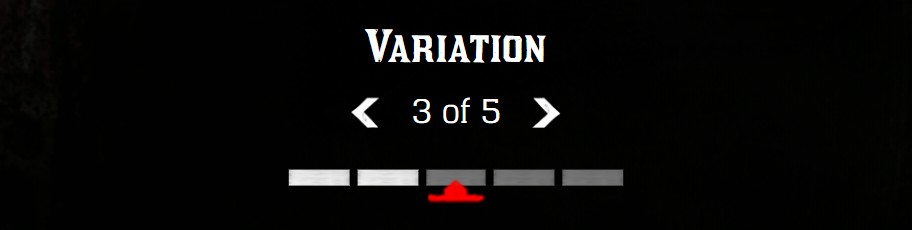{.menu-detail data-zoomable}
A slider with only one value is hidden, unless `forceDisplay = true`.
### Description
```lua
{ title = "Variation", current = 2, values = { "Brown", "Black", "Grey" }, description = "Hold Shift to rotate the hat" }
```
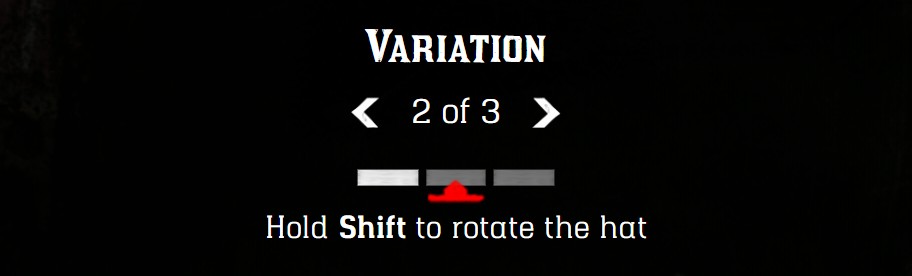{.menu-detail data-zoomable}
### Price of a value
A value with a `price` key replaces the price of the item while it's selected. It works with the default, switch, sprite and color sliders. The price format is described in [Prices](./items#prices).
```lua
menu:addItem({
title = "Bandana",
price = { money = 5 },
sliders = {
{
title = "Size",
current = 2,
values = {
{ label = "Small", price = { money = 5 } },
{ label = "Medium", price = { money = 8 } },
{ label = "Large", price = { money = 12, gold = 1 } },
},
},
},
})
```
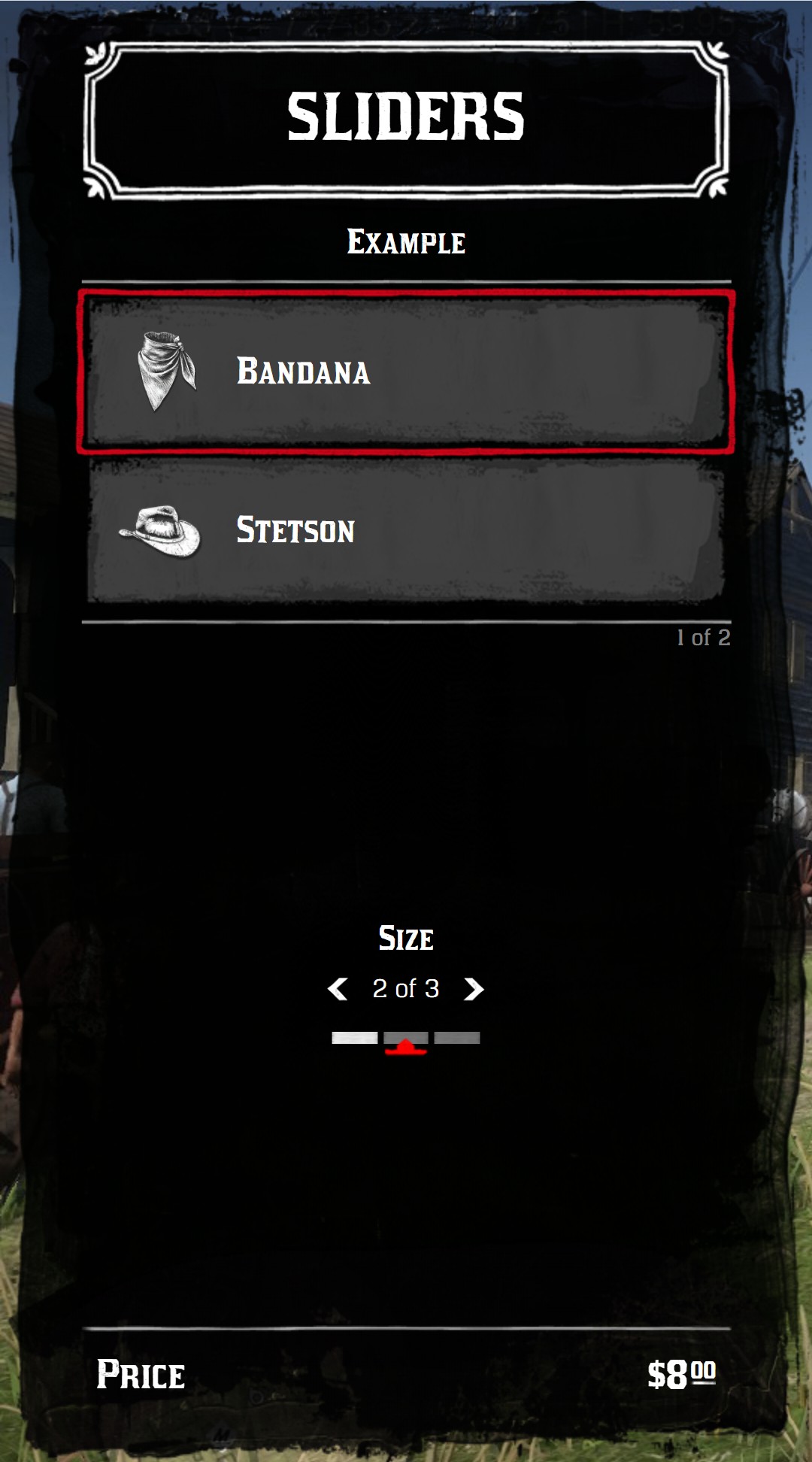{.menu-full data-zoomable}
## Switch
The switch is displayed on the right of the item, in a `list` menu. Its arrows are displayed on the active item only. The `label` of each value is displayed.
```lua
menu:addItem({
title = "Hat",
icon = "hats",
sliders = {
{
type = "switch",
current = 2,
values = {
{ label = "On head" },
{ label = "In hand" },
{ label = "Hidden" },
},
},
},
})
```
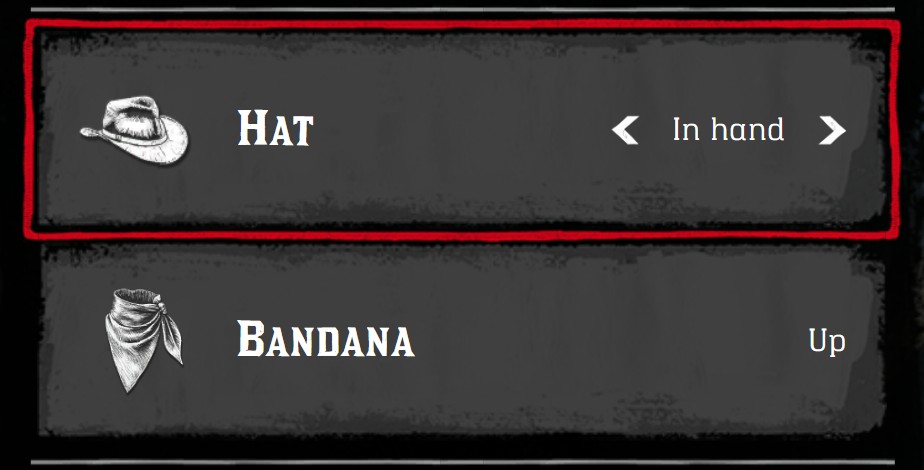{.menu-detail data-zoomable}
:::tip
The left and right arrows of the keyboard change the first switch of the item, or its first slider if it has no switch.
:::
## Grid
The grid slider chooses a number between a min and a max, with the mouse or the keyboard (W A S D). With one entry in `values`, it's horizontal. With two entries, it's a 2D grid.
| Key | Type | Description |
| --- | --- | --- |
| `labels` | _table_ | The labels around the grid: `{left, right, top, bottom}` `[Optional]` |
| `values[n].current` | _number_ | The current value |
| `values[n].min` | _number_ | The value on the left (or on the top) |
| `values[n].max` | _number_ | The value on the right (or on the bottom) |
| `values[n].gap` | _number_ | The step between two values `[Optional]` default: `1` |
:::warning Set the gap
The default `gap` is `1`: with `min = -1` and `max = 1`, only `-1`, `0` and `1` can be selected. Set a smaller `gap`, like `0.01`, for a smooth slider.
:::
### One dimension
```lua
menu:addItem({
title = "Hat",
sliders = {
{
type = "grid",
title = "Width",
labels = { "Thin", "Wide" },
values = {
{ current = 0.3, min = 0.0, max = 1.0, gap = 0.01 },
},
},
},
})
```
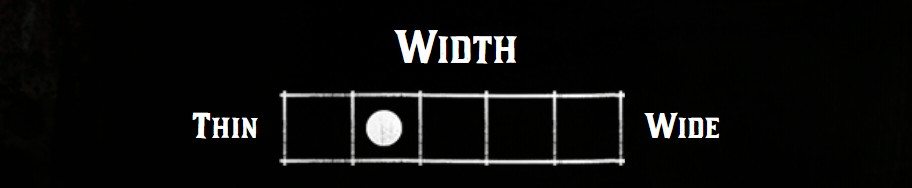{.menu-detail data-zoomable}
### Two dimensions
```lua
menu:addItem({
title = "Hat",
sliders = {
{
type = "grid",
title = "Position",
labels = { "Left", "Right", "Up", "Down" },
values = {
{ current = 0.4, min = -1.0, max = 1.0, gap = 0.05 }, -- horizontal
{ current = -0.5, min = -1.0, max = 1.0, gap = 0.05 }, -- vertical
},
},
},
onChange = function(currentData)
local x, y = table.unpack(currentData.item.sliders[1].value)
end,
})
```
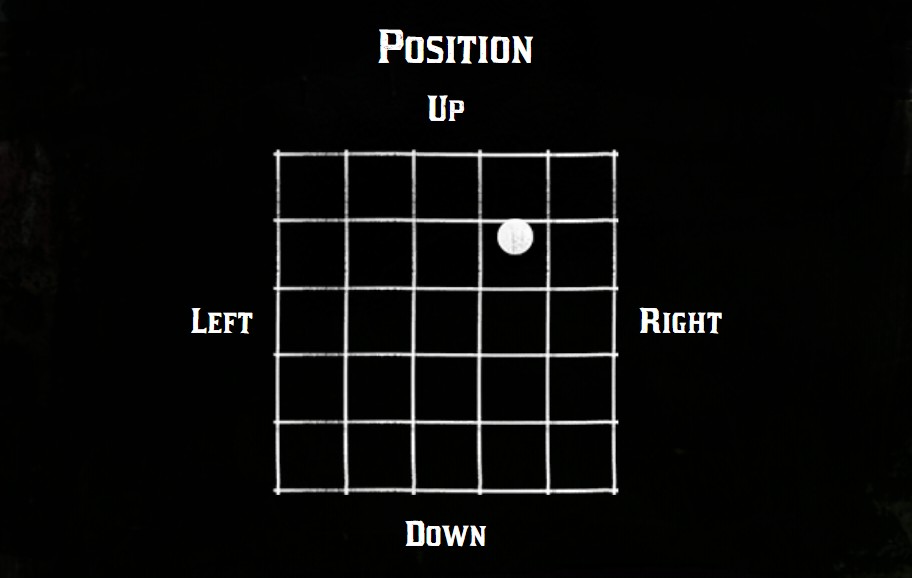{.menu-detail data-zoomable}
## Palette
The palette slider chooses a color in a palette of the game, like the tints of the clothes.
| Key | Type | Description |
| --- | --- | --- |
| `tint` | _string_ | The name of the palette. See [Available palettes](#available-palettes). `palette` works too |
| `current` | _integer_ | The index of the selected color, **from `0`** `[Optional]` default: `min` |
| `min` | _integer_ | The first color available `[Optional]` default: `0` |
| `max` | _integer_ | The last color available `[Optional]` default: the last color of the palette |
| `disabledTints` | _table_ | The list of the color indexes to hide `[Optional]` |
The `value` of a palette slider is the index of the selected color, ready to use with the natives of the game.
```lua
menu:addItem({
title = "Lipstick",
sliders = {
{ type = "palette", title = "Color", tint = "tint_makeup", current = 14 },
},
})
```
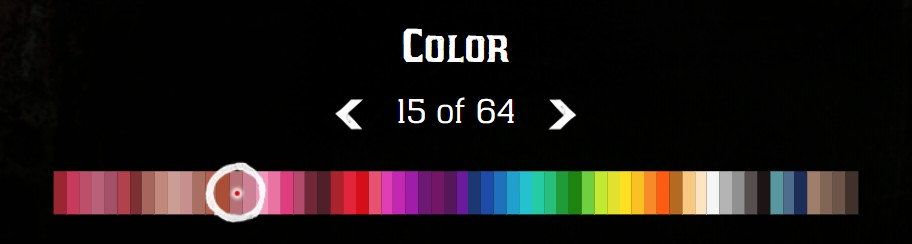{.menu-detail data-zoomable}
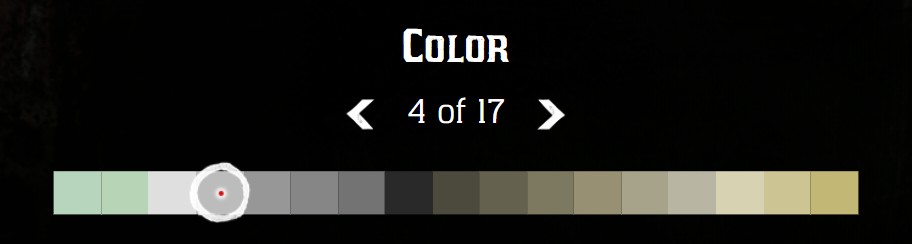
### Limit the colors
```lua
{
type = "palette",
title = "Color",
tint = "tint_generic_clean",
min = 10,
max = 30,
disabledTints = { 12, 13, 14, 20 },
current = 16,
}
```
{.menu-detail data-zoomable}
### Several palettes
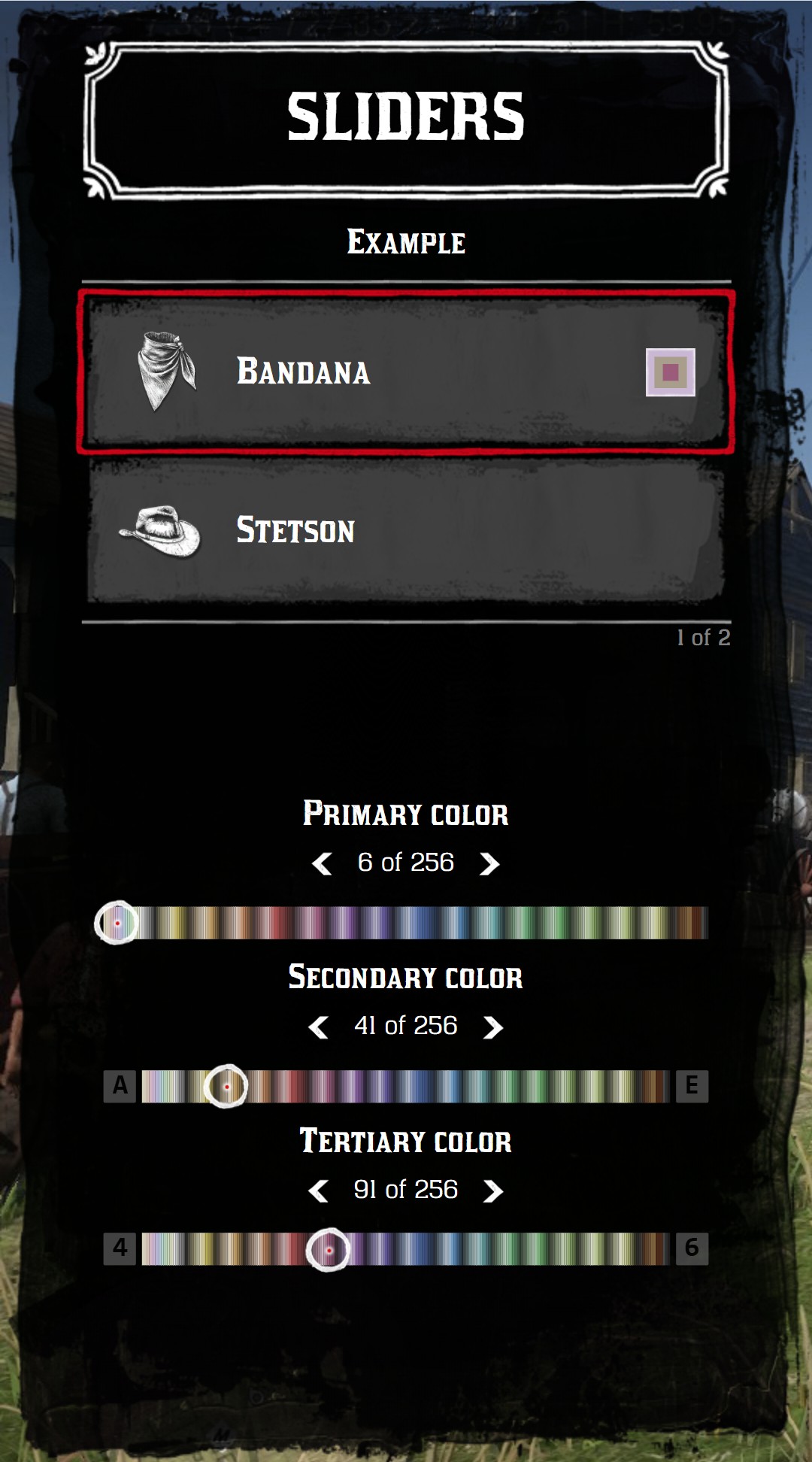
Clothes of the game have up to 3 tints. Use one palette slider per tint, and `previewPalette = true` on the item to display the combination on the right of the item. The second and third palettes display their keyboard shortcuts (Q E and 4 6).
```lua
menu:addItem({
title = "Bandana",
icon = "neckerchiefs",
previewPalette = true,
sliders = {
{ type = "palette", title = "Primary color", tint = "tint_generic_clean", current = 5 },
{ type = "palette", title = "Secondary color", tint = "tint_generic_clean", current = 40 },
{ type = "palette", title = "Tertiary color", tint = "tint_generic_clean", current = 90 },
},
})
```
{.menu-full data-zoomable}
### Available palettes
The palette names of the game (like `metaped_tint_generic_weathered` or `metaped_tint_hat_clean`) are also accepted: they use the closest palette below.
## Sprite
The sprite slider displays a list of images. `type = "sprite"` and `type = "color"` are the same slider: each value can be an image or a color.
| Key of a value | Type | Description |
| --- | --- | --- |
| `sprite` | _string_ | An image of `jo_libs/nui/menu/assets/images` without `.png`, like `tints/metal_swatch_gold`, or a full URL |
| `icon` | _string_ | A small [icon](./menus#icons) displayed on the image `[Optional]` |
| `iconClass` | _string_ | [CSS classes](./menus#css-classes) of the icon `[Optional]` |
| `tagColor` | _string_ | The CSS color of a tag in the corner `[Optional]` |
| `tagText` | _string_ | A text in the tag `[Optional]` |
| `tagTextColor` | _string_ | The CSS color of the text of the tag `[Optional]` default: `black` |
| `price` | _number\|table_ | See [Price of a value](#price-of-a-value) `[Optional]` |
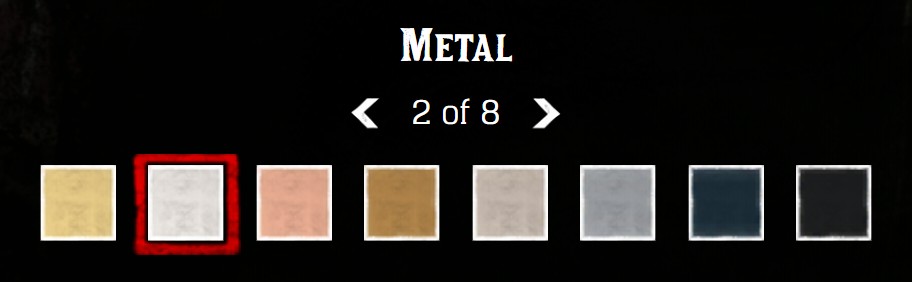
```lua
menu:addItem({
title = "Revolver",
sliders = {
{
type = "sprite",
title = "Metal",
current = 2,
values = {
{ sprite = "tints/metal_swatch_gold" },
{ sprite = "tints/metal_swatch_silver" },
{ sprite = "tints/metal_swatch_copper" },
{ sprite = "tints/metal_swatch_brass" },
{ sprite = "nui://my_resource/images/my_metal.png" },
},
},
},
})
```
{.menu-detail data-zoomable}
The `tints` folder contains the swatches of the game: hair colors, eye colors, skin tones, metals, woods, leathers, engravings...
### Size and layout
| Key of the slider | Type | Description |
| --- | --- | --- |
| `size` | _number\|string_ | The size of a value, its frame included: a number in vh, or a CSS length `[Optional]` default: `5` |
| `gap` | _number\|string_ | The space between the frames of two values: a number in vh, or a CSS length `[Optional]` default: `1.5` |
| `columns` | _integer_ | The number of values shown across the slider, the gap then computed from its width `[Optional]` |
| `imagePadding` | _number\|string_ | The space between the image of a value and its frame: a number in vh, or a CSS length `[Optional]` |
| `imageZoom` | _number_ | The image of a value enlarged in its frame, cut by it: `1.5` for 150 %, as the [`tileZoom`](./items#image-zoom) of a tile. The [color preview](./items#color-preview) of the item is enlarged too `[Optional]` |
| `imageZoomOrigin` | _string_ | The point `imageZoom` enlarges the image from, as a CSS `transform-origin`: `top`, `center`, `top center`... `[Optional]` default: `center` |
```lua
{
type = "sprite",
title = "Variation",
size = 6,
columns = 7, -- 7 thumbnails across
imagePadding = 0.4,
imageZoom = 1.4,
imageZoomOrigin = "top",
values = {
{ sprite = "https://my-cdn.com/outfits/1.avif" },
{ sprite = "https://my-cdn.com/outfits/1_2.avif" },
},
}
```
The images from the web are loaded as the ones of the tiles: see [Images from the web](./items#images-from-the-web).
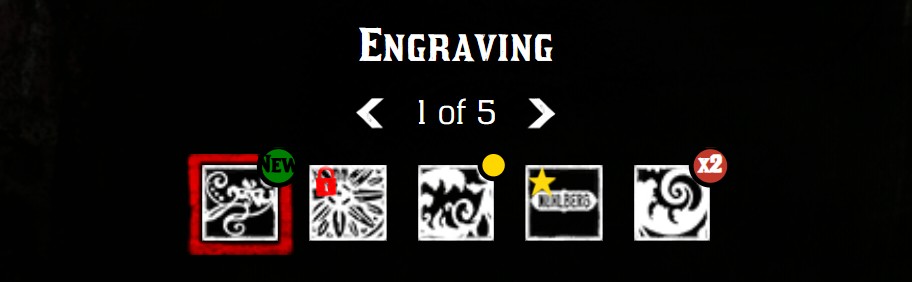
### Tags and icons
```lua
values = {
{ sprite = "tints/gunsmith_engraving_1", tagColor = "green", tagText = "New" },
{ sprite = "tints/gunsmith_engraving_2", icon = "lock", iconClass = "fred" },
{ sprite = "tints/gunsmith_engraving_3", tagColor = "gold" },
{ sprite = "tints/gunsmith_engraving_4", icon = "star", iconClass = "fgold" },
{ sprite = "tints/gunsmith_engraving_5", tagText = "x2", tagColor = "#c0392b", tagTextColor = "white" },
}
```
{.menu-detail data-zoomable}
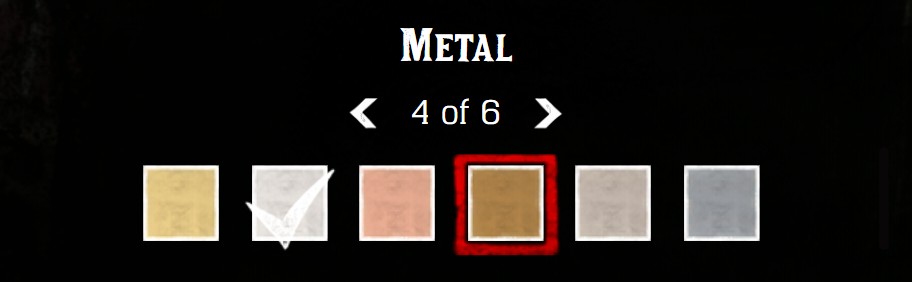
### Tick
`displayTick = true` displays a tick on a value, like the equipped one. `tickIndex` is the index of this value, **from `0`**.
```lua
{
type = "sprite",
title = "Metal",
current = 4,
displayTick = true,
tickIndex = 1, -- the 2nd value
values = { ... },
}
```
{.menu-detail data-zoomable}
## Color
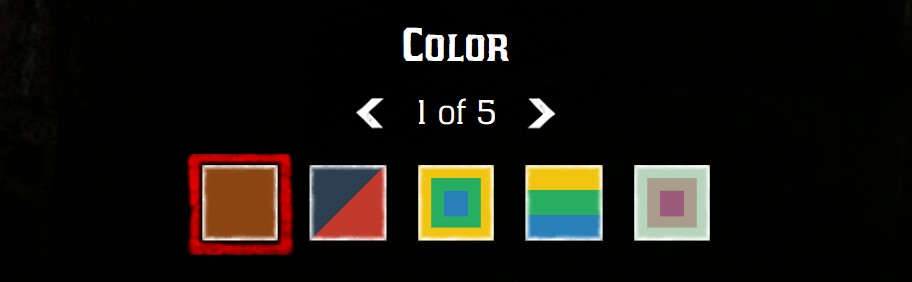
A value without `sprite` is displayed as a color:
| Key of a value | Type | Description |
| --- | --- | --- |
| `rgb` | _string\|table_ | A CSS color, or a list of up to 3 CSS colors |
| `palette` | _table_ | The colors of a palette: `{palette = name, tint0 = index, tint1 = index, tint2 = index}` |
| `style` | _string_ | `"vertical-lines"` to display several colors as vertical lines `[Optional]` |
The other keys of a sprite value (`icon`, `tagColor`, `price`...) work too.
```lua
menu:addItem({
title = "Bandana",
sliders = {
{
type = "color",
title = "Color",
values = {
{ rgb = "#8B4513" },
{ rgb = { "#2c3e50", "#c0392b" } },
{ rgb = { "#f1c40f", "#27ae60", "#2980b9" } },
{ rgb = { "#f1c40f", "#27ae60", "#2980b9" }, style = "vertical-lines" },
{ palette = { palette = "tint_generic_clean", tint0 = 10, tint1 = 40, tint2 = 90 } },
},
},
},
})
```
{.menu-detail data-zoomable}
## Keyboard
| Slider | `list` menu | `tile` menu |
| --- | --- | --- |
| 1st slider (or 1st switch) | ← → | Q / A E |
| 2nd slider | Q / A E | 4 6 |
| 3rd slider | 4 6 | - |
| Grid | W A S D | W A S D |
The mouse wheel changes the slider under the cursor, and a click on a box selects its value.



















