# Menus
A menu is created with [`jo.menu.create()`](./functions#jo-menu-create). This page lists all the options of a menu, and how to navigate between menus and display them.
## Create a menu
```lua
local menu = jo.menu.create("tailor", {
title = "Tailor",
subtitle = "Clothes",
type = "list",
})
menu:addItem({ title = "Stetson", icon = "hats" })
menu:send()
```
- The ID (`"tailor"`) is unique: creating a menu with an existing ID replaces the old one.
- [`jo.menu.createIfNotExist()`](./functions#jo-menu-createifnotexist) creates the menu only the first time, and returns the existing menu otherwise.
- [`MenuClass:send()`](./functions#menuclass-send) sends the menu to the NUI. Call it once the items are added.
- [`jo.menu.get(id)`](./functions#jo-menu-get) returns a menu from anywhere in your resource.
### Create a menu only when it's needed
Building a big menu takes time. With [`jo.menu.missingMenuHandler()`](./functions#jo-menu-missingmenuhandler), the menu is created the first time it's opened, by `jo.menu.setCurrentMenu()` or by the `child` key of an item.
```lua
jo.menu.missingMenuHandler("hats", function()
local hats = jo.menu.create("hats", { title = "Tailor", subtitle = "Hats" })
for _, hat in ipairs(Config.hats) do
hats:addItem({ title = hat.label, icon = "hats" })
end
hats:send()
hats:use(true) -- display it now
end)
```
## Menu types
The `type` option changes the layout of the items: `list` (default) or `tile`.
### List
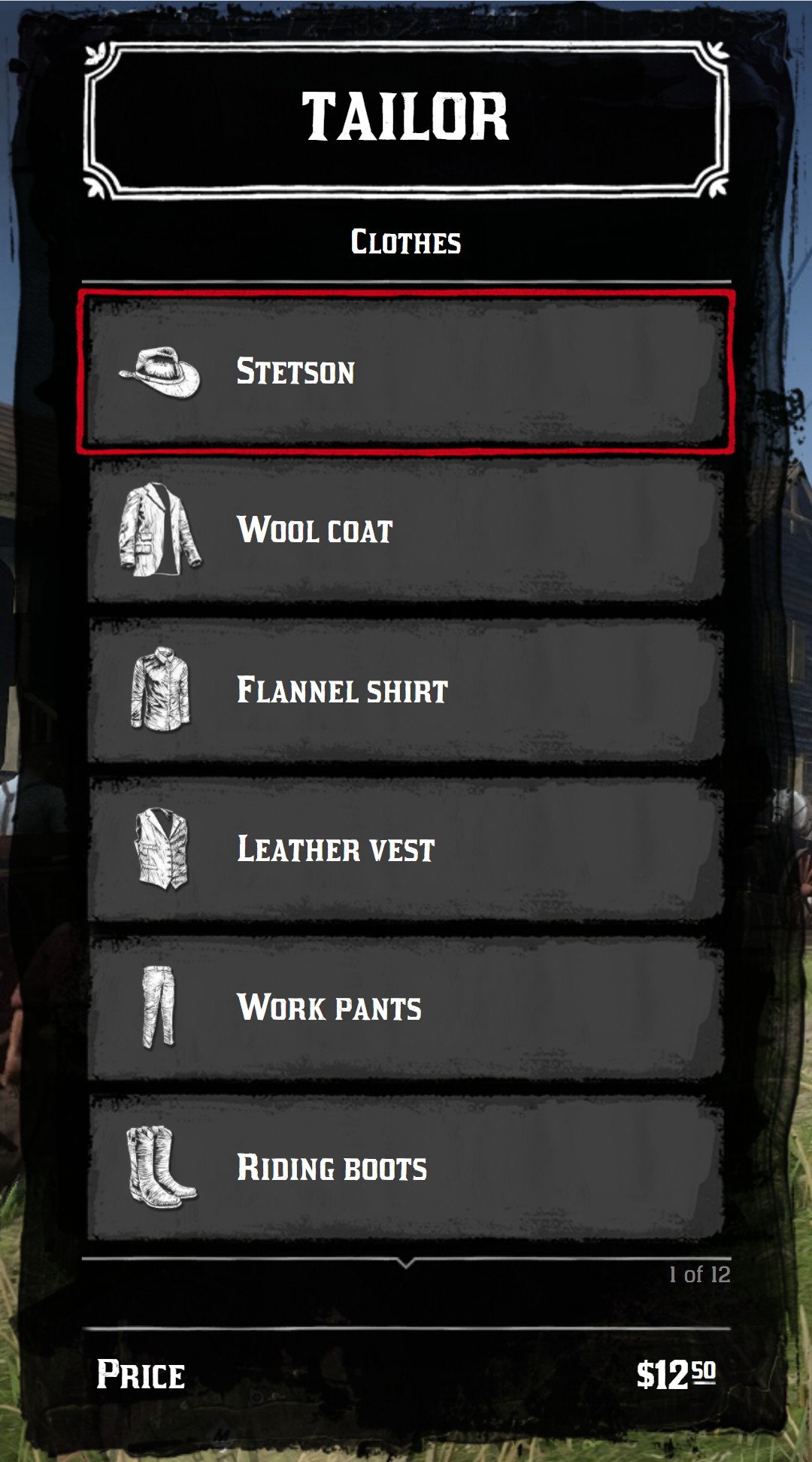
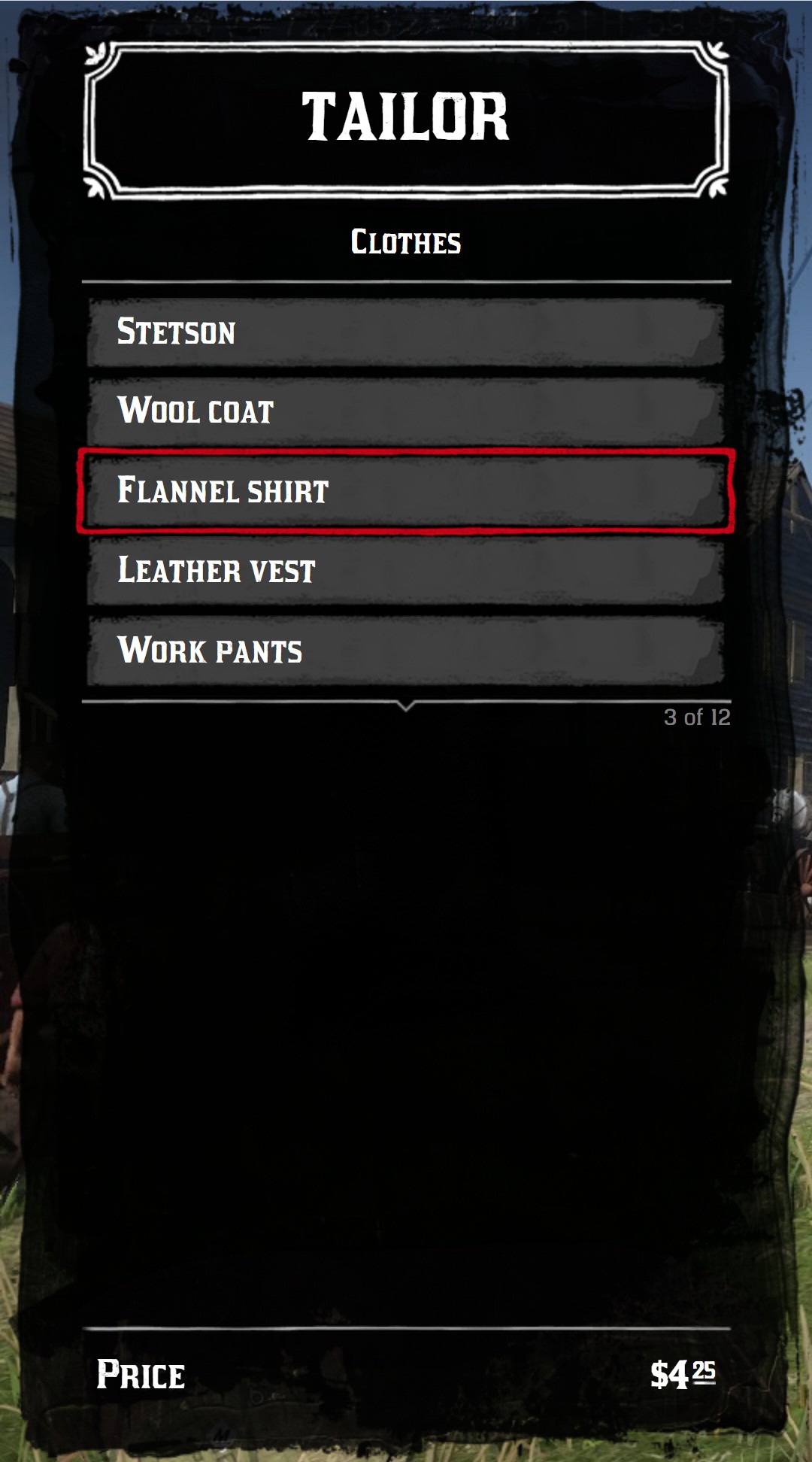
`numberOnScreen` sets the height of the list, in rows: 8 by default and 13 maximum. Beyond, the list scrolls, with arrows and a counter at the bottom.
```lua
jo.menu.create("tailor", { title = "Tailor", subtitle = "Clothes", numberOnScreen = 5 })
```
{.menu-full data-zoomable}
:::tip Items with an icon are twice as high
An item with an `icon` takes 2 rows. With the default `numberOnScreen = 8`, 4 items with an icon are visible. Set `numberOnScreen = 12` to display 6 of them.
:::
### Tile
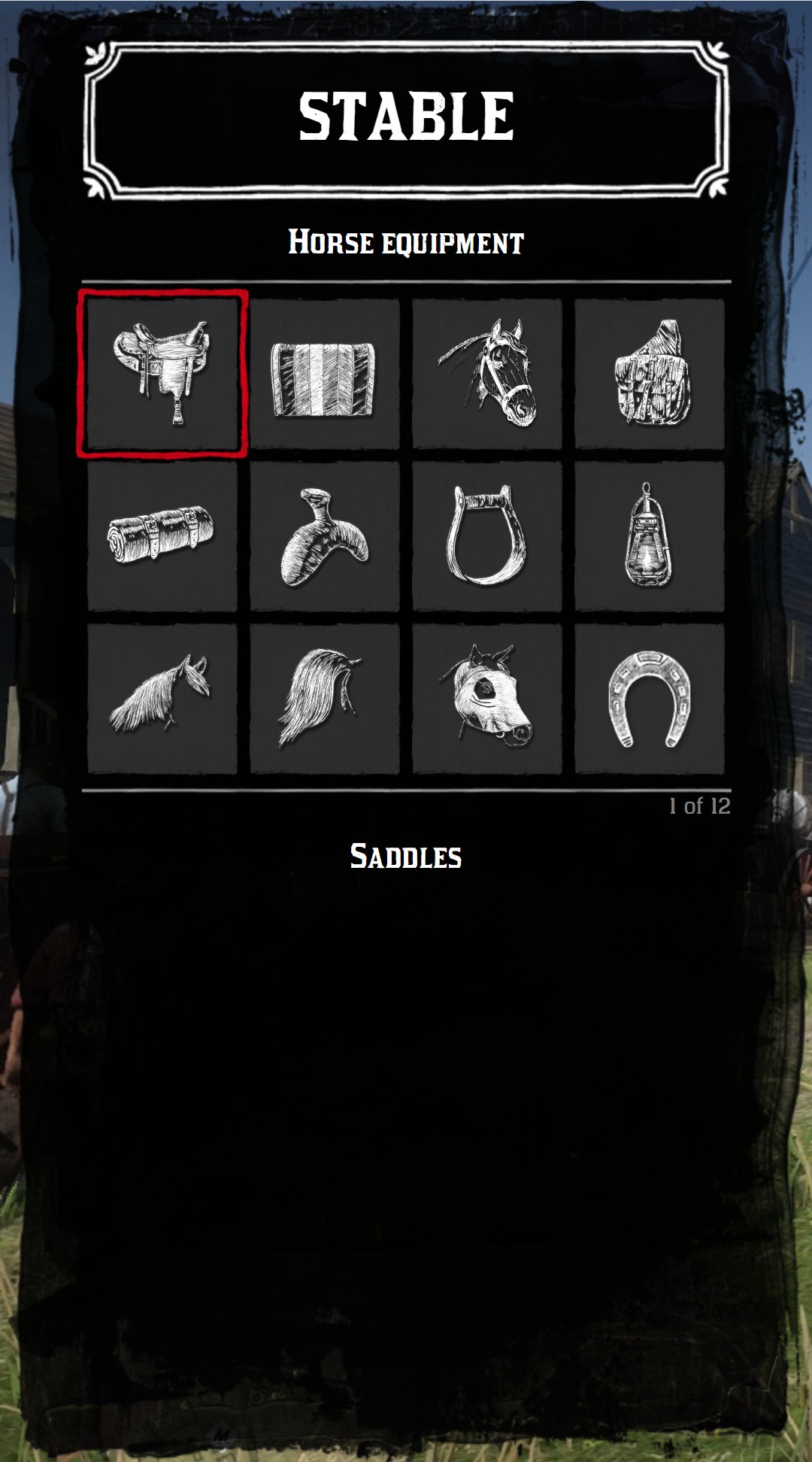
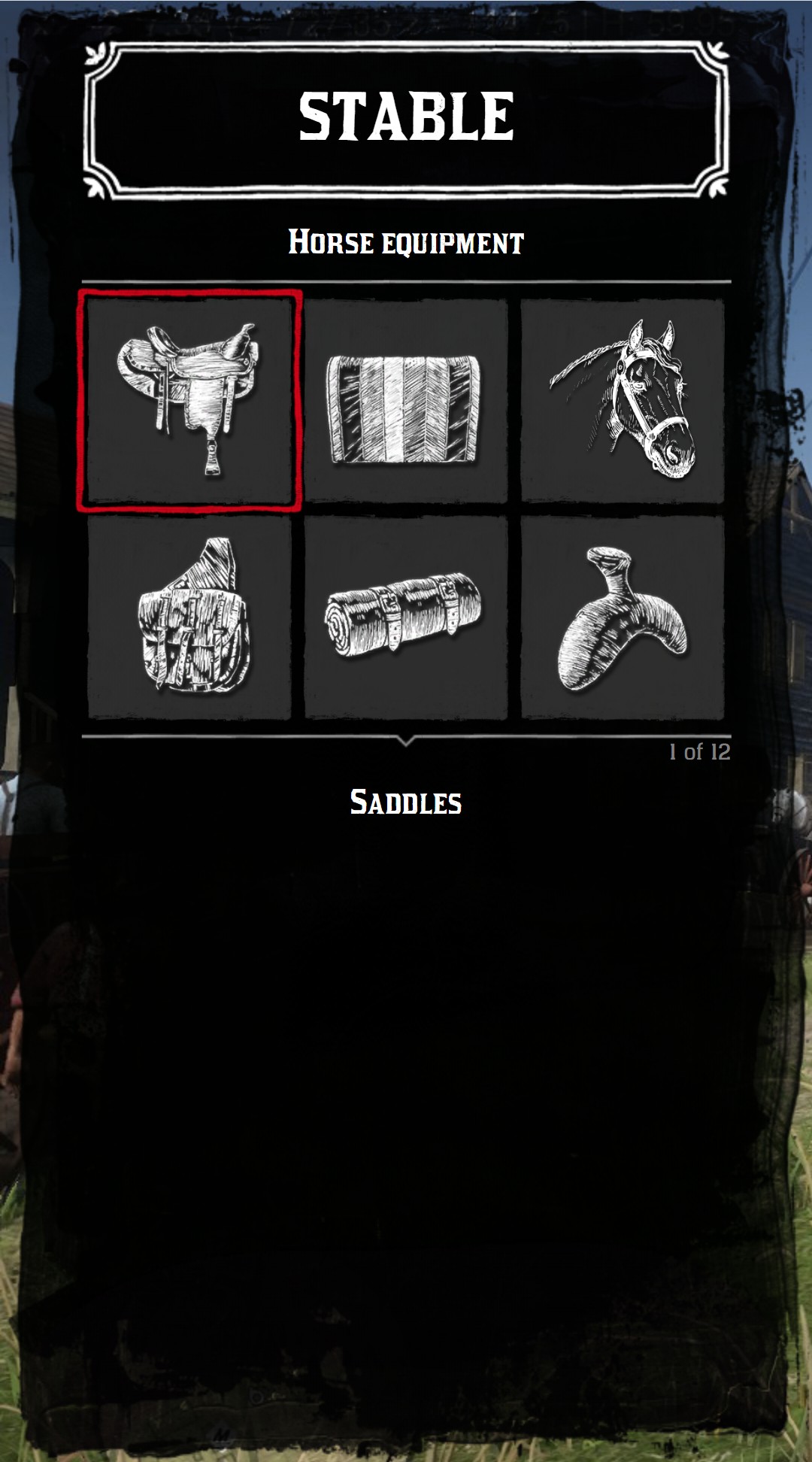
In a `tile` menu, only the icon of each item is displayed. The title, subtitle and description of the active item are displayed under the grid.
- `numberOnLine`: number of tiles per line, 4 by default.
- `numberLineOnScreen`: number of lines displayed before the scroll, 6 by default.
```lua
jo.menu.create("stable", {
title = "Stable",
subtitle = "Horse equipment",
type = "tile",
numberOnLine = 3,
numberLineOnScreen = 2,
})
```
{.menu-full data-zoomable}
Items of a tile menu have some specific options: quantity, quality, stars and image padding. See [Tile items](./items#tile-items).
## Title and subtitle
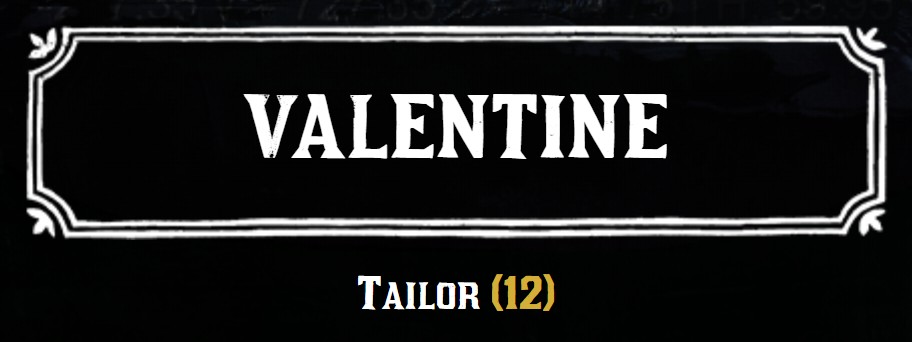
`title` is the big title in the header, `subtitle` the line above the items. Both accept HTML.
```lua
jo.menu.create("tailor", {
title = "Valentine",
subtitle = "Tailor (12)",
})
```
{.menu-detail data-zoomable}
## Image
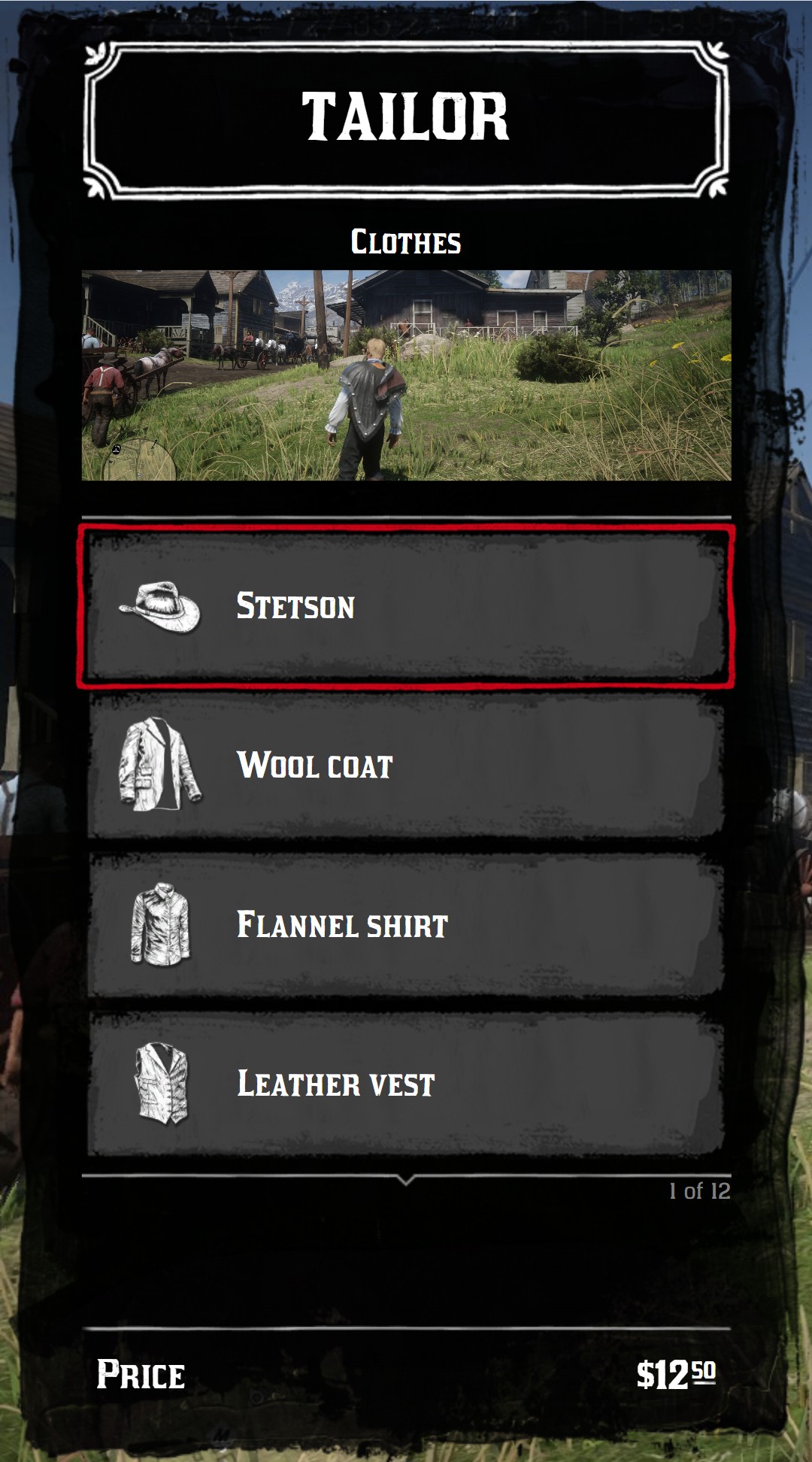
`image` displays an image between the subtitle and the items. It's a URL, or a table to set its size:
| Key | Type | Description |
| --- | --- | --- |
| `url` | _string_ | The URL of the image, like `nui://my_resource/images/banner.png` |
| `width` | _number\|string_ | Width: a number in pixels or a CSS length |
| `height` | _number\|string_ | Height: a number in pixels or a CSS length |
| `radius` | _number\|string_ | Rounded corners: a number in pixels or a CSS length |
| `style` | _string_ | Additional CSS, like `"object-fit: cover"` |
```lua
jo.menu.create("tailor", {
title = "Tailor",
subtitle = "Clothes",
image = {
url = "nui://my_resource/images/valentine.jpg",
height = 140,
style = "width: 100%; object-fit: cover",
},
})
```
{.menu-full data-zoomable}
:::tip Images of your resource
To use an image of your resource with `nui://my_resource/...`, declare it in the `files` of your `fxmanifest.lua`.
:::
## Back button
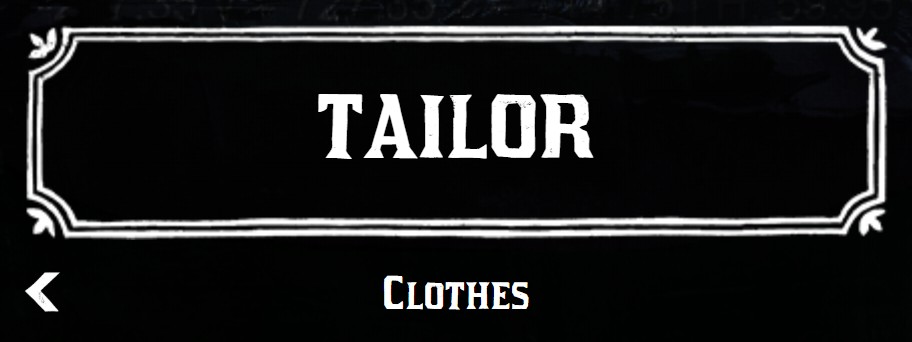
The back arrow is displayed next to the subtitle when there is a previous menu in the history. `displayBackButton = true` displays it on every menu, even the first one. A click on it acts like Backspace: it fires `onBack` and goes back to the previous menu.
```lua
jo.menu.create("tailor", { title = "Tailor", subtitle = "Clothes", displayBackButton = true })
```
{.menu-detail data-zoomable}
## Background
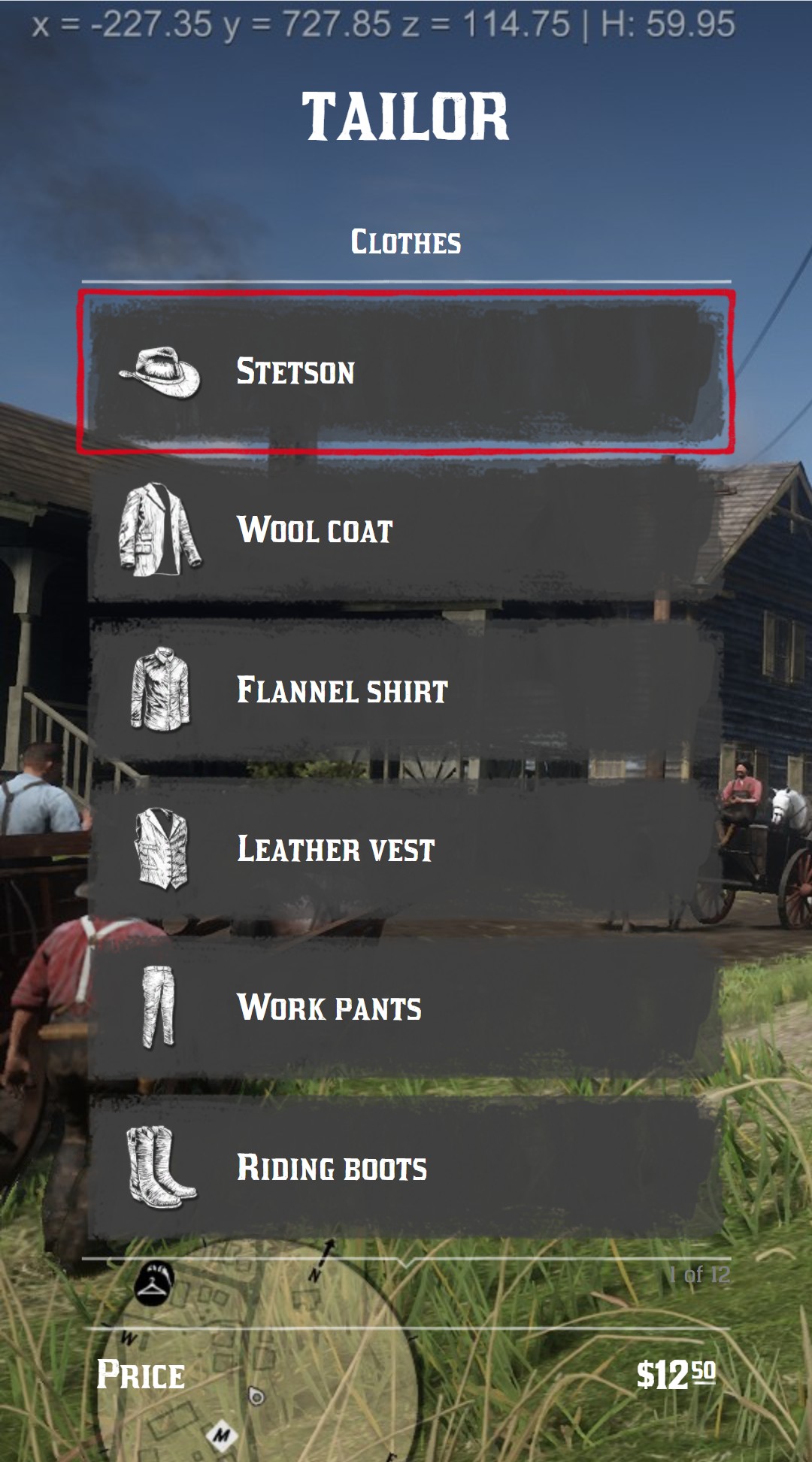
`hideBackground = true` removes the dark background of the menu, to see the game behind.
```lua
jo.menu.create("tailor", { title = "Tailor", subtitle = "Clothes", hideBackground = true })
```
{.menu-full data-zoomable}
## Price of the menu
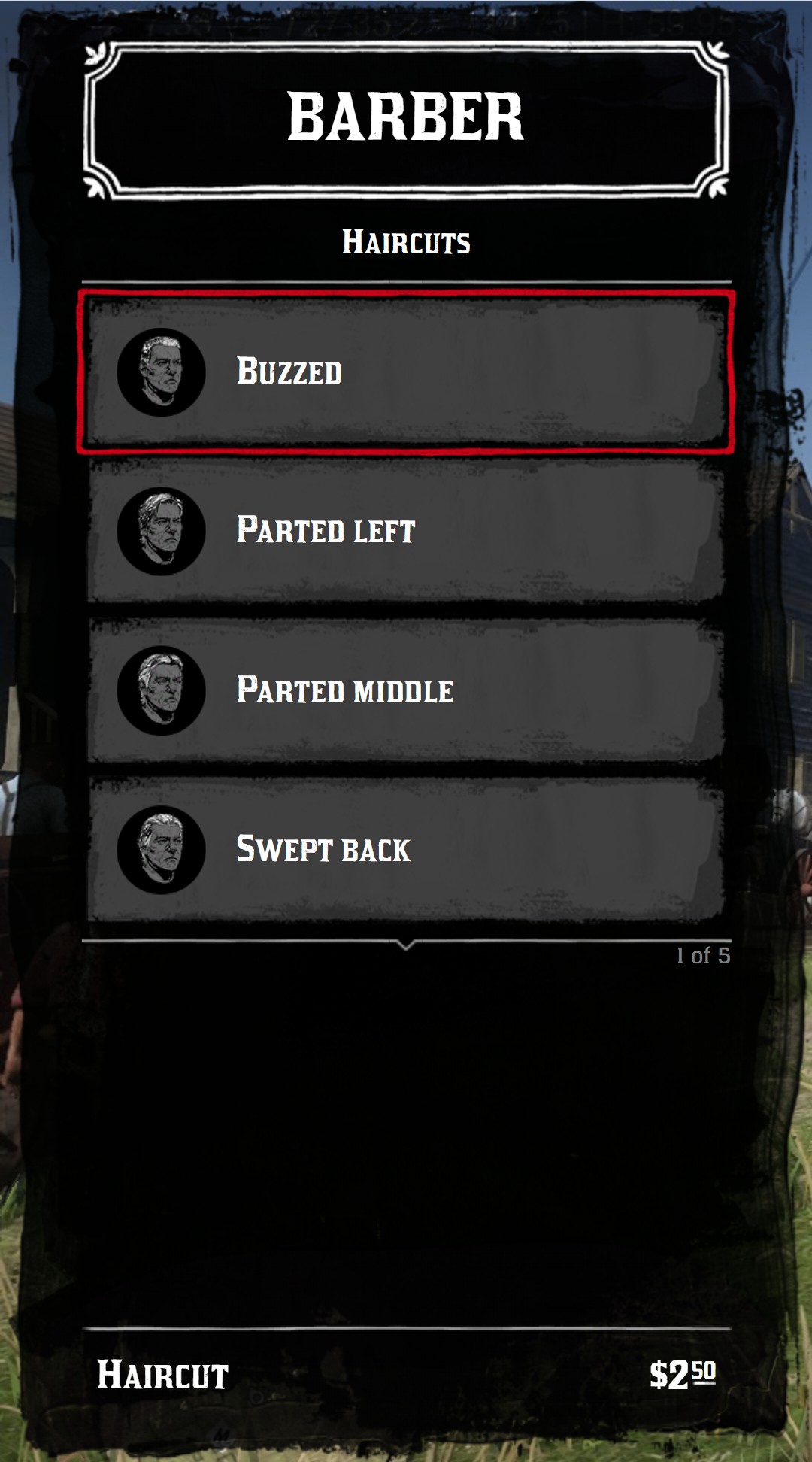
`price` displays a price when the active item has no price of its own, and `priceTitle` replaces its "Price" label. It's useful when all the items have the same price, like the haircuts of a barber. An item with a `price` displays its own price.
```lua
local menu = jo.menu.create("barber", {
title = "Barber",
subtitle = "Haircuts",
price = { money = 2.5 },
priceTitle = "Haircut",
})
menu:addItem({ title = "Buzzed", icon = "hair_buzzed" })
menu:addItem({ title = "Bald", icon = "clothing_item_hair_bald", price = { money = 1 }, priceTitle = "Shave" })
```
{.menu-full data-zoomable}
All the price formats are listed in [Prices](./items#prices).
## Navigation
### Open a menu
[`jo.menu.setCurrentMenu()`](./functions#jo-menu-setcurrentmenu) (or [`MenuClass:use()`](./functions#menuclass-use)) changes the menu displayed. If the menu is already displayed, the new one replaces it immediately.
```lua
jo.menu.setCurrentMenu("tailor") -- keep the history, move the cursor to the first item
jo.menu.setCurrentMenu("tailor", false) -- clear the history: Backspace won't go back
jo.menu.setCurrentMenu("tailor", true, false) -- keep the position of the cursor
```
### Sub-menus
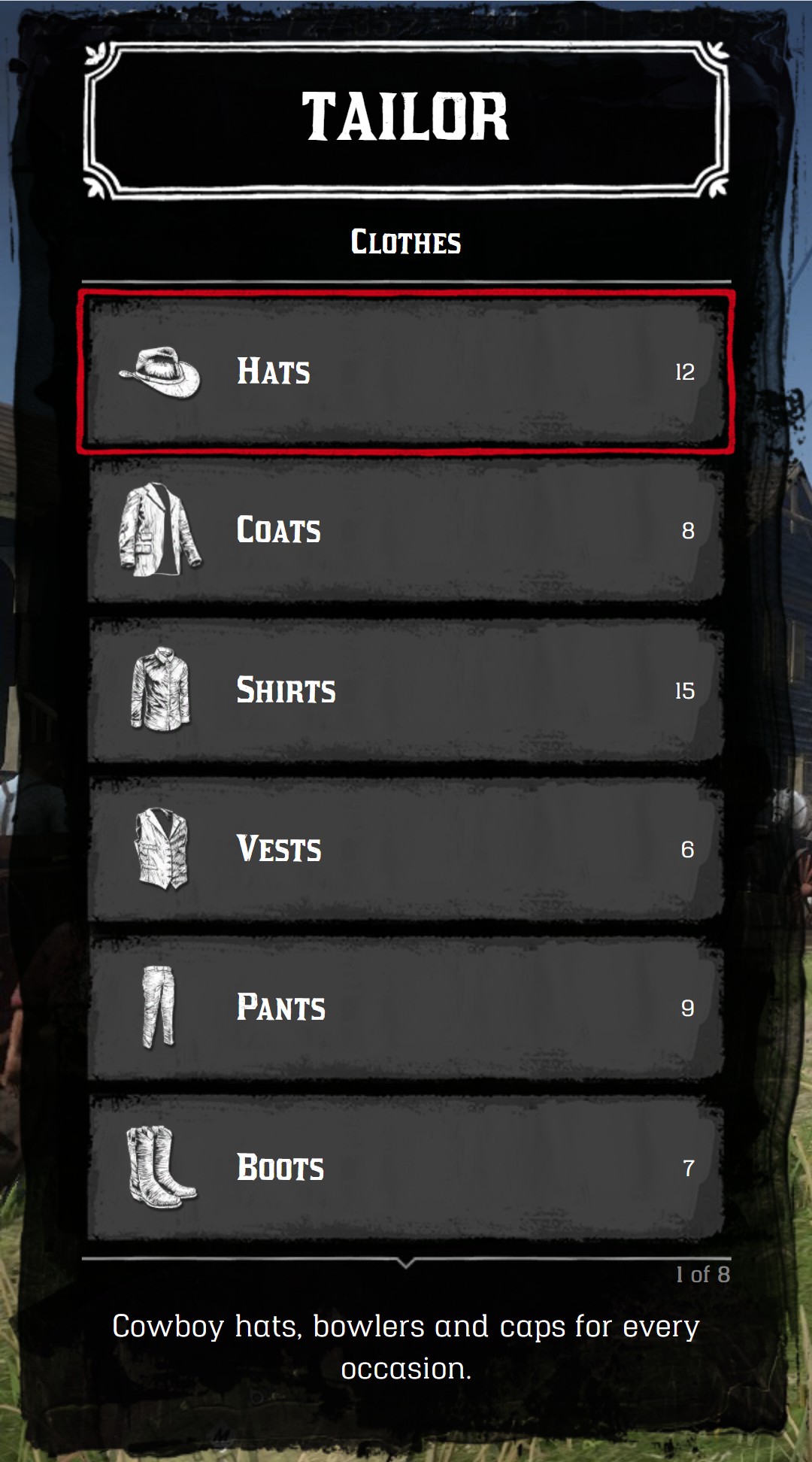
The `child` key of an item opens another menu when the item is clicked. The previous menu is kept in the history, and Backspace (or the back arrow) goes back to it.
```lua
local menu = jo.menu.create("tailor", { title = "Tailor", subtitle = "Clothes" })
menu:addItem({ title = "Hats", icon = "hats", child = "hats" })
menu:send()
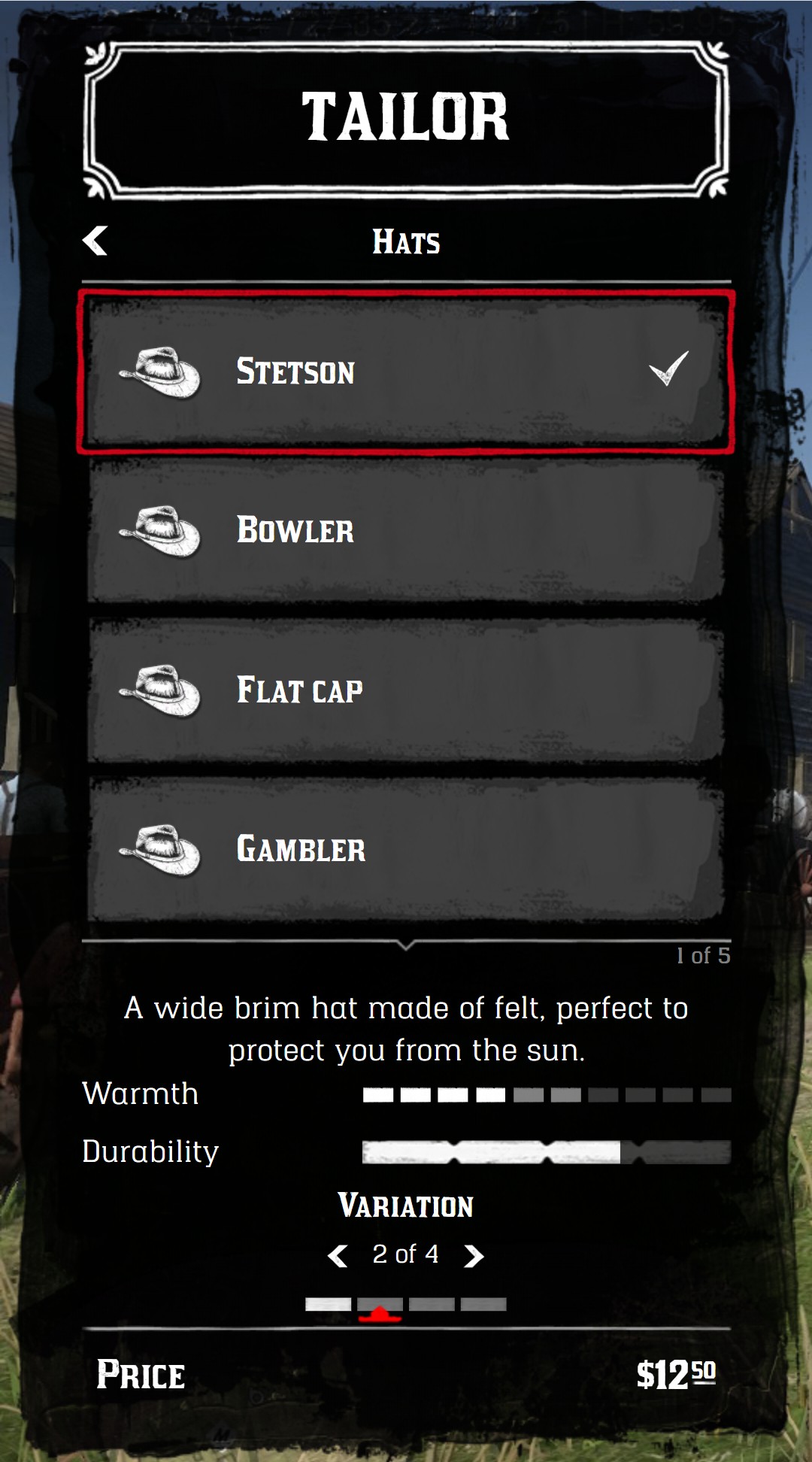
local hats = jo.menu.create("hats", { title = "Tailor", subtitle = "Hats" })
hats:addItem({ title = "Stetson", icon = "hats" })
hats:send()
```
### Go back
- Backspace, Escape and the back arrow fire the `onBack` callback of the current menu, then go back to the previous menu of the history.
- [`jo.menu.forceBack()`](./functions#jo-menu-forceback) does the same from your code.
:::warning Close the menu yourself
On the first menu, there is no previous menu: Backspace only fires `onBack`. To close the menu with Backspace, hide it in the `onBack` callback of the first menu:
```lua
jo.menu.create("tailor", {
title = "Tailor",
onBack = function()
jo.menu.show(false)
end,
})
```
:::
## Display
### Show and hide
[`jo.menu.show()`](./functions#jo-menu-show) shows or hides the current menu.
```lua
jo.menu.show(true) -- show the menu, the player can still move
jo.menu.show(true, false) -- show the menu and block the game controls
jo.menu.show(true, true, true, false) -- show the menu without animation
jo.menu.show(false) -- hide the menu
```
While the menu is displayed:
- the radar is hidden,
- the weapon wheel, the weapon switch and the pause menu controls are disabled,
- the `onTick` callbacks of the menu and the active item are fired every frame.
[`jo.menu.isOpen()`](./functions#jo-menu-isopen) returns `true` while the menu is displayed.
### Close when the player moves away
`distanceToClose` hides the menu when the player moves further than this distance from the position where the menu was opened.
```lua
jo.menu.create("tailor", { title = "Tailor", distanceToClose = 3.0 })
```
### Hide the menu temporarily
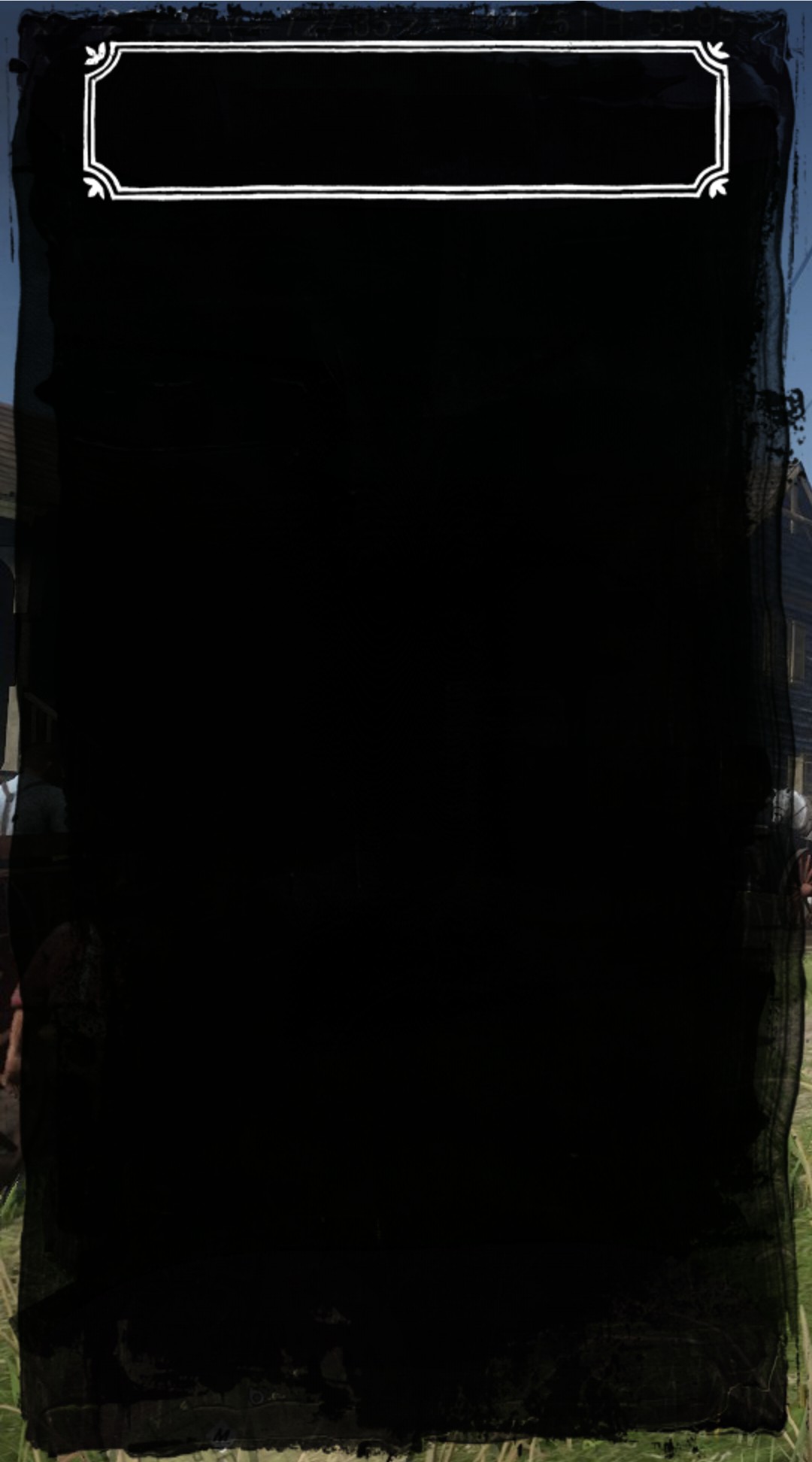
[`jo.menu.softHide()`](./functions#jo-menu-softhide) hides the menu while a function runs, then displays it again at the same place. It's useful to show the player the result of an action, or to open an other interface. With `keepBackground = true`, the background of the menu stays visible.
```lua
menu:addItem({
title = "Try on",
onClick = function()
jo.menu.softHide(function()
Wait(3000) -- the player looks at the outfit for 3 seconds
end, true, true)
end,
})
```
{.menu-full data-zoomable}
[`jo.menu.isSoftHidden()`](./functions#jo-menu-issofthidden) returns `true` while the function runs.
### Loader
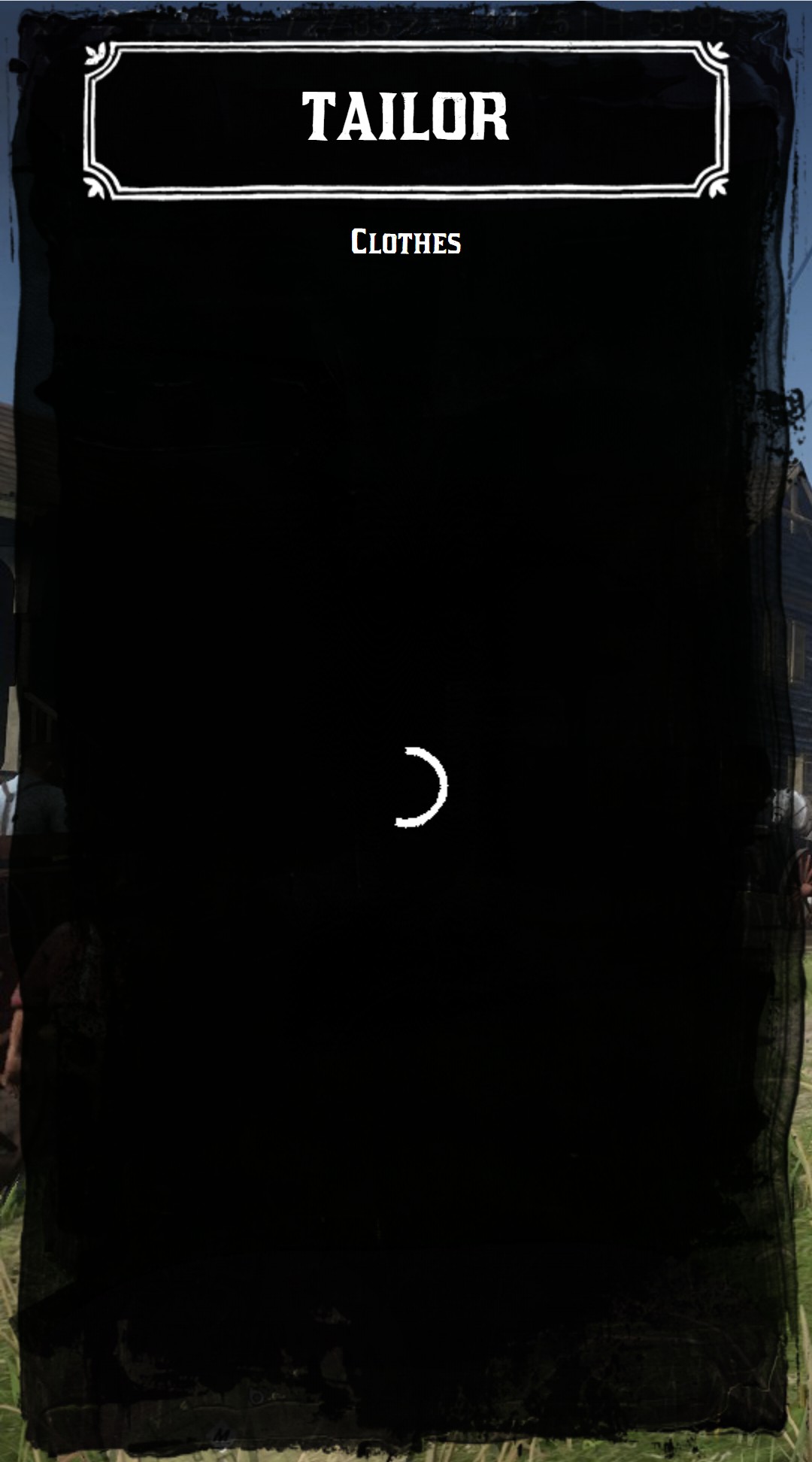
[`jo.menu.displayLoader()`](./functions#jo-menu-displayloader) displays a loading animation, while you wait for data from the server for example. [`jo.menu.hideLoader()`](./functions#jo-menu-hideloader) hides it. A `list` menu without item displays the loader too.
```lua
jo.menu.displayLoader()
local outfits = jo.callback.triggerServer("myResource:getOutfits")
jo.menu.hideLoader()
```
{.menu-full data-zoomable}
## Translations
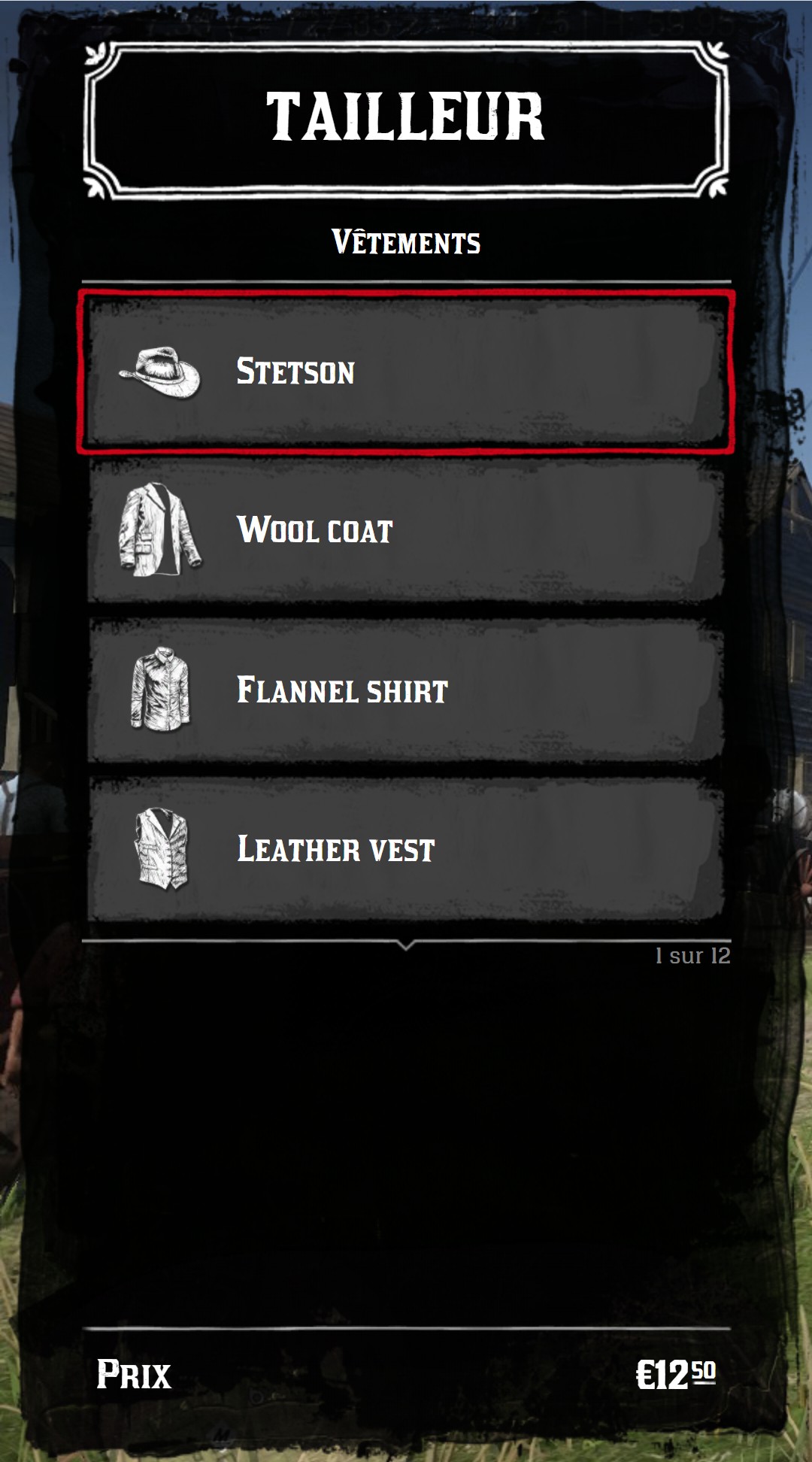
[`jo.menu.updateLang()`](./functions#jo-menu-updatelang) translates the texts of the menu, for all your menus.
| Key | Default | Description |
| --- | --- | --- |
| `of` | `"%1 of %2"` | The counter of the items and sliders. `%1` is the position, `%2` the total |
| `price` | `"Price"` | The label above the price |
| `devise` | `"$"` | The currency symbol |
| `free` | `"Free"` | The price `0` |
| `number` | `"Number %1"` | The title of an item without title. `%1` is the position of the item |
```lua
jo.menu.updateLang({
of = "%1 sur %2",
price = "Prix",
devise = "€",
free = "Gratuit",
})
```
{.menu-full data-zoomable}
### Your own translations
You can add your own keys, and use them as texts with the `translate*` options:
| Option | Where | Translated text |
| --- | --- | --- |
| `translateTitle` | menu | `title` |
| `translateSubtitle` | menu | `subtitle` |
| `translate` | item | `title` |
| `translateDescription` | item | `description` |
| `translateTextRight` | item | `textRight` |
| `translate` | slider | `title`, `labels` and the labels of a `switch` |
| `translateLabel`, `translateValue` | statistic | `label`, `value` |
```lua
jo.menu.updateLang({ tailor_title = "Tailleur", buy_hat = "Acheter un chapeau" })
local menu = jo.menu.create("tailor", { title = "tailor_title", translateTitle = true })
menu:addItem({ title = "buy_hat", translate = true })
```
A missing key is displayed as `#key`.
## Sounds
The menu plays the sounds of the game when the player moves, clicks or opens it.
- [`jo.menu.updateVolume()`](./functions#jo-menu-updatevolume) sets their volume, from `0.0` to `1.0` (`0.5` by default).
- [`jo.menu.playAudio()`](./functions#jo-menu-playaudio) plays one of them: `button`, `coins`, `menu_open`, `menu_close` or `selected`.
```lua
jo.menu.updateVolume(0.2)
jo.menu.playAudio("coins") -- after a purchase
```
## Controls
| Key | Action |
| --- | --- |
| ↑ ↓ | Move in the list |
| ← → | `list` menu: change the first slider. `tile` menu: move in the grid |
| Enter | Click on the active item |
| Backspace Escape | Go back to the previous menu |
| Q / A and E | Change the second slider (the first one in a `tile` menu) |
| 4 6 | Change the third slider (the second one in a `tile` menu) |
| W A S D | Move the cursor of a `grid` slider |
| Mouse wheel | Scroll the list, or change the slider under the cursor |
| Click | Select an item, click again to enter it |
The keyboard layout (QWERTY or AZERTY) is detected automatically.
## CSS classes
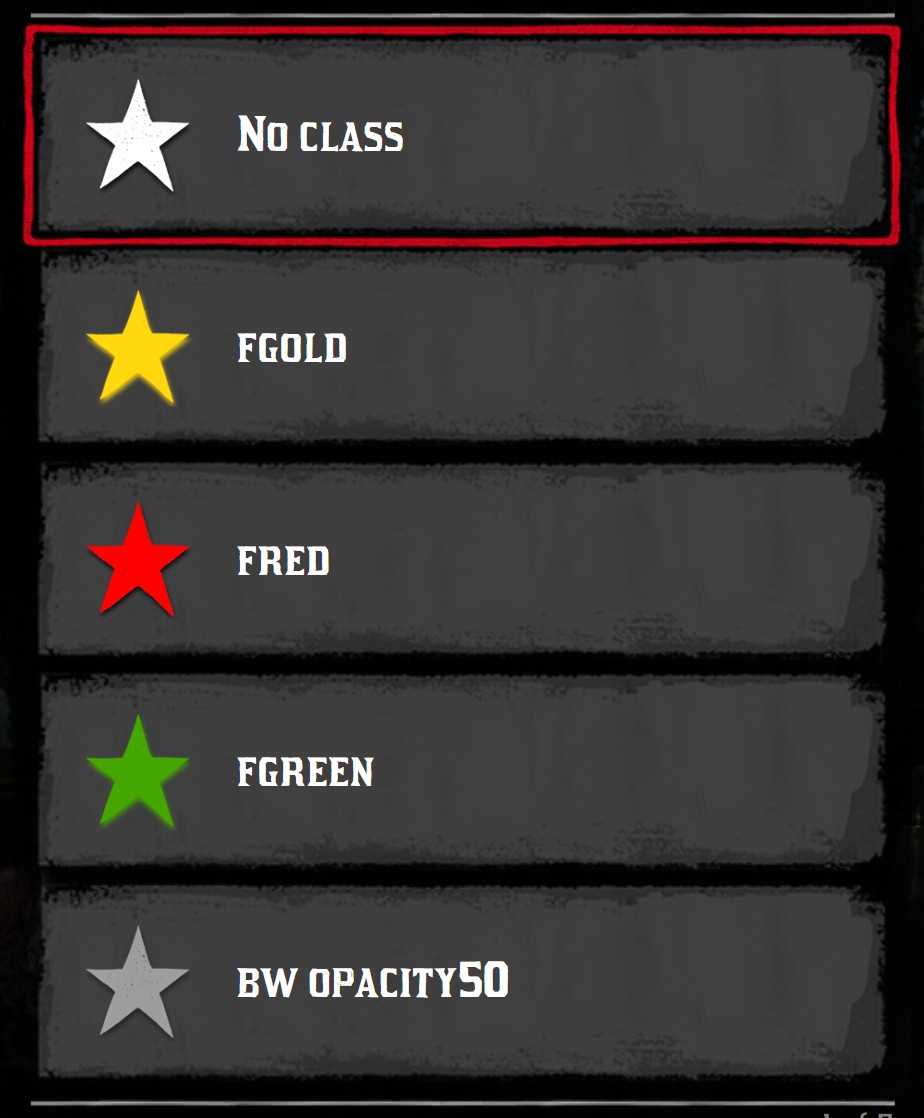
Some options (`iconClass`, `textRightClass`, `quantityCircleClass`, statistics `class`...) accept CSS classes of the menu. They can be combined, like `"bw opacity50"`.
| Class | Effect |
| --- | --- |
| `fgold` | Gold color (icons) |
| `fred` | Red color (icons) |
| `fgreen` | Green color (icons) |
| `gold` | Gold color (texts) |
| `red` | Red color (texts) |
| `bw` | Black and white |
| `opacity50` | 50% opacity |
| `tiny` | Smaller text (`textRightClass`) |
| `hapna` / `crock` | Fonts of the menu |
```lua
menu:addItem({ title = "fgold", icon = "star", iconClass = "fgold" })
menu:addItem({ title = "bw opacity50", icon = "star", iconClass = "bw opacity50" })
```
{.menu-detail data-zoomable}
## Icons
The `icon`, `prefix` and `iconRight` options of the items and the `icon` statistics use the filename (without `.png`) of an icon of the menu, in `jo_libs/nui/menu/assets/images/icons`: `hats`, `boots`, `horse_saddles`, `star`, `lock`, `tick`...
To use your own icons in `icon`, `prefix` and `iconRight`, pass a full URL instead of a filename:
```lua
menu:addItem({ title = "My item", icon = "nui://my_resource/images/my_icon.png" })
```
:::warning
Don't add your icons in the jo_libs folder: they would be removed by the next update of jo_libs.
:::