# Items
Items are added to a menu with [`MenuClass:addItem()`](./functions#menuclass-additem). This page shows every option of an item. The full list of keys is in the [reference](./functions#menuclass-additem).
## Add an item
```lua
local menu = jo.menu.create("tailor", { title = "Tailor", subtitle = "Hats" })
-- Add at the end
local item = menu:addItem({
title = "Stetson",
icon = "hats",
data = { hash = `HAT_STETSON`, price = 12.5 }, -- your own data
onClick = function(currentData)
print("Selected hat:", currentData.item.data.hash)
end,
})
-- Add at the first position
menu:addItem(1, { title = "Remove the hat" })
menu:send()
```
- `addItem()` returns the item. Keep it to [update it later](./events#update-a-menu).
- `data` stores your own values. They are available in the callbacks with `currentData.item.data`.
- The callbacks of the items (`onActive`, `onClick`, `onChange`, `onExit`, `onTick`) are detailed in [Events](./events).
## Title and subtitle
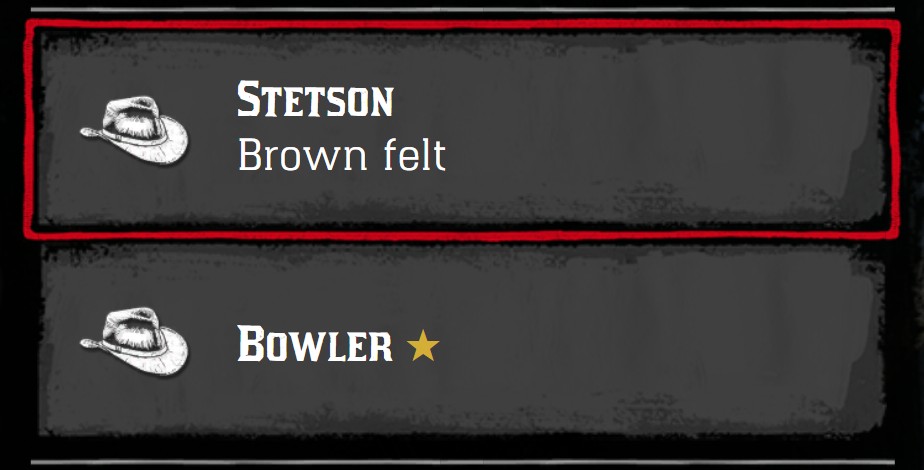
`title` is the label of the item, `subtitle` a second line under it. Both accept HTML.
```lua
menu:addItem({ title = "Stetson", subtitle = "Brown felt", icon = "hats" })
menu:addItem({ title = "Bowler ★", icon = "hats" })
```
{.menu-detail data-zoomable}
## Icon
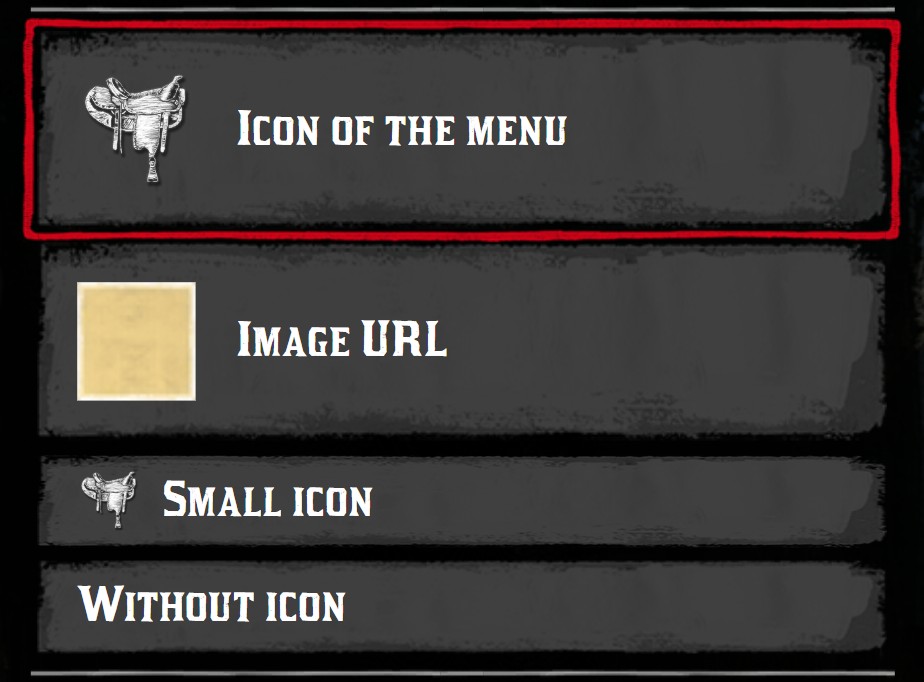
`icon` displays an icon on the left of the item. It's the filename of an [icon of the menu](./menus#icons) (without `.png`), or a full URL.
- An item with an icon is twice as high as an item without icon.
- `iconSize = "small"` displays a small icon, and keeps the height of an item without icon.
- `iconClass` applies [CSS classes](./menus#css-classes) to the icon, like `fgold` or `bw`.
```lua
menu:addItem({ title = "Icon of the menu", icon = "horse_saddles" })
menu:addItem({ title = "Image URL", icon = "nui://my_resource/images/gold.png" })
menu:addItem({ title = "Small icon", icon = "horse_saddles", iconSize = "small" })
menu:addItem({ title = "Without icon" })
```
{.menu-detail data-zoomable}
## Prefix
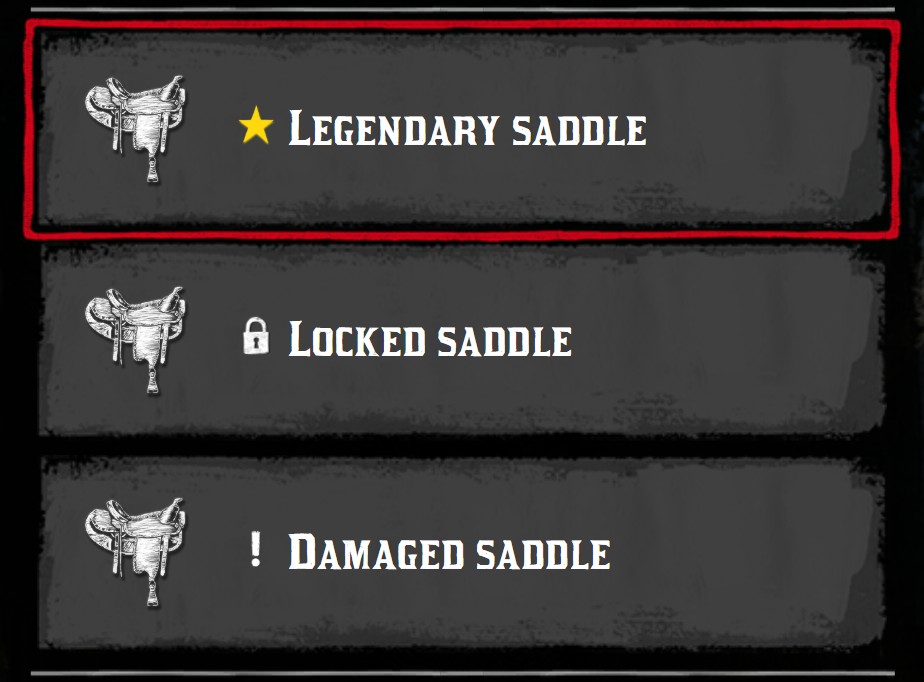
`prefix` displays a small icon before the title. The `star` icon is displayed in gold.
```lua
menu:addItem({ title = "Legendary saddle", prefix = "star", icon = "horse_saddles" })
menu:addItem({ title = "Locked saddle", prefix = "lock", icon = "horse_saddles" })
menu:addItem({ title = "Damaged saddle", prefix = "warning", icon = "horse_saddles" })
```
{.menu-detail data-zoomable}
## Right side
### Icon on the right
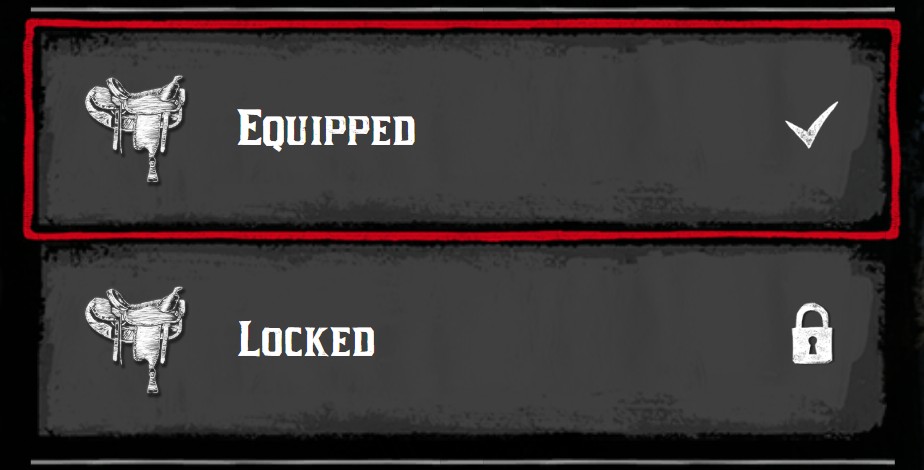
`iconRight` displays an icon on the right of the item, like a tick for the equipped item.
```lua
menu:addItem({ title = "Equipped", icon = "horse_saddles", iconRight = "tick" })
menu:addItem({ title = "Locked", icon = "horse_saddles", iconRight = "lock" })
```
{.menu-detail data-zoomable}
### Text on the right
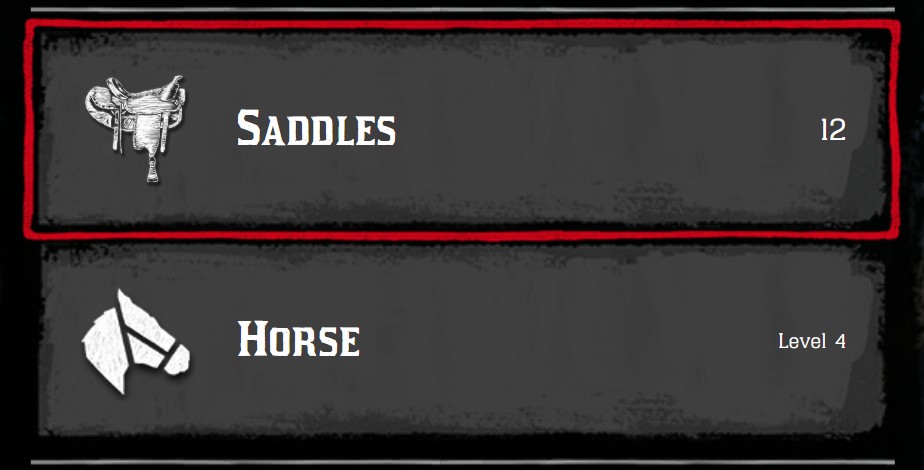
`textRight` displays a text on the right of the item. `textRightClass = "tiny"` makes it smaller.
```lua
menu:addItem({ title = "Saddles", icon = "horse_saddles", textRight = "12" })
menu:addItem({ title = "Horse", icon = "toast_horse_bond", textRight = "Level 4", textRightClass = "tiny" })
```
{.menu-detail data-zoomable}
To display a price on the right, see [`priceRight`](#price-on-the-right).
## Description, footer and image
The description area under the list displays the `image`, the `description` and the [statistics](./statistics) of the active item.
### Description
`description` accepts HTML.
```lua
menu:addItem({
title = "Stetson",
icon = "hats",
description = "A wide brim hat made of felt.
Protects you from the sun.",
})
```
{.menu-detail data-zoomable}
### Footer
`footer` is displayed at the very bottom of the menu, under the price. It accepts HTML.
```lua
menu:addItem({ title = "Stetson", icon = "hats", footer = "Press Enter to buy this hat" })
```
{.menu-detail data-zoomable}
### Image
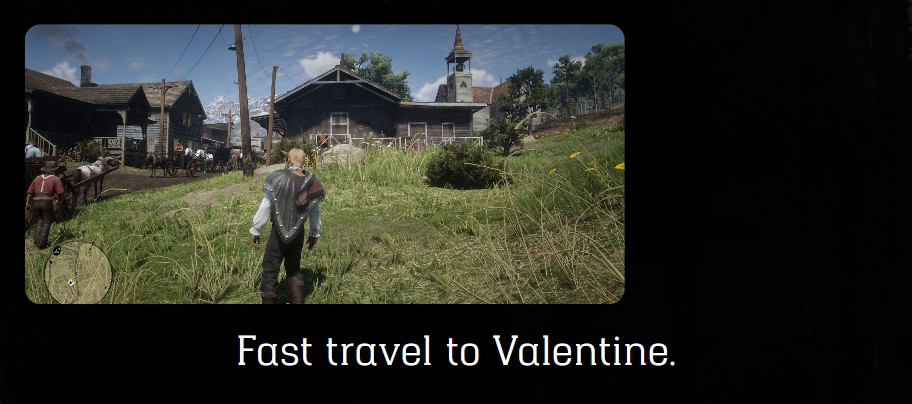
`image` displays an image above the description. It's a URL, or a table `{url, width, height, radius, style}`, like the [image of a menu](./menus#image).
```lua
menu:addItem({
title = "Valentine",
icon = "toast_horse_bond",
description = "Fast travel to Valentine.",
image = {
url = "nui://my_resource/images/valentine.jpg",
width = 300,
height = 140,
radius = 8,
style = "object-fit: cover",
},
})
```
{.menu-detail data-zoomable}
## Colors
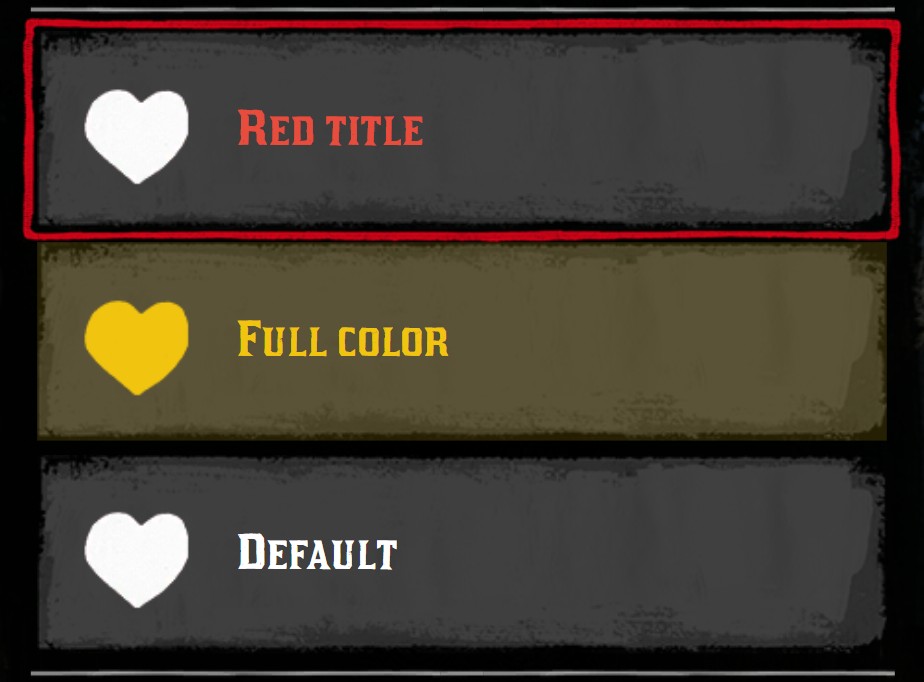
`color` changes the color of the item:
- a string: the CSS color of the title,
- a table, to color each part of the item:
| Key | Description |
| --- | --- |
| `title` | Color of the title |
| `background` | Color of the background of the item. Use a transparent color, like `rgba(241, 196, 15, 0.15)` |
| `accent` | Color of the border of the active item |
| `icon` | Color of the icon |
```lua
menu:addItem({ title = "Red title", icon = "player_health", color = "#e74c3c" })
menu:addItem({
title = "Full color",
icon = "player_health",
color = {
title = "#f1c40f",
background = "rgba(241, 196, 15, 0.15)",
accent = "#f1c40f",
icon = "#f1c40f",
},
})
```
{.menu-detail data-zoomable}
## Disabled and hidden items
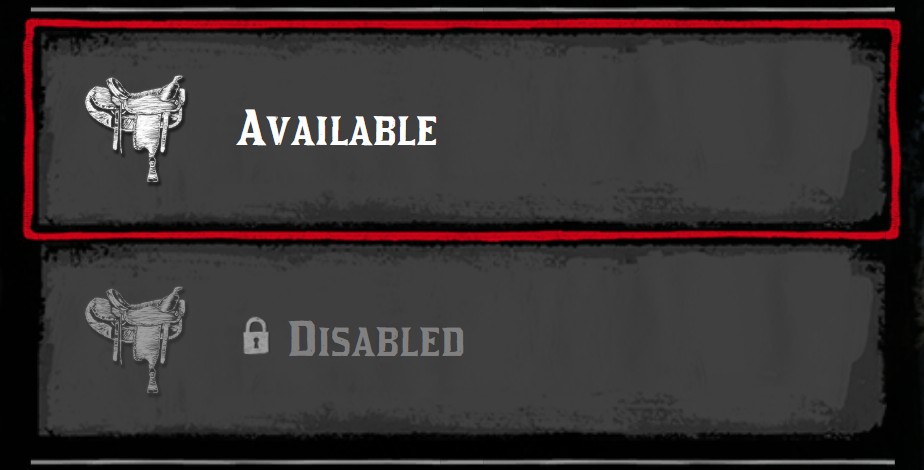
- `disabled = true` greys out the item: it can't be clicked, its sliders are hidden and its icon is displayed in black and white.
- `visible = false` hides the item.
```lua
menu:addItem({ title = "Available", icon = "horse_saddles" })
menu:addItem({ title = "Disabled", icon = "horse_saddles", disabled = true, prefix = "lock" })
menu:addItem({ title = "Hidden", visible = false })
```
{.menu-detail data-zoomable}
## Prices
`price` displays the price of the active item at the bottom of the menu. A price can be:
| Format | Example | Displayed |
| --- | --- | --- |
| A number | `price = 4.25` | `$4.25` |
| Money | `price = { money = 4.25 }` | `$4.25` |
| Gold | `price = { gold = 3 }` | `3` gold |
| Money and gold | `price = { money = 25, gold = 2 }` | `2` gold and `$25` |
| A list of costs | `price = { { money = 5 }, { item = "wheel", quantity = 1 } }` | Each cost, separated by `+` |
| Free | `price = 0` | `Free` |
### Items as a price
In a list of costs, an inventory item is a table with the keys:
| Key | Type | Description |
| --- | --- | --- |
| `item` | _string_ | The name of the item in your inventory |
| `quantity` | _integer_ | The quantity `[Optional]` default: `1` |
| `label` | _string_ | The label displayed under the image `[Optional]` |
| `image` | _string_ | An [icon of the menu](./menus#icons) or an image URL `[Optional]` |
| `tooltip` | _boolean_ | Display the label in a tooltip instead of under the image `[Optional]` |
| `quantityStyle` | _string_ | `"circle"` to display the quantity in a circle on the image `[Optional]` |
```lua
menu:addItem({
title = "Wagon repair",
icon = "wagon",
price = {
{ money = 5 },
{ item = "horseshoe", quantity = 3, label = "Horseshoe", image = "horseshoes" },
{ item = "wheel", quantity = 1, label = "Wheel", image = "wheel", quantityStyle = "circle" },
},
})
```
{.menu-detail data-zoomable}
:::tip
The prices use the format of the [Pricing module](../pricing/). To compute the price of an action, like a tax or the sum of several prices, use the functions of this module.
:::
### Price title
`priceTitle` replaces the "Price" label. To translate it for all the menus, use the `price` key of [`jo.menu.updateLang()`](./menus#translations).
```lua
menu:addItem({ title = "Stable slot", icon = "toast_horse_bond", price = { money = 10 }, priceTitle = "Rent per day" })
```
{.menu-detail data-zoomable}
### Price on the right
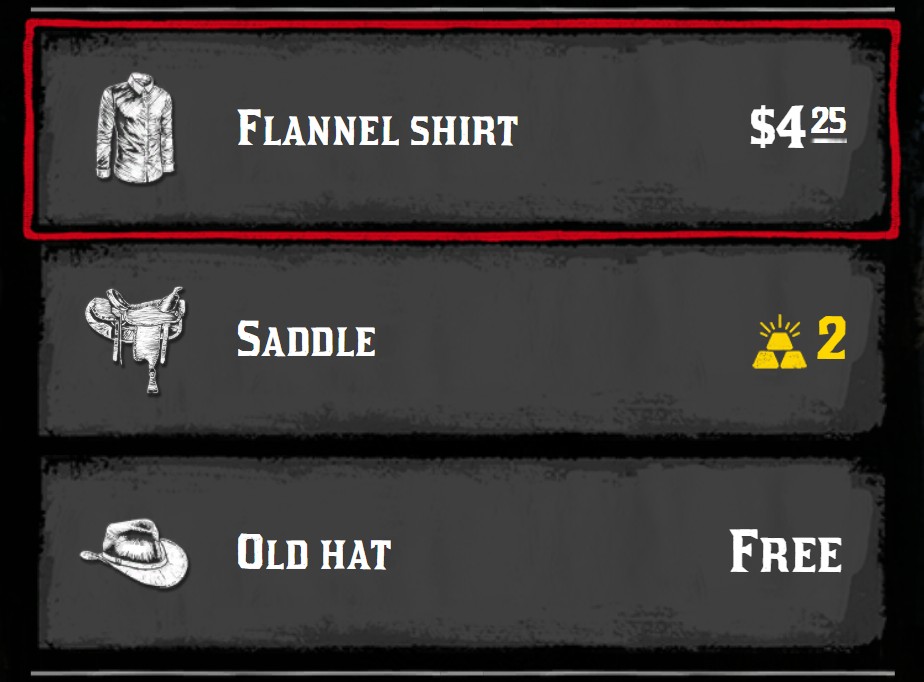
`priceRight` displays a price on the right of the item: `true` displays the `price` of the item, any other value is displayed as a price.
```lua
menu:addItem({ title = "Flannel shirt", icon = "shirts_full", price = 4.25, priceRight = true })
menu:addItem({ title = "Saddle", icon = "horse_saddles", priceRight = { gold = 2 } })
menu:addItem({ title = "Old hat", icon = "hats", price = 0, priceRight = true })
```
{.menu-detail data-zoomable}
:::info Other prices
- The menu can display a price for all the items without price: see [Price of the menu](./menus#price-of-the-menu).
- Each value of a default slider can have its own price: see [Price of a value](./sliders#price-of-a-value).
:::
## Tile items
In a [`tile` menu](./menus#tile), items have some additional options.
### Quantity, quality and stars
| Key | Type | Description |
| --- | --- | --- |
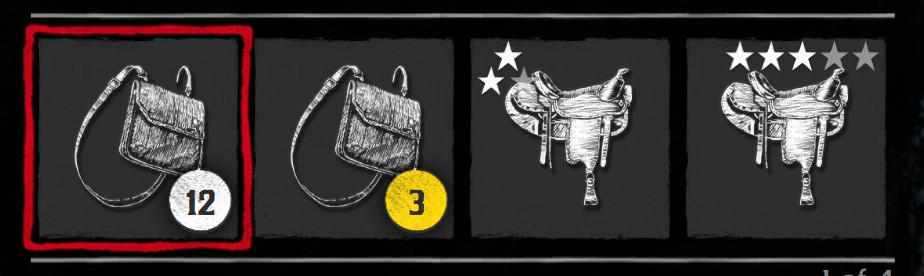
| `quantity` | _number_ | A number in a circle, in the bottom right corner |
| `quantityCircleClass` | _string_ | CSS classes of the circle, like `fgold` |
| `quality` | _integer_ | A quality from `1` to `3`, displayed with stars in the top left corner |
| `qualityClass` | _string_ | CSS classes of the quality stars |
| `stars` | _table_ | A row of stars: `{current, total}` |
| `starsClass` | _string_ | CSS classes of the row of stars |
```lua
local menu = jo.menu.create("satchel", { title = "Satchel", type = "tile" })
menu:addItem({ title = "Quantity", icon = "satchels", quantity = 12 })
menu:addItem({ title = "Gold quantity", icon = "satchels", quantity = 3, quantityCircleClass = "fgold" })
menu:addItem({ title = "Quality", icon = "horse_saddles", quality = 2 })
menu:addItem({ title = "Stars", icon = "horse_saddles", stars = { 3, 5 } })
```
{.menu-detail data-zoomable}
### Icon on the right
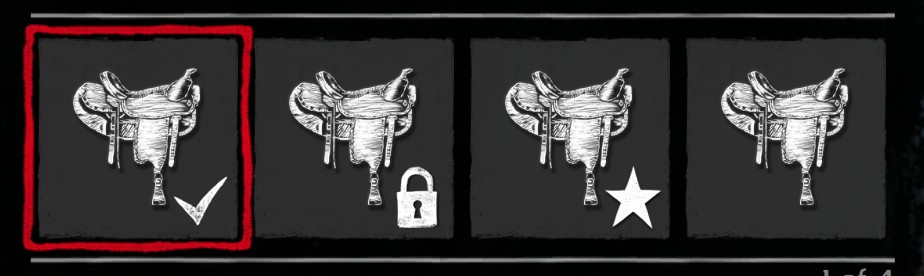
In a tile, `iconRight` is displayed in the bottom right corner.
```lua
menu:addItem({ title = "Equipped", icon = "horse_saddles", iconRight = "tick" })
menu:addItem({ title = "Locked", icon = "horse_saddles", iconRight = "lock", iconClass = "bw" })
menu:addItem({ title = "New", icon = "horse_saddles", iconRight = "star" })
```
{.menu-detail data-zoomable}
### Image padding
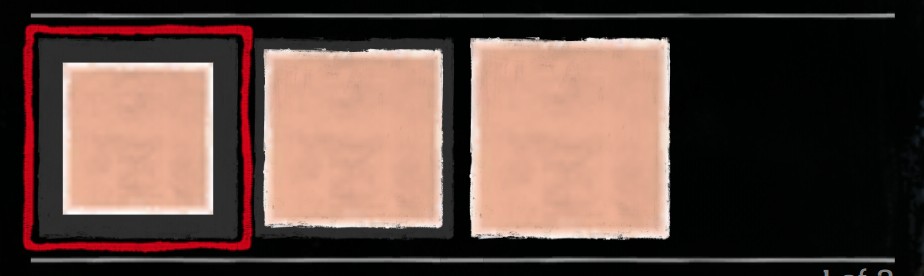
`tilePadding` sets the space between the image and the edge of the tile: a number in vh, or a CSS length. `0` brings the image to the edge, useful for pictures or color swatches.
```lua
menu:addItem({ title = "Default padding", icon = "nui://my_resource/images/copper.png" })
menu:addItem({ title = "tilePadding = 0.5", icon = "nui://my_resource/images/copper.png", tilePadding = 0.5 })
menu:addItem({ title = "tilePadding = 0", icon = "nui://my_resource/images/copper.png", tilePadding = 0 })
```
{.menu-detail data-zoomable}
### Image zoom
`tileZoom` enlarges the image in its tile, cut by it: `1.5` for 150 %. `tileZoomOrigin` is the point it is enlarged from, as a CSS `transform-origin`: `top`, `center`, `right`, `top center`... (default: `center`). Useful to frame the top of a full-body picture.
```lua
menu:addItem({
title = "Outfit 1",
icon = "https://my-cdn.com/outfits/1.avif",
tilePadding = 0,
tileZoom = 1.4,
tileZoomOrigin = "top", -- the head to the middle of the legs
})
```
## Images from the web
An image of a URL (a CDN, the `nui://` of another resource...), as the icon of a tile or the image of a [sprite](./sliders#sprite), shows a loading spinner until it is loaded; one already in the browser's cache shows at once. When it changes, the former image stays until the new one is loaded.
To spare the server, an image from the web (an `http` or `https` URL) is requested only once it stays displayed 150 ms, and its request is cancelled when it changes or leaves the menu: scrolling fast through a menu never requests the images it passes. An image that fails (a rate limit...) is requested again twice, 3 seconds apart.
### Preload
`preload` is a list of image URLs loaded when the item becomes active, so they show at once afterwards: the images of its sliders, or the ones of the menu it opens. The images from the web are requested once the item stays active 150 ms.
```lua
menu:addItem({
title = "Hats",
preload = {
"https://my-cdn.com/hats/1.avif",
"https://my-cdn.com/hats/2.avif",
},
onClick = function() OpenHatsMenu() end,
})
```
`preload` can also be set later, from `onActive`: to compute the images only for the item the player stops on.
```lua
local item
item = menu:addItem({
title = "Hats",
onActive = function()
if item.preload then return end
item:updateValue("preload", GetFirstHatsThumbnails())
menu:push()
end,
})
```
## Color preview
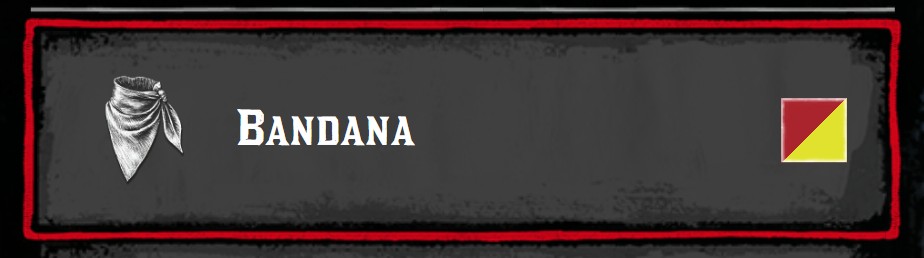
`previewPalette = true` displays a square with the current color of the item, on the right of the item. It shows the `palette` sliders of the item (up to 3 colors), or the current value of a `sprite` or `color` slider. See [Sliders](./sliders).
```lua
menu:addItem({
title = "Bandana",
icon = "neckerchiefs",
previewPalette = true,
sliders = {
{ type = "palette", title = "Main color", tint = "tint_makeup", current = 22 },
{ type = "palette", title = "Second color", tint = "tint_makeup", current = 44 },
},
})
```
{.menu-detail data-zoomable}



