# GTA 6 Lockpick
jo_lockpick is a free **FiveM lockpick script** with a **GTA 6 (GTA VI) style** minigame: move the stick to find a hidden sweet spot and fill the circle to pick the lock. Inspired by GTA VI, not an official Rockstar Games product.
Free FiveM lockpick script with a GTA 6 style minigame: find the hidden sweet spot with the stick or the mouse. Standalone for ESX, QBCore and QBox.
[Buy Lockpick - GTA VI inspired on the Jump On Studios store](https://jumpon-studios.com/fivem/lockpick)
[Trailer](https://www.youtube.com/watch?v=gyL293-dtSA)
## 1. Installation
Standalone: **it works with every framework** (ESX, QBCore, QBox, VRP, …) and only requires **OneSync**.
- [Get it for free on the store](https://jumpon-studios.com/fivem/lockpick?utm_source=docs&utm_medium=referral&utm_campaign=installation&utm_content=lockpick), then download it from the Cfx.re portal
- Put `jo_lockpick` in your resources folder
- Add `ensure jo_lockpick` to your server.cfg
::: tip GTA V Enhanced ready
Lockpick works on **FiveM for GTAV Enhanced** (tested in game) and on FiveM Legacy, with the same files.
:::
::: tip Only the minigame
Lockpick is **only the minigame interface**: no door, vehicle, safe or item logic. Your scripts start it with an export and decide what happens next, so it fits any door lock, vehicle key, robbery or inventory script.
:::
## 2. Usage
The minigame always shows in the center of the screen:
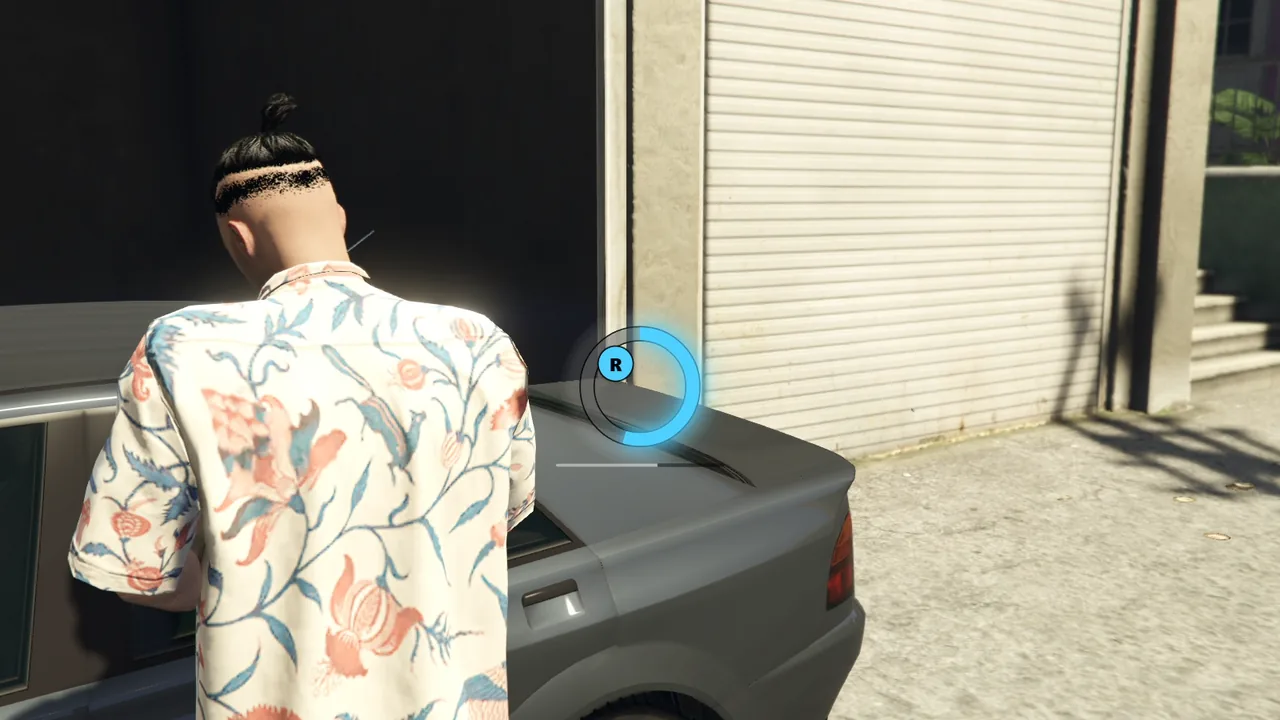
1. A sweet spot is hidden around each circle (8 possible directions by default).
2. The circle fills slowly on its own, even at rest, and **10 times faster** while the stick points at the sweet spot.
3. The badge takes the circle color as the stick gets closer and vibrates inside the spot. A gamepad vibrates more and more too.
4. A full circle locks. The lock is picked when every circle is full.
| Input | Left circle | Right circle |
| --- | --- | --- |
| Gamepad | Left stick | Right stick |
| Keyboard & mouse | Movement keys (8 directions) | Mouse |
With **1 circle**, only the right one shows (right stick or mouse). With **2 circles**, both sweet spots must be found.
Cancel with `F`, `Escape` or `Backspace` (`Y` or `B` on a gamepad).
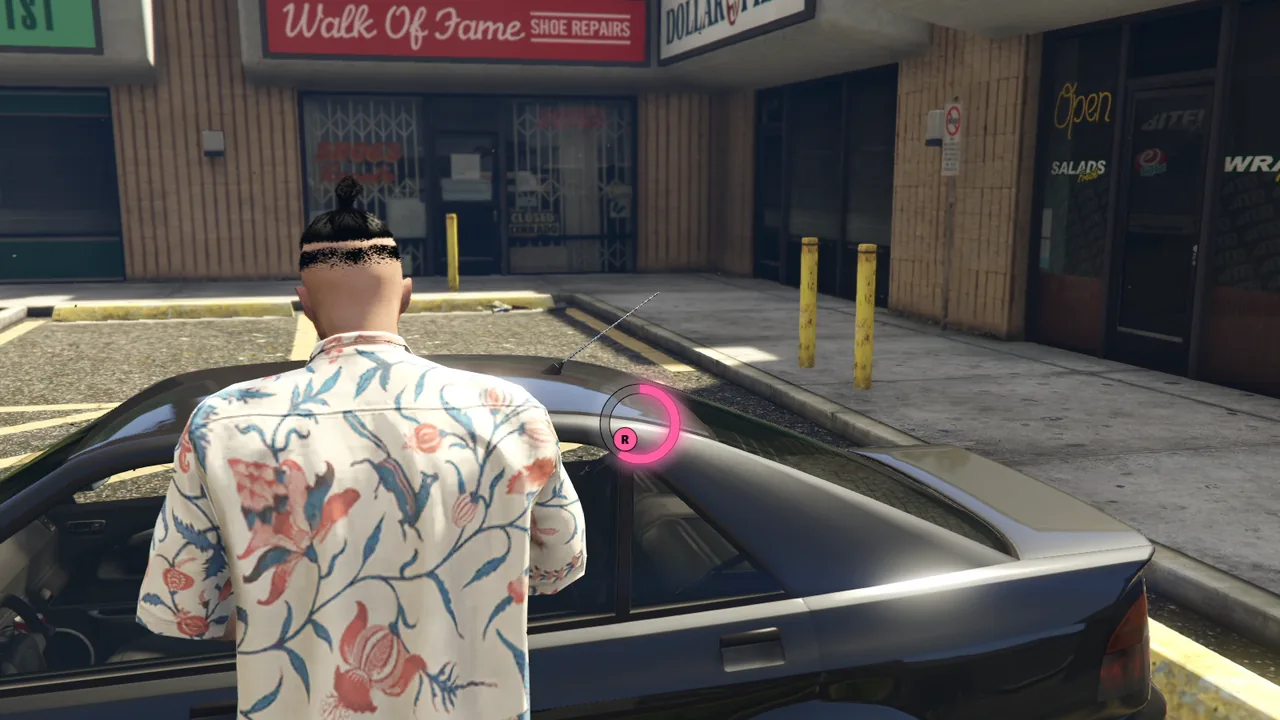
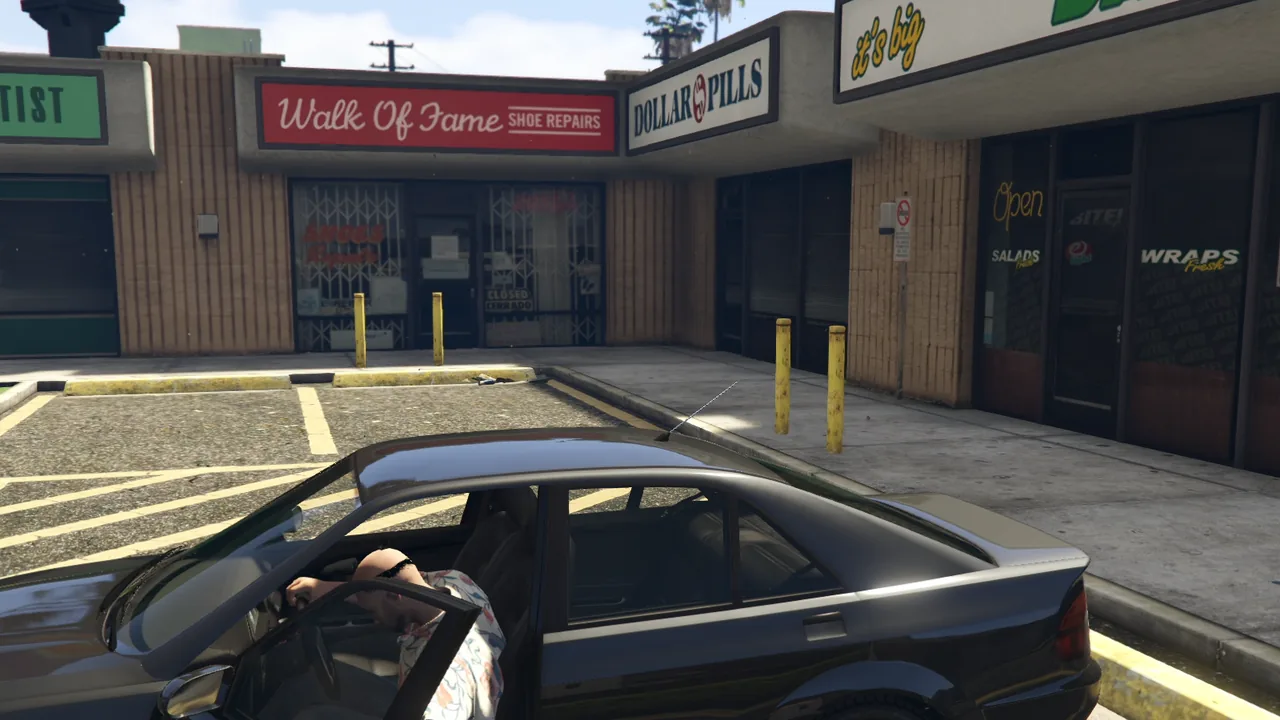
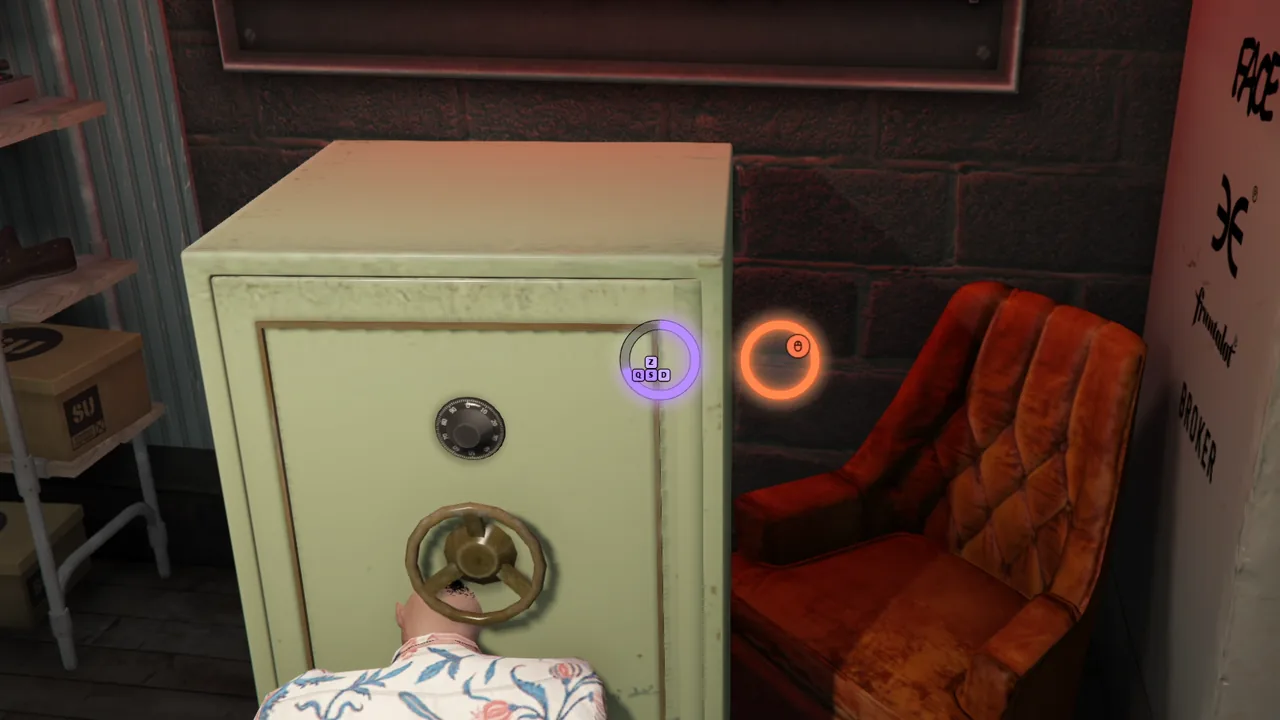
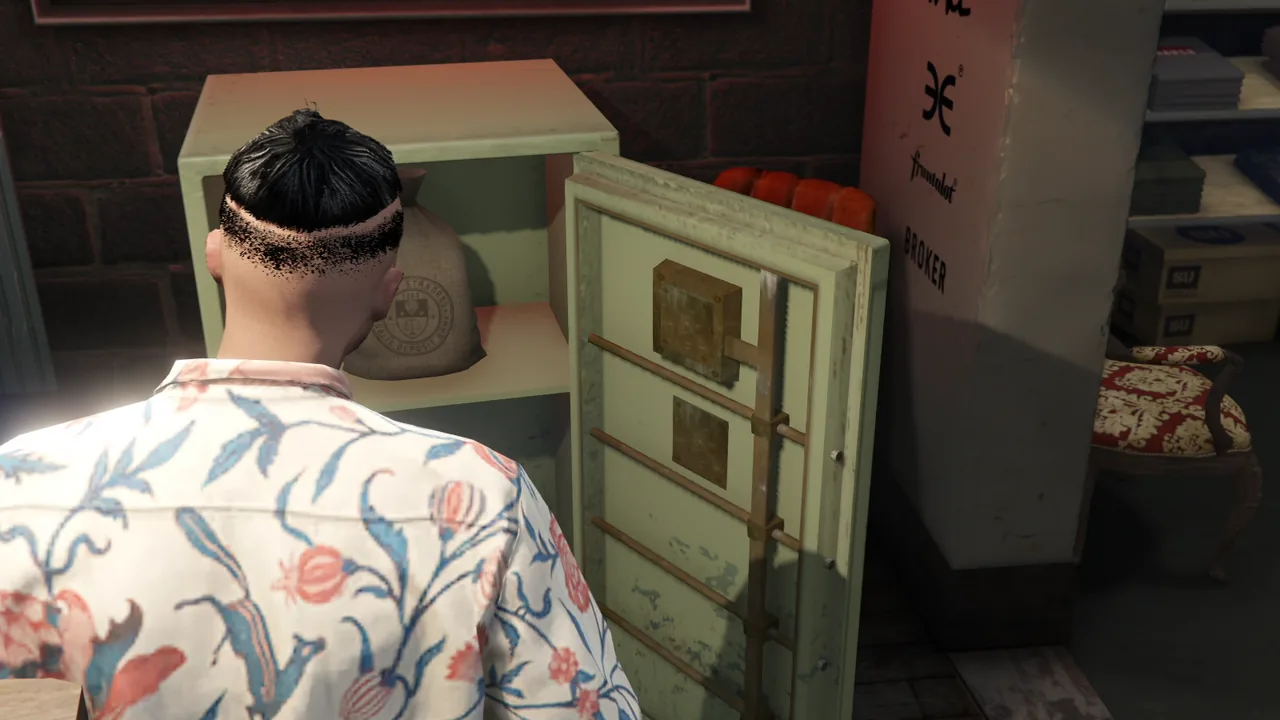
A car door: 1 circle, the stick in the sweet spotSuccess: your script unlocks the doorA safe: 2 circles, movement keys and mouseSuccess: your script opens the safe
### Fail mode
With `failMode.enabled`, a timer runs below the circles and a circle **drains** whenever its stick is out of the sweet spot. The attempt fails when the timer ends. With `failMode.holdCompleted` and 2 circles, a full circle must stay in its sweet spot while the player looks for the other one.
## 3. Configuration
The configuration files are located in the `config` folder within the resource. This folder contains two subfolders:
- **`_default.lock/`** - Contains the default configuration files. **Do not edit these files directly** as they may be overwritten during updates.
- **`custom/`** - This is where you place your custom configuration files to override the defaults.
### How to customize the configuration
1. Navigate to `jo_lockpick/config/_default.lock/`
2. Copy the file you want to modify (e.g., `prices.lua`)
3. Paste it into `jo_lockpick/config/custom/`
4. Edit the copied file in the `custom` folder
The script automatically loads files from `custom/` first, and only uses `_default.lock/` as a fallback. This system ensures your customizations are preserved when updating the script.
### Default configuration files
`jo_lockpick/config/_default.lock/global.lua`
```lua
Config.debugMode = false -- Debug prints, /lockpick command, visible zones
Config.gamepadVibration = true -- Vibration growing as the sticks get closer to their targets
-- Frontend sounds, false to disable one
Config.sounds = {
zone = { name = "NAV_UP_DOWN", set = "HUD_FRONTEND_DEFAULT_SOUNDSET" },
locked = { name = "SELECT", set = "HUD_FRONTEND_DEFAULT_SOUNDSET" },
success = { name = "Hack_Success", set = "DLC_HEIST_BIOLAB_PREP_HACKING_SOUNDS" },
failed = { name = "Hack_Failed", set = "DLC_HEIST_BIOLAB_PREP_HACKING_SOUNDS" },
}
```
`jo_lockpick/config/_default.lock/minigame.lua`
```lua
Config.minigame = {
circles = 1, -- 1 (right stick / mouse) or 2 (both sticks)
scale = 1.5, -- Size of the UI (1.0 = circles of 116 px, 1.5 = 174 px, 2.0 = 232 px)
shape = 100, -- Part (%) of the circle drawn (100 = full, 50 = half)
shapeAlign = "top", -- Arc centered on "top" or on the "zone" (shows where to aim)
track = "dark", -- Part left to fill: "dark" or "pale" (fill always in full color)
progressWidth = 10, -- Thickness (px, before scale) of the progress ring (1-40)
badgeSize = 28, -- Size (px, before scale) of the stick badge (10-80)
zoneSize = 50, -- Width (degrees) of the hidden zone
fillDuration = 10000, -- Time (ms) to fill a circle out of the zone
zoneMultiplier = 10, -- Fill speed inside the zone (multiplier)
minStickMagnitude = 0.3, -- Min stick deflection (0-1) to react
angleSteps = 8, -- Possible zone centers (8 = every 45 degrees), 0 = any angle
detectionRange = 90, -- Angle (degrees) around the zone where the vibration starts
targetDrift = 0, -- Rotation speed (degrees/s) of the zone, 0 = static
failMode = {
enabled = false, -- Timer, backward drain out of the zone and possible failure
maxDuration = 15000, -- Time (ms) before failing
regressDuration = 5000, -- Time (ms) to drain a full circle out of the zone
holdCompleted = false, -- 2 circles: a completed circle must stay in its zone
},
-- Color: a CSS color, or a list (a random one per circle)
color = { "#ff5fa2", "#4fd1ff", "#ffb43b", "#7cff6b", "#b98cff", "#ff7a4f" },
-- Border of the circles, badges and keycaps
border = {
color = "rgba(0, 0, 0, 0.85)", -- CSS color, false = no border
width = 1.2, -- Width in pixels
},
}
-- Keyboard & mouse: movement keys = left stick, mouse = right stick
Config.keyboard = {
mouseSensitivity = 1.0, -- Mouse sensitivity multiplier
}
```
`jo_lockpick/config/_default.lock/keys.lua`
```lua
-- Controls list: https://docs.fivem.net/docs/game-references/controls/
Config.keys = {
cancel = { 75, 200, 202 }, -- F / Y, Escape, Backspace / B: cancel
}
```
`jo_lockpick/config/_default.lock/lang.lua`
```lua
-- {L} and {R} become the left and right control icons
Lang.instructionsOne = "Move {R} to find the sweet spot and pick the lock."
Lang.instructionsTwo = "Move {L} and {R} to find both sweet spots and pick the lock."
```
| Option | Use |
| --- | --- |
| `circles` | `1` (right stick or mouse) or `2` (both sticks) |
| `scale` | UI size: `1.5` (default), `1.0` = 116 px circles, `2.0` = 232 px |
| `shape` | % of the circle drawn, centered on top: `100` (default) full circle, `50` half-circle. The white ring stays full |
| `track` | Part left to fill: `"dark"` (default, pale fill out of the sweet spot) or `"pale"` (pale part left, fill always in full color) |
| `progressWidth` | Ring thickness in px before `scale` (default `10`), grows inward |
| `badgeSize` | Badge size in px before `scale` (default `28`), keycaps included |
| `zoneSize` | Width of the sweet spot in degrees: smaller is harder |
| `fillDuration` | Time (ms) to fill a circle out of the sweet spot |
| `zoneMultiplier` | Fill speed inside the sweet spot |
| `angleSteps` | Possible directions of the sweet spot: `8` (keyboard directions) or `0` (any angle) |
| `targetDrift` | Rotation speed of the sweet spot in degrees/s, `0` = static |
| `failMode` | Timer, drain out of the sweet spot, failure |
| `color` | One CSS color (`"#4fd1ff"`), or a list to pick one per circle at random |
| `border` | Border of the circles and badges, `false` = none |
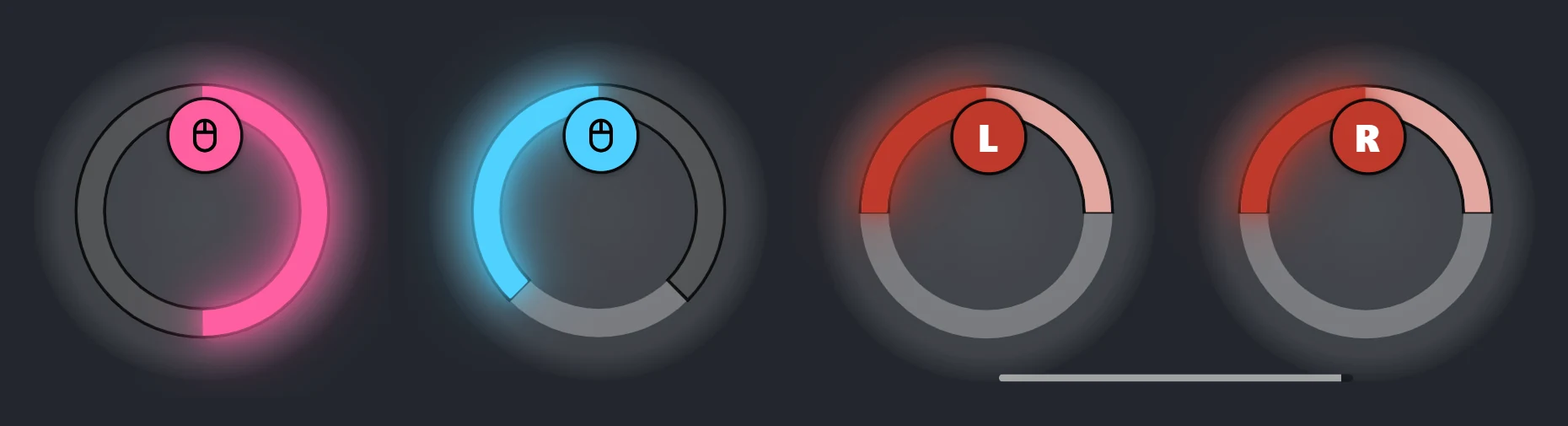
Left to right: default look, `shape = 75`, then `shape = 50` + `track = "pale"` with 2 circles (the look of [Hotwire](/FiveM/hotwire)).
::: warning Keyboard and small sweet spots
The keyboard has only 8 directions: keep `zoneSize` at 45 or more when `angleSteps` is not `8` or with `targetDrift`, or the sweet spot can fall between two directions.
:::
## 4. How to use
Call the export from a client script: it waits for the end of the attempt and returns `"success"`, `"failed"` or `"cancelled"`. The optional `options` table overrides `Config.minigame` for this call.
The two examples below are simplified scenes of the Lockpick trailer.
### Example: pick a locked car door
Trying to open a locked door starts the lockpick instead of the enter animation. Success unlocks the door and the player gets in, failure sets off the alarm.
::: details Video: the car door example in game
:::
```lua
local ANIM_DICT, ANIM_CLIP = "mp_common_heist", "pick_door" -- standing, hands at the door handle
CreateThread(function()
while true do
local ped = PlayerPedId()
local vehicle = GetVehiclePedIsTryingToEnter(ped)
if vehicle ~= 0 and GetVehicleDoorLockStatus(vehicle) == 2 and not exports.jo_lockpick:IsLockpickRunning() then
local seat = GetSeatPedIsTryingToEnter(ped)
ClearPedTasks(ped) -- cancel the game's enter task
RequestAnimDict(ANIM_DICT)
while not HasAnimDictLoaded(ANIM_DICT) do Wait(0) end
TaskPlayAnim(ped, ANIM_DICT, ANIM_CLIP, 3.0, 3.0, -1, 1, 0.0, false, false, false)
local result = exports.jo_lockpick:StartLockpick({
failMode = { enabled = true }, -- a time limit, so the attempt can fail
})
StopAnimTask(ped, ANIM_DICT, ANIM_CLIP, 2.0)
if result == "success" then
SetVehicleDoorsLocked(vehicle, 1)
TaskEnterVehicle(ped, vehicle, 5000, seat, 1.0, 1, 0)
elseif result == "failed" then
SetVehicleAlarm(vehicle, true)
SetVehicleAlarmTimeLeft(vehicle, 10000)
StartVehicleAlarm(vehicle)
end
end
Wait(0)
end
end)
```
::: tip
In the trailer, the player first walks to the handle of that door and faces it, so the animation lines up.
:::
### Example: crack a safe with 2 circles
The player presses `E` next to the safe, crouches with a screwdriver and must find both sweet spots before the timer ends.
::: details Video: the safe example in game
:::
```lua
local SAFE_ANIM = { dict = "anim@amb@clubhouse@tutorial@bkr_tut_ig3@", clip = "machinic_loop_mechandplayer" }
local SCREWDRIVER = `prop_tool_screwdvr01`
-- ° Called from your own interaction: a key press next to the safe, a target, an item...
local function crackSafe()
local ped = PlayerPedId()
-- Crouched, hands on the lock, a screwdriver in the right hand
RequestAnimDict(SAFE_ANIM.dict)
while not HasAnimDictLoaded(SAFE_ANIM.dict) do Wait(0) end
TaskPlayAnim(ped, SAFE_ANIM.dict, SAFE_ANIM.clip, 3.0, 3.0, -1, 1, 0.0, false, false, false)
RequestModel(SCREWDRIVER)
while not HasModelLoaded(SCREWDRIVER) do Wait(0) end
local coords = GetEntityCoords(ped)
local tool = CreateObject(SCREWDRIVER, coords.x, coords.y, coords.z, false, false, false)
AttachEntityToEntity(tool, ped, GetPedBoneIndex(ped, 57005), 0.09, 0.1, -0.01, 90.0, 0.0, 0.0, true, true, false, true, 1, true)
local result = exports.jo_lockpick:StartLockpick({
circles = 2, -- one sweet spot per stick
failMode = { enabled = true }, -- a time limit, the circles drain out of their sweet spots
})
StopAnimTask(ped, SAFE_ANIM.dict, SAFE_ANIM.clip, 2.0)
DeleteEntity(tool)
if result == "success" then
-- open the safe: the trailer plays the game's safe cracking scene ("mini@safe_cracking")
end
end
```
### Difficulty per lock
```lua
local difficulties = {
easy = { zoneSize = 70 },
medium = { zoneSize = 50 },
hard = { zoneSize = 30, targetDrift = 20, failMode = { enabled = true } },
}
local result = exports.jo_lockpick:StartLockpick(difficulties.hard)
```
### Real integration: Hotwire
[Hotwire](/FiveM/hotwire) 2.0 uses Lockpick for its minigame: two half-circles in the paint color of the vehicle, with its own help text.
```lua
local result = exports.jo_lockpick:StartLockpick({
circles = 2,
shape = 50, -- half-circles
track = "pale", -- the part left to fill in the pale color
zoneSize = 24,
minStickMagnitude = 0.55,
color = paint, -- "#rrggbb" of the vehicle
failMode = { enabled = true, maxDuration = 15000, regressDuration = 667, holdCompleted = true },
instructions = "Move {L} and {R} to find both sweet spots, fill the half-circles and start the vehicle without a key.",
})
```
Meanwhile, a second thread calls `exports.jo_lockpick:StopLockpick()` if the player leaves the driver seat, which cancels the attempt.
## 5. For developers
### Exports
```lua
-- @side : Client side
exports.jo_lockpick:StartLockpick(options) -- Run the minigame, returns "success", "failed" or "cancelled"
exports.jo_lockpick:IsLockpickRunning()
exports.jo_lockpick:StopLockpick() -- Cancel the running attempt, false if none
```
Calling `StartLockpick` while a minigame runs returns `"cancelled"` at once.
`StopLockpick` cancels an attempt whose context is gone (the player left the vehicle, the door was opened...): call it from another thread while `StartLockpick` waits, which then returns `"cancelled"`.
`options.instructions` (string) replaces the `lang.lua` help text for one call, `{L}` and `{R}` being the control icons.
::: info
`StopLockpick`, `options.instructions`, `shape` and `track` require jo_lockpick **1.1.0** or later.
:::
### Events
Each event receives the final config of the attempt.
```lua
-- @side : Client side
AddEventHandler("jo_lockpick:client:started", function(config) end)
AddEventHandler("jo_lockpick:client:succeeded", function(config) end)
AddEventHandler("jo_lockpick:client:failed", function(config) end)
AddEventHandler("jo_lockpick:client:cancelled", function(config) end)
```
### Debug command
With `Config.debugMode = true`, the sweet spots are visible and `/lockpick [1|2] [fail]` runs the minigame with 1 or 2 circles, optionally in fail mode.
 GTA 6 Lockpick
jo_lockpick is a free **FiveM lockpick script** with a **GTA 6 (GTA VI) style** minigame: move the stick to find a hidden sweet spot and fill the circle to pick the lock. Inspired by GTA VI, not an official Rockstar Games product.
Free FiveM lockpick script with a GTA 6 style minigame: find the hidden sweet spot with the stick or the mouse. Standalone for ESX, QBCore and QBox.
[Buy Lockpick - GTA VI inspired on the Jump On Studios store](https://jumpon-studios.com/fivem/lockpick)
[Trailer](https://www.youtube.com/watch?v=gyL293-dtSA)
## 1. Installation
Standalone: **it works with every framework** (ESX, QBCore, QBox, VRP, …) and only requires **OneSync**.
- [Get it for free on the store](https://jumpon-studios.com/fivem/lockpick?utm_source=docs&utm_medium=referral&utm_campaign=installation&utm_content=lockpick), then download it from the Cfx.re portal
- Put `jo_lockpick` in your resources folder
- Add `ensure jo_lockpick` to your server.cfg
::: tip GTA V Enhanced ready
Lockpick works on **FiveM for GTAV Enhanced** (tested in game) and on FiveM Legacy, with the same files.
:::
::: tip Only the minigame
Lockpick is **only the minigame interface**: no door, vehicle, safe or item logic. Your scripts start it with an export and decide what happens next, so it fits any door lock, vehicle key, robbery or inventory script.
:::
## 2. Usage
The minigame always shows in the center of the screen:
1. A sweet spot is hidden around each circle (8 possible directions by default).
2. The circle fills slowly on its own, even at rest, and **10 times faster** while the stick points at the sweet spot.
3. The badge takes the circle color as the stick gets closer and vibrates inside the spot. A gamepad vibrates more and more too.
4. A full circle locks. The lock is picked when every circle is full.
| Input | Left circle | Right circle |
| --- | --- | --- |
| Gamepad | Left stick | Right stick |
| Keyboard & mouse | Movement keys (8 directions) | Mouse |
With **1 circle**, only the right one shows (right stick or mouse). With **2 circles**, both sweet spots must be found.
Cancel with `F`, `Escape` or `Backspace` (`Y` or `B` on a gamepad).
 ## 3. Configuration
The configuration files are located in the `config` folder within the resource. This folder contains two subfolders:
- **`_default.lock/`** - Contains the default configuration files. **Do not edit these files directly** as they may be overwritten during updates.
- **`custom/`** - This is where you place your custom configuration files to override the defaults.
### How to customize the configuration
1. Navigate to `jo_lockpick/config/_default.lock/`
2. Copy the file you want to modify (e.g., `prices.lua`)
3. Paste it into `jo_lockpick/config/custom/`
4. Edit the copied file in the `custom` folder
The script automatically loads files from `custom/` first, and only uses `_default.lock/` as a fallback. This system ensures your customizations are preserved when updating the script.
### Default configuration files
`jo_lockpick/config/_default.lock/global.lua`
```lua
Config.debugMode = false -- Debug prints, /lockpick command, visible zones
Config.gamepadVibration = true -- Vibration growing as the sticks get closer to their targets
-- Frontend sounds, false to disable one
Config.sounds = {
zone = { name = "NAV_UP_DOWN", set = "HUD_FRONTEND_DEFAULT_SOUNDSET" },
locked = { name = "SELECT", set = "HUD_FRONTEND_DEFAULT_SOUNDSET" },
success = { name = "Hack_Success", set = "DLC_HEIST_BIOLAB_PREP_HACKING_SOUNDS" },
failed = { name = "Hack_Failed", set = "DLC_HEIST_BIOLAB_PREP_HACKING_SOUNDS" },
}
```
`jo_lockpick/config/_default.lock/minigame.lua`
```lua
Config.minigame = {
circles = 1, -- 1 (right stick / mouse) or 2 (both sticks)
scale = 1.5, -- Size of the UI (1.0 = circles of 116 px, 1.5 = 174 px, 2.0 = 232 px)
shape = 100, -- Part (%) of the circle drawn (100 = full, 50 = half)
shapeAlign = "top", -- Arc centered on "top" or on the "zone" (shows where to aim)
track = "dark", -- Part left to fill: "dark" or "pale" (fill always in full color)
progressWidth = 10, -- Thickness (px, before scale) of the progress ring (1-40)
badgeSize = 28, -- Size (px, before scale) of the stick badge (10-80)
zoneSize = 50, -- Width (degrees) of the hidden zone
fillDuration = 10000, -- Time (ms) to fill a circle out of the zone
zoneMultiplier = 10, -- Fill speed inside the zone (multiplier)
minStickMagnitude = 0.3, -- Min stick deflection (0-1) to react
angleSteps = 8, -- Possible zone centers (8 = every 45 degrees), 0 = any angle
detectionRange = 90, -- Angle (degrees) around the zone where the vibration starts
targetDrift = 0, -- Rotation speed (degrees/s) of the zone, 0 = static
failMode = {
enabled = false, -- Timer, backward drain out of the zone and possible failure
maxDuration = 15000, -- Time (ms) before failing
regressDuration = 5000, -- Time (ms) to drain a full circle out of the zone
holdCompleted = false, -- 2 circles: a completed circle must stay in its zone
},
-- Color: a CSS color, or a list (a random one per circle)
color = { "#ff5fa2", "#4fd1ff", "#ffb43b", "#7cff6b", "#b98cff", "#ff7a4f" },
-- Border of the circles, badges and keycaps
border = {
color = "rgba(0, 0, 0, 0.85)", -- CSS color, false = no border
width = 1.2, -- Width in pixels
},
}
-- Keyboard & mouse: movement keys = left stick, mouse = right stick
Config.keyboard = {
mouseSensitivity = 1.0, -- Mouse sensitivity multiplier
}
```
`jo_lockpick/config/_default.lock/keys.lua`
```lua
-- Controls list: https://docs.fivem.net/docs/game-references/controls/
Config.keys = {
cancel = { 75, 200, 202 }, -- F / Y, Escape, Backspace / B: cancel
}
```
`jo_lockpick/config/_default.lock/lang.lua`
```lua
-- {L} and {R} become the left and right control icons
Lang.instructionsOne = "Move {R} to find the sweet spot and pick the lock."
Lang.instructionsTwo = "Move {L} and {R} to find both sweet spots and pick the lock."
```
| Option | Use |
| --- | --- |
| `circles` | `1` (right stick or mouse) or `2` (both sticks) |
| `scale` | UI size: `1.5` (default), `1.0` = 116 px circles, `2.0` = 232 px |
| `shape` | % of the circle drawn, centered on top: `100` (default) full circle, `50` half-circle. The white ring stays full |
| `track` | Part left to fill: `"dark"` (default, pale fill out of the sweet spot) or `"pale"` (pale part left, fill always in full color) |
| `progressWidth` | Ring thickness in px before `scale` (default `10`), grows inward |
| `badgeSize` | Badge size in px before `scale` (default `28`), keycaps included |
| `zoneSize` | Width of the sweet spot in degrees: smaller is harder |
| `fillDuration` | Time (ms) to fill a circle out of the sweet spot |
| `zoneMultiplier` | Fill speed inside the sweet spot |
| `angleSteps` | Possible directions of the sweet spot: `8` (keyboard directions) or `0` (any angle) |
| `targetDrift` | Rotation speed of the sweet spot in degrees/s, `0` = static |
| `failMode` | Timer, drain out of the sweet spot, failure |
| `color` | One CSS color (`"#4fd1ff"`), or a list to pick one per circle at random |
| `border` | Border of the circles and badges, `false` = none |
 Left to right: default look, `shape = 75`, then `shape = 50` + `track = "pale"` with 2 circles (the look of [Hotwire](/FiveM/hotwire)).
::: warning Keyboard and small sweet spots
The keyboard has only 8 directions: keep `zoneSize` at 45 or more when `angleSteps` is not `8` or with `targetDrift`, or the sweet spot can fall between two directions.
:::
## 4. How to use
Call the export from a client script: it waits for the end of the attempt and returns `"success"`, `"failed"` or `"cancelled"`. The optional `options` table overrides `Config.minigame` for this call.
The two examples below are simplified scenes of the Lockpick trailer.
### Example: pick a locked car door
Trying to open a locked door starts the lockpick instead of the enter animation. Success unlocks the door and the player gets in, failure sets off the alarm.
::: details Video: the car door example in game
:::
```lua
local ANIM_DICT, ANIM_CLIP = "mp_common_heist", "pick_door" -- standing, hands at the door handle
CreateThread(function()
while true do
local ped = PlayerPedId()
local vehicle = GetVehiclePedIsTryingToEnter(ped)
if vehicle ~= 0 and GetVehicleDoorLockStatus(vehicle) == 2 and not exports.jo_lockpick:IsLockpickRunning() then
local seat = GetSeatPedIsTryingToEnter(ped)
ClearPedTasks(ped) -- cancel the game's enter task
RequestAnimDict(ANIM_DICT)
while not HasAnimDictLoaded(ANIM_DICT) do Wait(0) end
TaskPlayAnim(ped, ANIM_DICT, ANIM_CLIP, 3.0, 3.0, -1, 1, 0.0, false, false, false)
local result = exports.jo_lockpick:StartLockpick({
failMode = { enabled = true }, -- a time limit, so the attempt can fail
})
StopAnimTask(ped, ANIM_DICT, ANIM_CLIP, 2.0)
if result == "success" then
SetVehicleDoorsLocked(vehicle, 1)
TaskEnterVehicle(ped, vehicle, 5000, seat, 1.0, 1, 0)
elseif result == "failed" then
SetVehicleAlarm(vehicle, true)
SetVehicleAlarmTimeLeft(vehicle, 10000)
StartVehicleAlarm(vehicle)
end
end
Wait(0)
end
end)
```
::: tip
In the trailer, the player first walks to the handle of that door and faces it, so the animation lines up.
:::
### Example: crack a safe with 2 circles
The player presses `E` next to the safe, crouches with a screwdriver and must find both sweet spots before the timer ends.
::: details Video: the safe example in game
:::
```lua
local SAFE_ANIM = { dict = "anim@amb@clubhouse@tutorial@bkr_tut_ig3@", clip = "machinic_loop_mechandplayer" }
local SCREWDRIVER = `prop_tool_screwdvr01`
-- ° Called from your own interaction: a key press next to the safe, a target, an item...
local function crackSafe()
local ped = PlayerPedId()
-- Crouched, hands on the lock, a screwdriver in the right hand
RequestAnimDict(SAFE_ANIM.dict)
while not HasAnimDictLoaded(SAFE_ANIM.dict) do Wait(0) end
TaskPlayAnim(ped, SAFE_ANIM.dict, SAFE_ANIM.clip, 3.0, 3.0, -1, 1, 0.0, false, false, false)
RequestModel(SCREWDRIVER)
while not HasModelLoaded(SCREWDRIVER) do Wait(0) end
local coords = GetEntityCoords(ped)
local tool = CreateObject(SCREWDRIVER, coords.x, coords.y, coords.z, false, false, false)
AttachEntityToEntity(tool, ped, GetPedBoneIndex(ped, 57005), 0.09, 0.1, -0.01, 90.0, 0.0, 0.0, true, true, false, true, 1, true)
local result = exports.jo_lockpick:StartLockpick({
circles = 2, -- one sweet spot per stick
failMode = { enabled = true }, -- a time limit, the circles drain out of their sweet spots
})
StopAnimTask(ped, SAFE_ANIM.dict, SAFE_ANIM.clip, 2.0)
DeleteEntity(tool)
if result == "success" then
-- open the safe: the trailer plays the game's safe cracking scene ("mini@safe_cracking")
end
end
```
### Difficulty per lock
```lua
local difficulties = {
easy = { zoneSize = 70 },
medium = { zoneSize = 50 },
hard = { zoneSize = 30, targetDrift = 20, failMode = { enabled = true } },
}
local result = exports.jo_lockpick:StartLockpick(difficulties.hard)
```
### Real integration: Hotwire
[Hotwire](/FiveM/hotwire) 2.0 uses Lockpick for its minigame: two half-circles in the paint color of the vehicle, with its own help text.
```lua
local result = exports.jo_lockpick:StartLockpick({
circles = 2,
shape = 50, -- half-circles
track = "pale", -- the part left to fill in the pale color
zoneSize = 24,
minStickMagnitude = 0.55,
color = paint, -- "#rrggbb" of the vehicle
failMode = { enabled = true, maxDuration = 15000, regressDuration = 667, holdCompleted = true },
instructions = "Move {L} and {R} to find both sweet spots, fill the half-circles and start the vehicle without a key.",
})
```
Meanwhile, a second thread calls `exports.jo_lockpick:StopLockpick()` if the player leaves the driver seat, which cancels the attempt.
## 5. For developers
### Exports
```lua
-- @side : Client side
exports.jo_lockpick:StartLockpick(options) -- Run the minigame, returns "success", "failed" or "cancelled"
exports.jo_lockpick:IsLockpickRunning()
exports.jo_lockpick:StopLockpick() -- Cancel the running attempt, false if none
```
Calling `StartLockpick` while a minigame runs returns `"cancelled"` at once.
`StopLockpick` cancels an attempt whose context is gone (the player left the vehicle, the door was opened...): call it from another thread while `StartLockpick` waits, which then returns `"cancelled"`.
`options.instructions` (string) replaces the `lang.lua` help text for one call, `{L}` and `{R}` being the control icons.
::: info
`StopLockpick`, `options.instructions`, `shape` and `track` require jo_lockpick **1.1.0** or later.
:::
### Events
Each event receives the final config of the attempt.
```lua
-- @side : Client side
AddEventHandler("jo_lockpick:client:started", function(config) end)
AddEventHandler("jo_lockpick:client:succeeded", function(config) end)
AddEventHandler("jo_lockpick:client:failed", function(config) end)
AddEventHandler("jo_lockpick:client:cancelled", function(config) end)
```
### Debug command
With `Config.debugMode = true`, the sweet spots are visible and `/lockpick [1|2] [fail]` runs the minigame with 1 or 2 circles, optionally in fail mode.